
Integration Overview
GPT Workbench connects to the business systems your team already uses. Each integration provides two capabilities: context blocks that inject live data into AI conversations, and tools that let the AI take actions on your behalf. This page explains how integrations work, how to connect them, and how to manage them across your organization.
What Are Integrations?
Integrations are OAuth-connected services that bridge GPT Workbench with external platforms. When you connect an integration, you authorize GPT Workbench to access data from that service on your behalf. This access enables two distinct features:
- Context blocks pull data from the connected service and include it in the AI prompt. For example, a HubSpot context block fetches a deal record and makes its details available to the AI throughout the conversation.
- Tools allow the AI to interact with the service during a conversation. For example, a Microsoft 365 tool can search your SharePoint files or send an email through Outlook.
Every integration uses the OAuth 2.0 protocol. Your credentials are never stored by GPT Workbench. Instead, the platform stores encrypted access tokens that are automatically refreshed before they expire.
Production Integrations
GPT Workbench ships with six production-ready integrations, each targeting a different area of business operations.
HubSpot
CRM integration providing access to contacts, companies, deals, and tickets. Supports multiple portal connections for agencies and multi-brand organizations. Includes CRM UI extensions that embed GPT Workbench directly inside HubSpot contact and company records.
Context blocks: Contacts, Companies, Deals Tools: Contact search, company lookup, deal management, ticket operations Multiple accounts: Yes (one connection per portal)
See HubSpot Integration for complete documentation.
Microsoft 365
Enterprise productivity suite integration covering SharePoint, OneDrive, Outlook, Calendar, and Teams. Connects through Azure AD with granular permission scopes.
Context blocks: SharePoint files, OneDrive documents Tools: Email read/send, calendar management, file search, Teams messages Multiple accounts: No (one Microsoft account per user)
See Microsoft 365 Integration for complete documentation.
Google Workspace
Google ecosystem integration for Gmail, Drive, Calendar, and Docs. Connects through Google Cloud OAuth with workspace-level permissions.
Context blocks: Google Drive files (Docs, Sheets, Slides, uploaded files) Tools: Gmail search/send, Drive file management, Calendar events, Docs editing Multiple accounts: No (one Google account per user)
See Google Workspace Integration for complete documentation.
SugarCRM
CRM integration for teams using SugarCRM as their customer relationship platform. Provides access to module records with the same context block and caching model as HubSpot.
Context blocks: Module records (Contacts, Accounts, Opportunities, Cases) Tools: Record search, module browsing Multiple accounts: No (one SugarCRM instance per user)
Document360
Knowledge base integration for teams that maintain customer-facing documentation in Document360. Particularly valuable for support teams who need to ground AI responses in official documentation.
Context blocks: Knowledge base articles, categories Tools: Article search, category browsing Multiple accounts: No (one Document360 account per user)
Healthcare
Specialized integration suite for healthcare and life sciences teams. Includes connections to medical databases and research tools through dedicated MCP servers.
Context blocks: Research data, clinical references Tools: Medical literature search, drug interaction lookup, genomic data access Multiple accounts: Varies by sub-integration
Connecting an Integration
All integrations follow the same OAuth connection flow. The process takes under a minute and requires no technical configuration from the end user.
Step-by-Step Connection
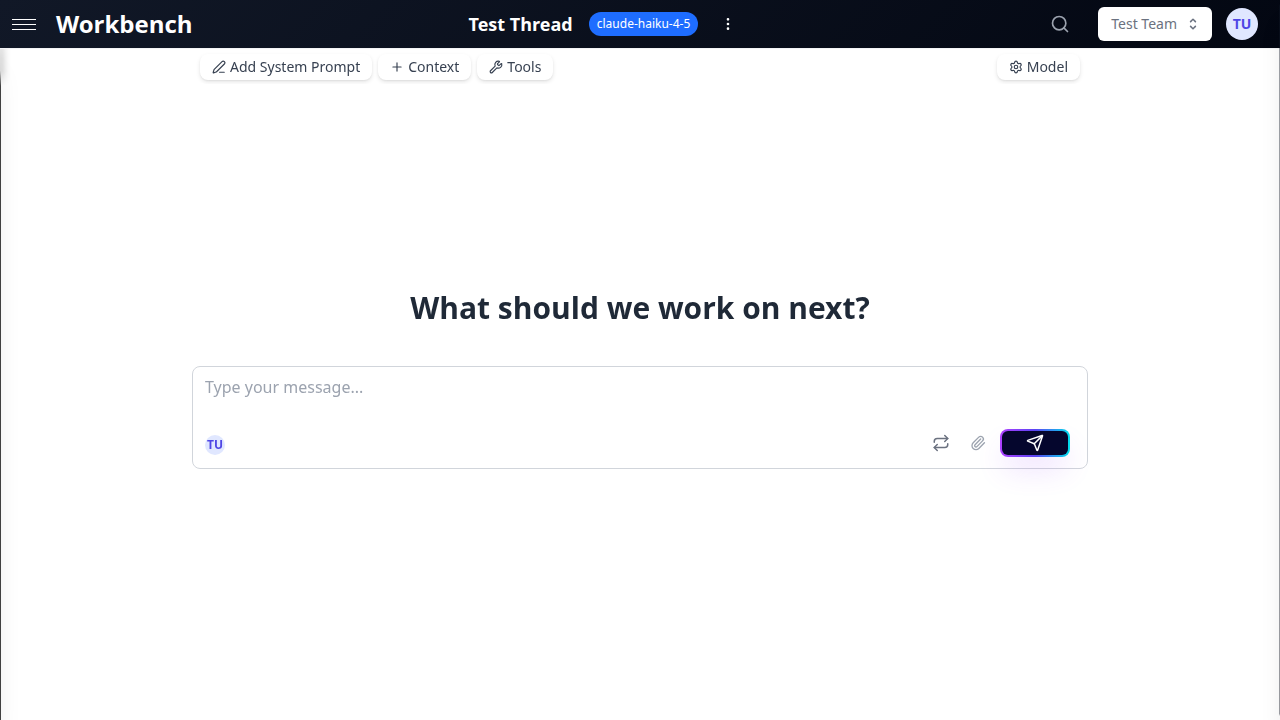
- Navigate to your Profile page
- Open the Integrations tab
- Locate the integration you want to connect
- Click Connect
- A popup window opens, redirecting you to the service's authorization page
- Sign in to your account on that service (if not already signed in)
- Review the permissions GPT Workbench is requesting
- Click Authorize (or the service's equivalent approval button)
- The popup closes automatically and GPT Workbench confirms the connection
Once connected, the integration's context blocks and tools become available in your threads immediately. There is no additional configuration required to start using them.
What Happens During Authorization
When you click Connect, GPT Workbench opens a popup that directs you to the service provider's own authorization page. You authenticate directly with the provider. GPT Workbench never sees your password. Upon approval, the provider issues an OAuth token that GPT Workbench stores securely. This token grants limited access based on the scopes you approved.
Managing Connections
All connected integrations are managed from a single location in your profile.
Viewing Connected Accounts
- Go to Profile > Integrations
- Each connected integration shows:
- The provider name and icon
- The account name or email used to connect
- The connection status (active or expired)
- The date the connection was established
Disconnecting an Integration
- Go to Profile > Integrations
- Click Disconnect next to the integration you want to remove
- Confirm the disconnection
Disconnecting removes the stored OAuth token. Any context blocks that depend on this connection will show an error until you reconnect. Thread configurations that reference tools from the disconnected integration will no longer function until the connection is restored.
Multiple Account Support
Some integrations support connecting multiple accounts simultaneously. This is particularly useful for agencies, consultancies, and organizations that manage multiple client accounts.
HubSpot is the primary integration that supports multiple accounts. You can connect several HubSpot portals, each representing a different client or business unit. When adding a HubSpot context block or selecting HubSpot tools, you choose which portal to use.
Other integrations currently support a single account per user. If you need to switch accounts, disconnect the current one and connect the new account.
Token Refresh and Expiration
Automatic Token Refresh
OAuth tokens have a limited lifespan, typically between one hour and several months depending on the provider. GPT Workbench handles token refresh automatically and transparently:
- Before making an API call to a connected service, the system checks whether the token is nearing expiration
- If the token is close to expiring, a refresh request is sent to the provider in the background
- The new token replaces the old one without any user intervention
- This process is invisible to users under normal circumstances
Expired Token Indicators
In rare cases, a token refresh may fail. This can happen when:
- The user revoked access on the provider's side (e.g., removed the app from HubSpot settings)
- The provider's refresh token has expired (some providers expire refresh tokens after extended periods of inactivity)
- The organization administrator changed OAuth app credentials
When a token has expired and cannot be refreshed, GPT Workbench displays a red error indicator on any context blocks or tools that depend on that connection. This indicator appears directly on the affected context blocks in the thread view, making it immediately visible.
To resolve an expired token:
- Go to Profile > Integrations
- The affected integration will show an "Expired" status
- Click Reconnect
- Complete the OAuth authorization flow again
- The connection is restored and the error indicators disappear
Organization Administration
Organization administrators are responsible for configuring the OAuth application credentials that enable integrations for all users.
Setting Up OAuth Apps
Before any user can connect an integration, an administrator must configure the OAuth application:
- Go to Organization Settings > Integrations
- For each integration, enter the required credentials:
- Client ID (from the service provider's developer console)
- Client Secret (from the service provider's developer console)
- Redirect URI (provided by GPT Workbench, to be registered with the provider)
- Save the configuration
Each provider has its own developer console where OAuth applications are created:
| Provider | Developer Console |
|---|---|
| HubSpot | HubSpot Developer Portal |
| Microsoft 365 | Azure AD App Registrations |
| Google Workspace | Google Cloud Console |
| SugarCRM | SugarCRM Administration Panel |
| Document360 | Document360 API Settings |
Permission Scopes
Each integration requests a specific set of permissions (scopes) from the provider. These scopes determine what data GPT Workbench can access. Administrators should review the requested scopes during OAuth app configuration to ensure they align with organizational security policies.
Scope details are documented on each integration's dedicated page.
Restricting Integrations
Organization administrators can enable or disable specific integrations at the organization level. When an integration is disabled:
- Users cannot initiate new connections
- Existing connections remain stored but become inactive
- Context blocks and tools for that integration are hidden from the interface
This allows administrators to control which external services are accessible within the organization.
Security Considerations
- No password storage. GPT Workbench never stores or transmits user passwords. All authentication is handled through OAuth with the service provider.
- Encrypted token storage. OAuth tokens are stored with encryption at rest. Tokens are scoped to the minimum permissions required.
- User-level connections. Each user manages their own integrations. One user's connection cannot be used by another user, even within the same team.
- Audit visibility. When the AI uses an integration tool (e.g., sending an email), the tool call is recorded in the thread's message history. Team members with access to the thread can see what actions were taken.
- Revocable access. Users can disconnect integrations at any time from their profile. Administrators can disable integrations at the organization level.
Related Documentation
- Context Blocks - How context blocks work across all types
- Tools Overview - Understanding native and MCP tools
- HubSpot Integration - HubSpot setup and features
- Microsoft 365 Integration - Microsoft 365 setup and features
- Google Workspace - Google Workspace setup and features
- Teams - Team management and permissions
- Admin Features - Organization administration