
System Prompts
System prompts are instructions that tell the AI how to behave in a thread. They define the AI's role, tone, formatting preferences, and constraints. GPT Workbench provides a multi-level system prompt architecture: thread-level prompts for individual conversations, team-level prompts inherited across all team threads, and an organization-wide prompt library for standardizing AI behavior at scale.
Overview
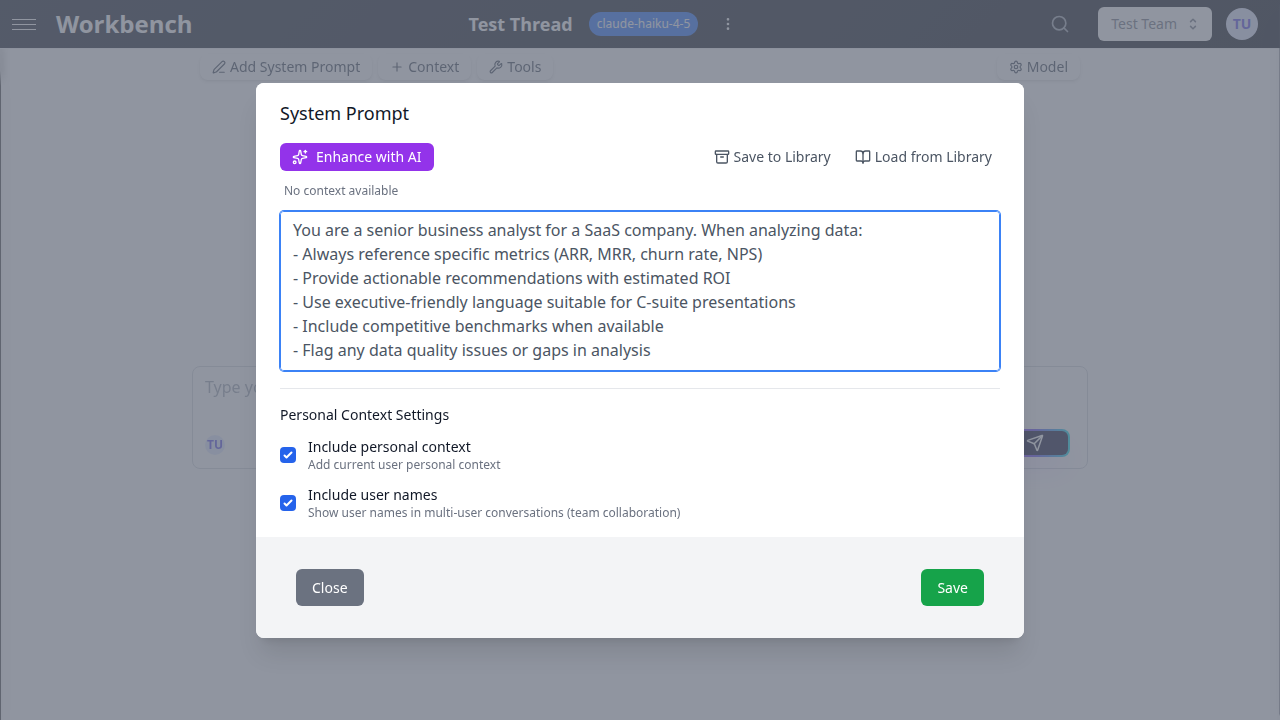
Every thread in GPT Workbench can have a system prompt. When you send a message, the system prompt is included at the beginning of the conversation context, before any messages or context blocks. This gives the AI persistent instructions that apply to every response in the thread.
System prompts are distinct from your messages. While messages represent the back-and-forth conversation, the system prompt acts as a standing directive that the AI follows throughout the entire thread.
Thread System Prompts
Editing the System Prompt
- Open a thread
- Click the System Prompt button in the thread header
- Write or paste your instructions in the auto-resizing textarea
- Click Save to apply
The editor supports Markdown formatting and automatically resizes as you type. You can paste content from web pages or rich text editors -- the editor converts HTML and RTF to Markdown automatically.
Team Prompt Inheritance
When a team administrator sets a system prompt in team settings, that prompt is automatically inherited by all threads created within the team. Inherited prompts are displayed in a read-only view with a blue banner indicating the source.
How inheritance works:
- A blue banner displays "Using team prompt from {teamName}"
- The prompt content appears in a read-only panel with a blue background
- Team members can view the prompt but cannot edit it directly
- All new threads in the team automatically receive this prompt
Overriding a Team Prompt
To customize an inherited prompt for a specific thread:
- Open the system prompt editor
- Click the Override button in the blue inheritance banner
- The team prompt content loads into an editable textarea
- Modify the prompt as needed
- Click Save to apply the override
Once overridden, the thread uses your custom prompt instead of the team default. You can revert at any time by clicking Reset to team default, which clears the thread-level override and restores the inherited team prompt.
Enhancing with AI
The Enhance with AI button (purple, with a Sparkles icon) uses the current thread context to improve your system prompt. This feature analyzes your attached context blocks, documents, and conversation history to suggest refinements.
How it works:
- Write a draft system prompt (even a rough outline)
- Click Enhance with AI
- The AI analyzes your thread context and rewrites the prompt
- Review the enhanced version in the editor
- Edit further or save directly
Requirements:
- The thread must have content or context blocks attached
- A context summary appears below the button showing what the AI will reference
- The button is disabled when no content or context is available
When to use it:
- You have a rough idea of the AI's role but want more structured instructions
- You want the prompt optimized for the specific context blocks attached to the thread
- You are onboarding a new team member and want to generate a starting prompt from existing team context
System Prompt Library
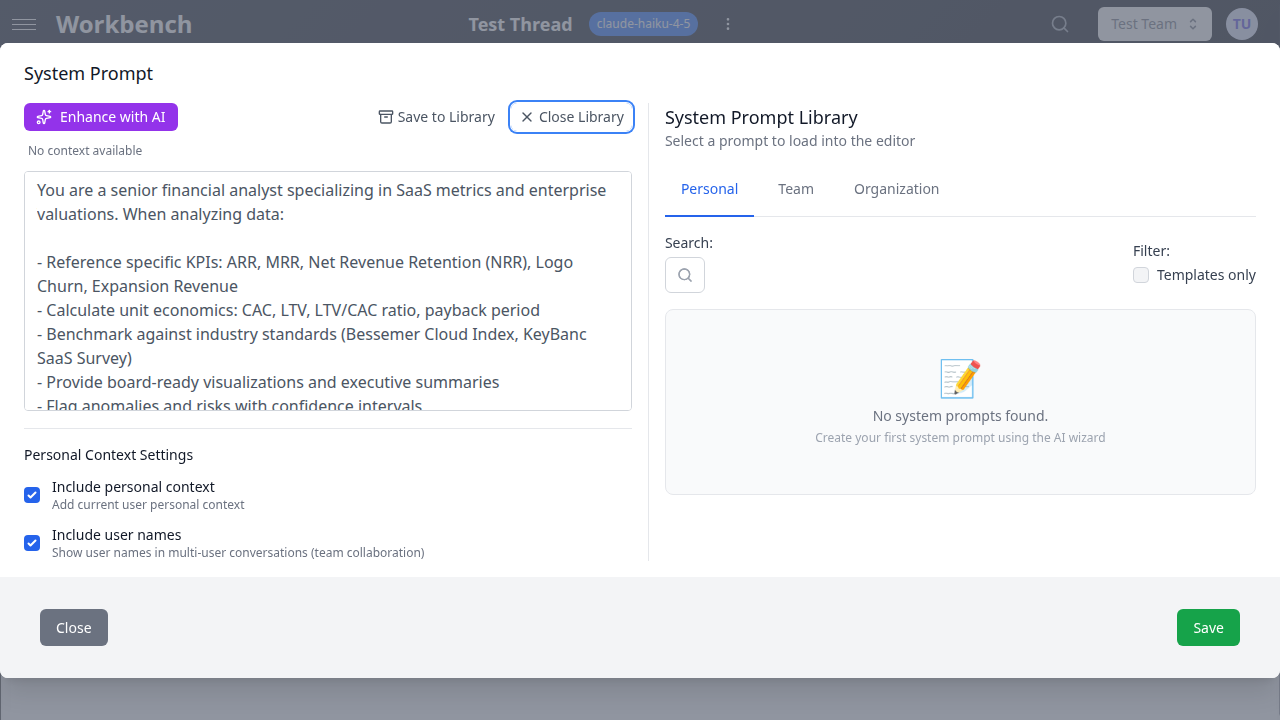
The library lets you save, organize, and reuse system prompts across threads. Access it from the system prompt editor using the Save to Library and Load from Library buttons.
Saving a Prompt
- Write or refine a system prompt in the editor
- Click Save to Library
- Enter a title and optional description
- Select a scope: Personal, Team, or Organization
- Optionally mark it as a template for easy filtering
- Click Save
Saved prompts retain their full content and metadata. You can update an existing saved prompt by editing it from the library.
Loading a Prompt
- Click Load from Library to open the library panel alongside the editor
- Browse or search for a prompt
- Click on a prompt to select it
- If you have unsaved changes, a confirmation dialog appears before replacing content
- The prompt content loads into the editor for further customization
Managing Your Library
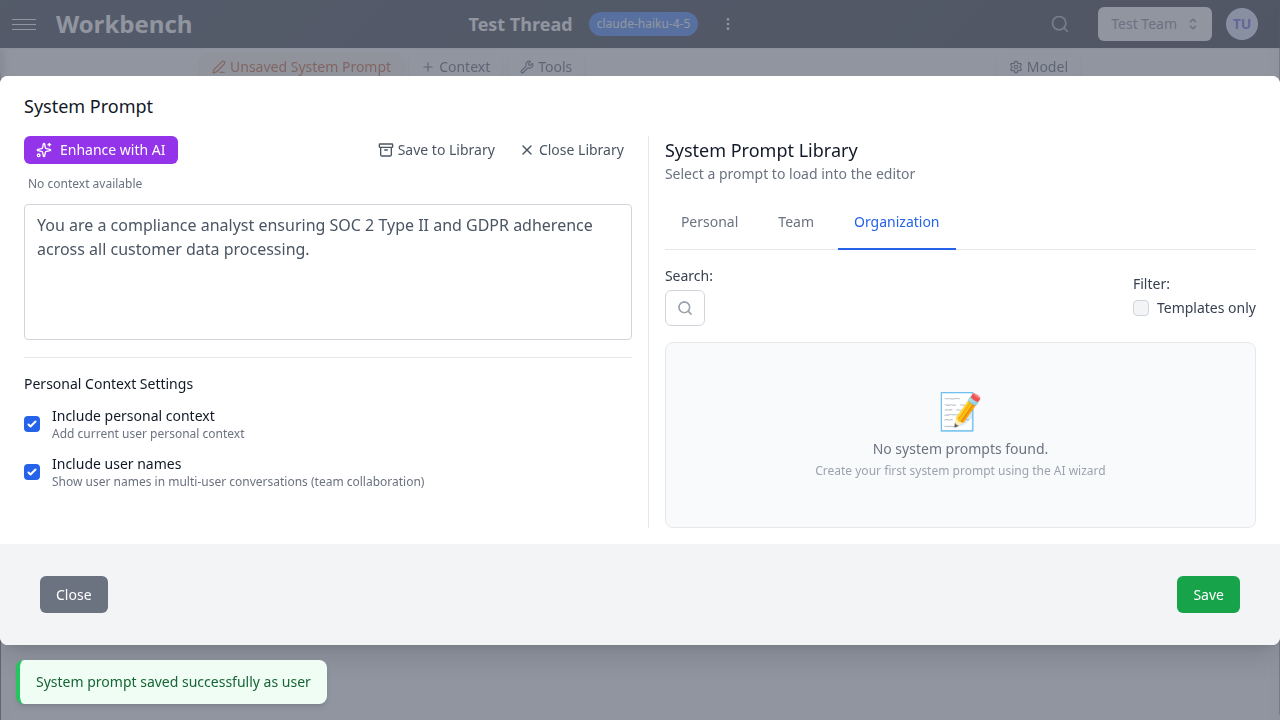
The library panel provides several management features:
Tabs: Switch between Personal, Team, and Organization scopes using the tab navigation at the top of the library panel.
Search: Click the search icon to expand the search field. Search matches against prompt titles, descriptions, and content.
Template filter: Check "Templates only" to show prompts marked as templates, filtering out one-off saved prompts.
Team filter: When viewing the Team tab, use the team dropdown to filter prompts by a specific team or view all teams at once.
Actions on each prompt:
- Preview: Toggle the eye icon to expand or collapse the full prompt content
- Edit: Click the pencil icon to modify the title, description, scope, or content
- Delete: Click the trash icon and confirm to permanently remove the prompt
Each prompt entry displays metadata including the author name, last updated date, scope badge, and team name (for team-scoped prompts).
Scope and Visibility
System prompts in the library follow a three-tier scope model that mirrors the organization hierarchy.
Personal Prompts
Scope: USER
- Visible only to the user who created them
- Ideal for individual workflows, personal templates, and experimentation
- Not shared with any team or organization member
Team Prompts
Scope: TEAM
- Visible to all members of the selected team
- Useful for standardizing AI behavior within a department or project group
- Only team members can view and load these prompts
- Team admins can edit and delete team-scoped prompts
Organization Prompts
Scope: ORGANIZATION
- Visible to all members of the organization
- Designed for company-wide standards: compliance instructions, brand voice guidelines, security policies
- Organization admins manage these prompts
- Ensure consistent AI behavior across all teams and users
Personal Context Settings
Below the system prompt editor, two checkboxes control how personal context is injected into the conversation.
Include personal context: When enabled, the current user's personal context (set in profile settings) is appended to the system prompt. This is useful for providing the AI with information about your role, preferences, or working style without repeating it in every prompt.
Include user names: When enabled, user names are included in multi-user conversations. This helps the AI distinguish between different team members contributing to the same thread. Particularly useful in team collaboration scenarios where multiple users send messages in the same thread.
Both settings are saved per-thread, allowing you to enable personal context for team collaboration threads while disabling it for quick personal queries.
Prompt Examples by Role
These examples illustrate effective system prompts for common business scenarios:
Sales Pipeline Analyst:
You are a senior sales analyst reviewing quarterly pipeline health.
When analyzing deal data:
- Reference specific metrics: ARR, MRR, win rate, average deal cycle
- Flag at-risk deals with concrete reasons (stalled stages, missing contacts)
- Provide actionable next steps for each risk category
- Format output as an executive summary followed by a detailed deal table
Compliance Reviewer:
You are a compliance officer reviewing documents against regulatory requirements.
Rules:
- Never approve content that lacks required disclosures
- Flag ambiguous language that could create liability
- Reference specific regulation sections (GDPR Article X, SOC 2 Type II)
- Output a compliance checklist with pass/fail status for each requirement
Technical Documentation Writer:
You are a senior technical writer creating API documentation.
Standards:
- Use clear, concise language suitable for developers
- Include request/response examples for every endpoint
- Document error codes and edge cases
- Follow the OpenAPI specification structure
- Keep explanations under 3 sentences per concept
Best Practices
Be specific about the role. Instead of "You are a helpful assistant," write "You are a senior financial analyst specializing in SaaS metrics. Reference ARR, MRR, churn rate, and NRR in your analyses."
Include formatting requirements. Specify whether the AI should use bullet points, tables, Markdown headers, or plain text. This reduces iteration.
Set constraints explicitly. If the AI should avoid certain topics, refuse to speculate, or stay within a word limit, state it in the system prompt.
Use the Enhance with AI feature after attaching context. The enhancement works best when the thread has relevant context blocks, giving the AI material to reference when refining the prompt.
Save reusable prompts to the library. If you find yourself writing similar prompts for different threads, save the template once and load it as needed.
Use team-scoped prompts for consistency. When multiple team members work on similar tasks (deal analysis, code review, content writing), a shared team prompt ensures uniform AI behavior.
Override rather than duplicate. When a team prompt is close but not quite right for a specific thread, override it and adjust rather than writing a new prompt from scratch.
Keep prompts focused. A system prompt that tries to cover too many scenarios becomes less effective. Create separate templates for different use cases.
Review organization prompts periodically. As business processes evolve, update organization-wide prompts to reflect current standards and compliance requirements.
Test prompts in console mode. Use console mode to experiment with prompt variations before committing to a final version. This avoids cluttering conversation history while iterating.
Related Documentation
- Threads - Core thread features and conversation modes
- Context Blocks - Attach data that enhances system prompt effectiveness
- Teams - Team settings and administration
- Thread Templates - Save complete thread configurations including system prompts
- Permissions - Access control for shared prompts