
Google Workspace Integration
Connect Google Workspace to access Gmail, Drive, Calendar, and Docs directly from your AI conversations.
Overview
The Google Workspace integration connects GPT Workbench to your Google ecosystem. Context blocks pull files from Google Drive into the AI's context, allowing it to reference your documents, spreadsheets, and presentations throughout a conversation. Tools give the AI the ability to search and send emails through Gmail, browse and manage Drive files, interact with Google Calendar, and read or edit Google Docs in real time.
This integration authenticates through Google Cloud OAuth 2.0. GPT Workbench requests only the permissions necessary for the capabilities you enable, and all tool interactions are logged in the thread's message history for full transparency.
Setup
Prerequisites
Before connecting Google Workspace, ensure:
- Your organization administrator has configured the Google Cloud OAuth app credentials in Organization Settings > Integrations
- You have a Google Workspace account (or a personal Google account with the relevant services enabled)
- Your Google Workspace administrator allows third-party application access (or has pre-approved the application)
Connecting Your Account
- Go to Profile > Integrations
- Locate Google Workspace in the integrations list
- Click Connect
- A popup opens with the Google sign-in page
- Select your Google account (or enter your credentials)
- Review the permissions being requested
- Click Allow
- The popup closes and GPT Workbench confirms the connection
The connection is immediate. Google Drive context blocks and Google Workspace tools become available in your threads right away.
Required Permissions
GPT Workbench requests the following Google API scopes:
| Scope | Purpose |
|---|---|
| gmail.readonly | Read Gmail messages and threads |
| gmail.send | Send emails on your behalf |
| drive.readonly | Read files and folders in Google Drive |
| calendar.readonly | Read calendar events and free/busy information |
| calendar.events | Create and modify calendar events |
| documents.readonly | Read Google Docs content |
| documents | Edit Google Docs content |
| spreadsheets.readonly | Read Google Sheets data |
Your Google Workspace administrator may restrict which third-party applications can request these scopes. If you encounter access errors during connection, contact your administrator.
Context Blocks
Google Workspace context blocks pull files from Google Drive into the AI conversation. Google-native formats (Docs, Sheets, Slides) are automatically exported to text. Other file types are downloaded and processed through the standard document extraction pipeline.
Adding a Google Drive Context Block
- Open your thread
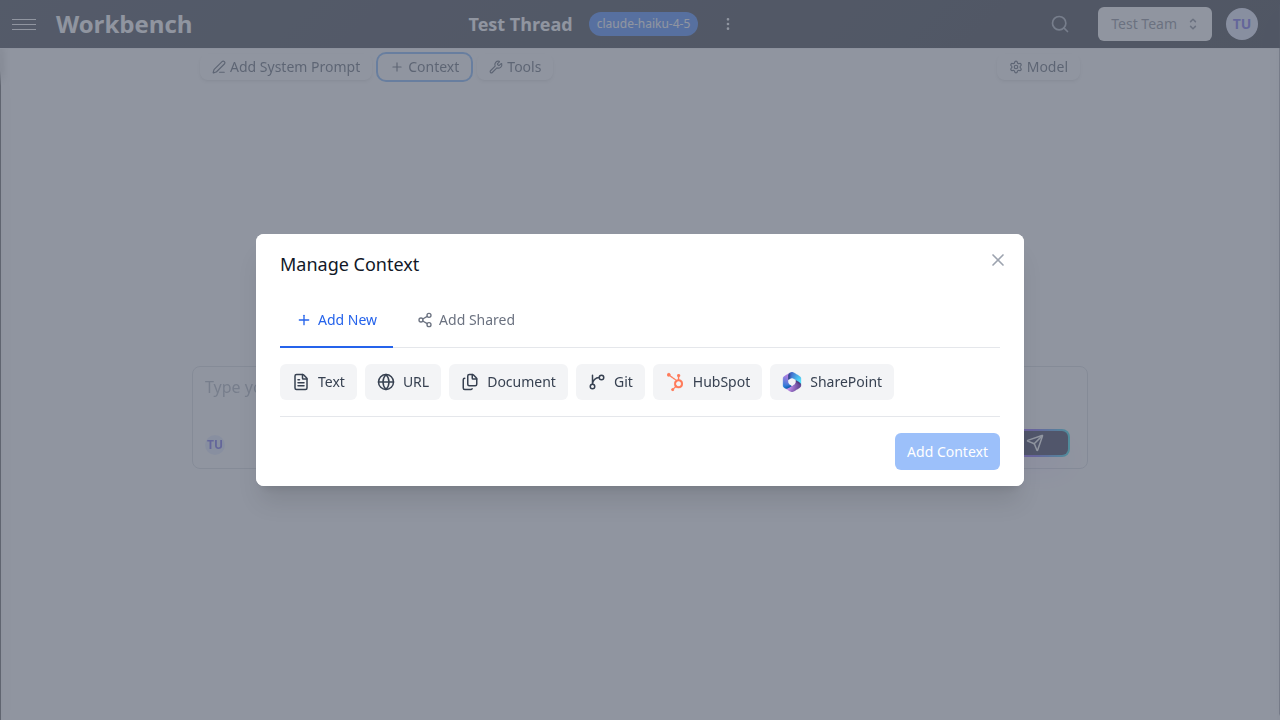
- Click Manage Context
- Go to the Add New tab
- Click Google Drive
- Browse your Drive folders or use the search bar to find files
- Select one or more files from the results
- Optionally configure the cache duration
- Click Add Context
Supported File Formats
| Format | Extraction Method |
|---|---|
| Google Docs | Exported to plain text with structure preservation |
| Google Sheets | Exported to CSV with all sheet data |
| Google Slides | Exported to plain text with slide-by-slide content |
| Text extraction with OCR fallback for scanned documents | |
| DOCX | Full text extraction with formatting structure |
| XLSX | Spreadsheet data converted to structured text |
| TXT, CSV, JSON | Direct text inclusion |
Google-native formats benefit from direct API export, which preserves document structure more accurately than file downloads. Comments, suggestions, and revision metadata are not included in the export by default.
Cache Duration
Google Drive files are fetched and cached for a configurable period. After the cache expires, files are re-fetched on the next thread interaction.
| Duration | Use Case |
|---|---|
| 1 hour | Actively edited documents (collaborative Docs, live Sheets) |
| 24 hours | Standard documents (reports, proposals, specifications) |
| 7 days | Reference materials (completed documentation, archived files) |
Shared Drive Support
Files from Google Shared Drives (formerly Team Drives) are accessible through the same context block interface. When browsing, Shared Drives appear alongside your personal Drive folders. Access depends on your permissions within the Shared Drive.
Available Tools
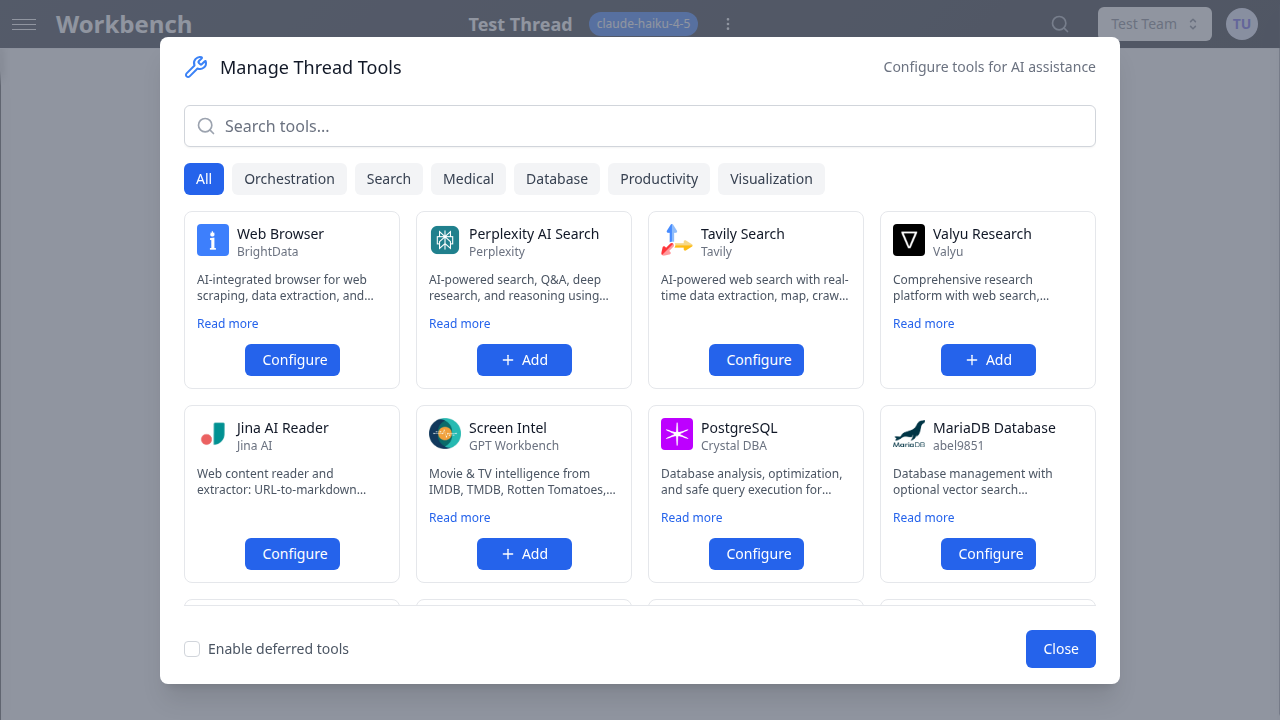
When Google Workspace tools are enabled in a thread, the AI can interact with your Google ecosystem during a conversation. Tools allow dynamic operations that go beyond static file context.
Enabling Google Workspace Tools
- Open your thread
- Click the Tools configuration
- Locate the Google Workspace tools section
- Enable the specific tools you want the AI to have access to
Gmail
Reading Emails
- Search emails using Gmail's full query syntax (sender, subject, date, labels, has:attachment)
- Read complete email threads with all replies
- Access email metadata (timestamps, recipients, labels)
- View attachment names and types
Sending Emails
- Compose and send new emails with formatted body text
- Reply to existing email threads
- Set recipients (To, CC, BCC)
- Reference Drive files in email body
Important: When the AI drafts an email, the tool call and email content are displayed in the thread before sending. In Console Mode, you must explicitly approve the send action. In Chat Mode, the AI will ask for confirmation before sending.
Google Drive
File Search
- Search across your entire Drive by filename or content
- Filter by file type (documents, spreadsheets, presentations, PDFs)
- Filter by modification date, owner, or shared status
- Search within specific folders or Shared Drives
File Operations
- Read file contents directly during a conversation
- List folder contents to browse your Drive hierarchy
- Access file metadata (owner, last modified, sharing settings, version history)
File Management
- Create new Google Docs with specified content
- Update existing document content
- Organize files into folders
Google Calendar
Viewing Events
- List events for a specific date range
- Check free/busy times for scheduling
- View event details including attendees, location, video conference links, and description
- Access recurring event patterns and exceptions
Creating Events
- Schedule new events with title, time, duration, and description
- Add attendees by email address
- Set reminders and notification preferences
- Configure recurrence patterns (daily, weekly, monthly)
- Add Google Meet video conferencing to events
Modifying Events
- Update event details (time, description, attendees)
- Cancel or delete events
- Respond to event invitations (accept, decline, tentative)
Google Docs
Reading Documents
- Access full document content with formatting structure
- Read comments and suggested edits
- View document outline and headings
- Access revision history summaries
Editing Documents
- Insert text at specified positions
- Replace content within the document
- Add comments to specific sections
- Apply formatting changes
Use Cases
Email Management
Enable Gmail tools and ask the AI to:
- Search for all emails from a client over the past month and summarize the key topics discussed
- Draft a professional response to a prospect inquiry, using Drive documents as reference material
- Identify unread emails that require urgent action based on sender and subject patterns
- Compose a newsletter or announcement email for team distribution
Document Collaboration
Add Google Docs as context blocks or enable Docs tools to:
- Review a draft document and suggest improvements for clarity, tone, and structure
- Compare the content of two Google Docs to identify differences
- Extract action items from meeting notes stored in Google Docs
- Create a new document summarizing key points from multiple source documents
Meeting Scheduling
Combine Calendar and Gmail tools to:
- Check availability for multiple attendees and propose meeting times
- Create a calendar event with agenda items derived from an email thread
- Draft and send a meeting invite with context from related Drive documents
- Prepare a pre-meeting brief by gathering calendar details, related emails, and shared documents
Project Research
Use multiple Google Workspace capabilities together:
- Search Drive for project-related files, read their contents, and create a consolidated summary
- Find emails related to a project milestone and cross-reference with calendar deadlines
- Review Docs comments and suggestions from team members, then compile feedback into a report
- Search Gmail for client feedback, match it with internal documents, and identify gaps
Content Creation
Combine Drive context with Docs editing:
- Analyze existing marketing content in Drive and draft new material in a consistent style
- Review a Google Sheet of product data and generate formatted product descriptions in a new Doc
- Read a presentation outline in Slides and expand it into a full Google Doc brief
- Summarize a research paper (PDF in Drive) and create a one-page executive summary in Docs
Configuration
Per-Thread Tool Selection
Each thread can have a different set of Google Workspace tools enabled. This allows you to:
- Enable only Gmail tools for email-focused threads
- Enable only Drive tools for document analysis threads
- Enable all tools for comprehensive research and action threads
Limiting the enabled tools reduces token consumption and helps the AI focus on the relevant capabilities.
Organization-Level Controls
Organization administrators can configure:
- Available capabilities -- Enable or disable specific tool categories (Gmail, Drive, Calendar, Docs) for the entire organization
- Usage policies -- Set guidelines for email sending and document editing
- Domain restrictions -- Limit which Google Workspace domains are accessible through the integration
Best Practices
- Use specific search queries. Gmail supports advanced search operators. "From:john@example.com subject:proposal after:2026/01/01" is more effective than "Find emails about the proposal."
- Reference files by name. When asking the AI to work with Drive files, use the exact filename or a distinctive portion of it. "Open the Q4 Revenue Forecast spreadsheet" is better than "Find the spreadsheet."
- Combine capabilities for richer results. "Check my calendar for tomorrow, find related documents in Drive, and draft a preparation email" leverages multiple tools in a single request.
- Review AI-composed emails before sending. Always verify recipients, tone, and factual accuracy. The AI may infer recipients or context incorrectly.
- Set appropriate cache durations for Drive files. Collaborative documents that change frequently should use short cache durations. Reference materials can use longer durations.
- Use context blocks for deep analysis. When you need the AI to reference a document repeatedly throughout a conversation, add it as a context block rather than using the Drive read tool. Context blocks persist; tool reads are one-time fetches.
- Be explicit with calendar operations. Provide exact dates, times, and time zones when creating or modifying events. Ambiguous instructions ("schedule something next week") can lead to unexpected results.
Troubleshooting
Connection Issues
"Connection expired" error Your Google OAuth token has expired. Go to Profile > Integrations and click Reconnect on your Google Workspace connection.
"Access blocked: This app's request is invalid" Your Google Workspace administrator may have blocked third-party application access. Contact your IT administrator to allow the GPT Workbench application in the Google Workspace Admin Console under Security > API controls.
Cannot access Shared Drive files Shared Drive permissions are separate from personal Drive permissions. Verify that you have at least Viewer access to the Shared Drive containing the files you want to access.
Tool Issues
Gmail search returns unexpected results Gmail search uses its own query syntax, which differs from natural language. If the AI's search query is not finding the right emails, try providing more specific criteria (exact sender email, date range, labels).
Google Docs editing fails Document editing requires the documents scope (not just documents.readonly). If editing operations fail, reconnect the integration and ensure you approve the full set of requested permissions.
Calendar shows wrong time zone Calendar events are displayed in the time zone of the calendar's default setting. If events appear at incorrect times, verify your calendar's time zone in Google Calendar settings.
Related Documentation
- Integration Overview - How integrations work in GPT Workbench
- Context Blocks - Managing context blocks across all types
- Tools Overview - Understanding native and MCP tools
- Documents - Document upload and management