
Context Blocks
Context blocks allow you to inject structured data into your AI conversations. Rather than pasting information into every message, context blocks persist across the entire thread and are included automatically with each request. They are the primary mechanism for grounding AI responses in your business data.
Overview
Every thread in GPT Workbench can have multiple context blocks attached. When you send a message, the system assembles a complete prompt that includes your system prompt, all attached context blocks, the conversation history, and your current message. Context blocks sit between the system prompt and the conversation, giving the AI persistent access to reference material.
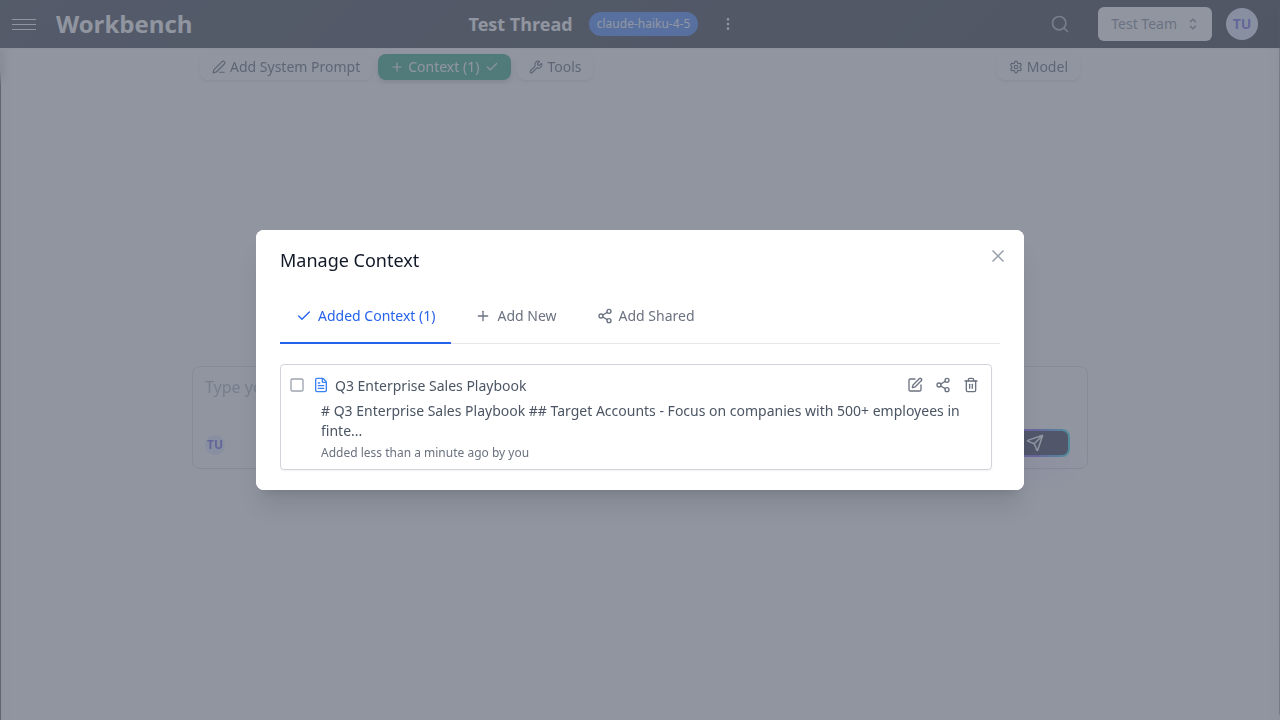
Key concepts:
- Context blocks are reusable across threads
- They can be shared with teams or your entire organization
- Each block consumes tokens from your model's context window
- Blocks are processed in order (drag to reorder)
- Team administrators can set auto-contexts that apply to all team threads
Types of Context Blocks
Text
Plain text blocks for any custom content. When you paste HTML or rich text (from a website, email client, or word processor), GPT Workbench automatically converts it to clean Markdown.
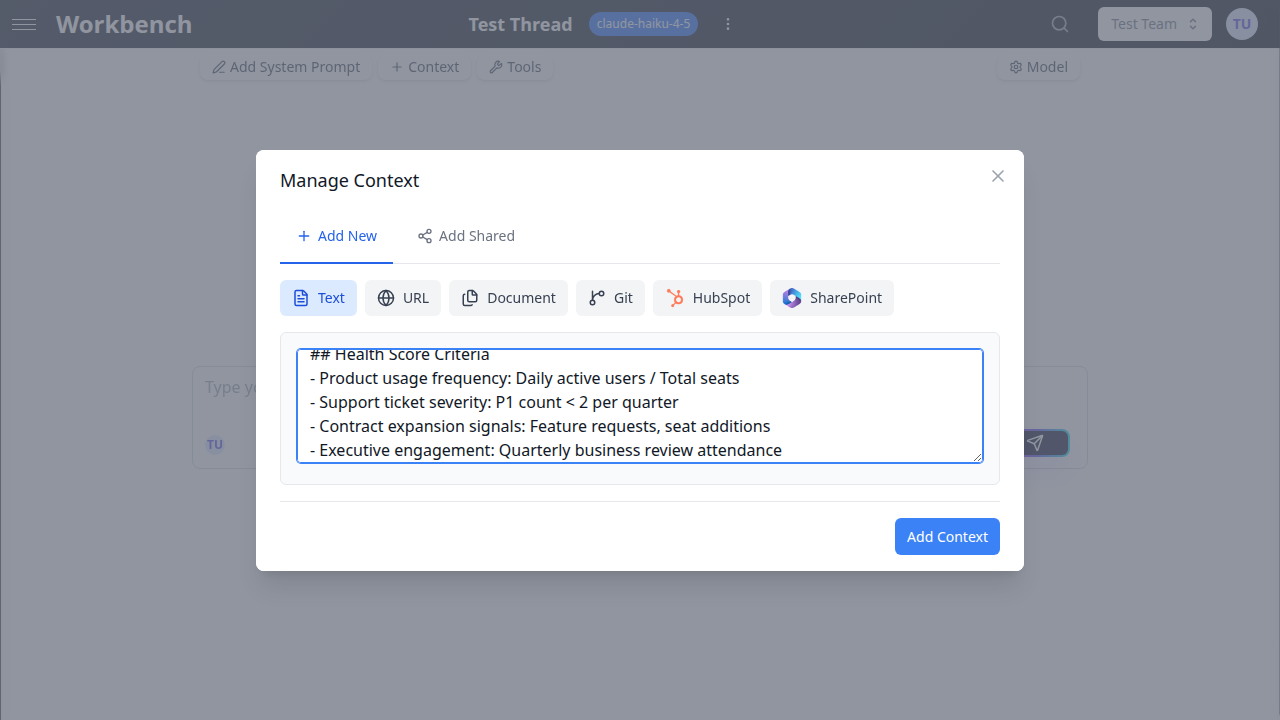
Use cases:
- Company guidelines and policies
- Meeting notes and summaries
- Code snippets or technical specifications
- Sales playbooks and talking points
- Any freeform reference material
How to add:
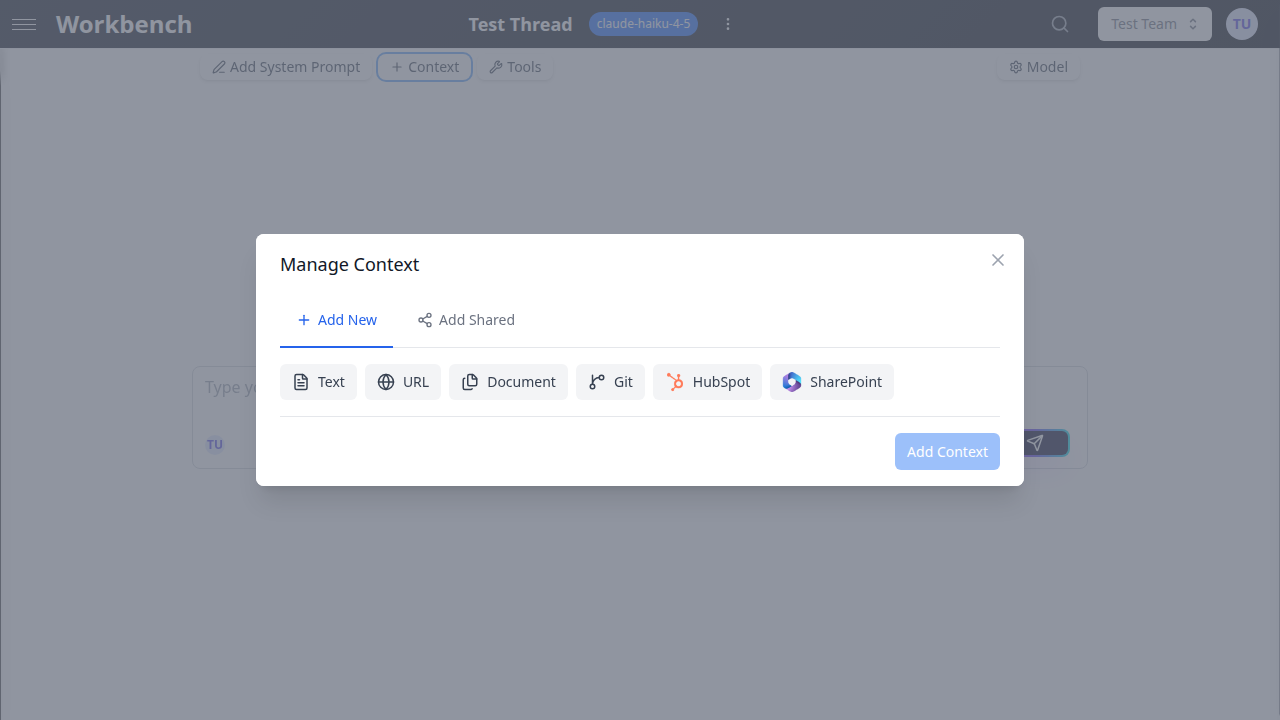
- Open Manage Context in your thread
- Go to the Add New tab
- Click Text
- Enter a descriptive title
- Paste or type your content
- Click Add Context
Large text detection: If your text block exceeds approximately 1,000 tokens (~4,000 characters), GPT Workbench displays a warning with the option to summarize the content automatically. This helps you manage token consumption without losing key information.
URLs
Web page context blocks scrape and extract the text content of one or more URLs. Each URL should be on its own line.
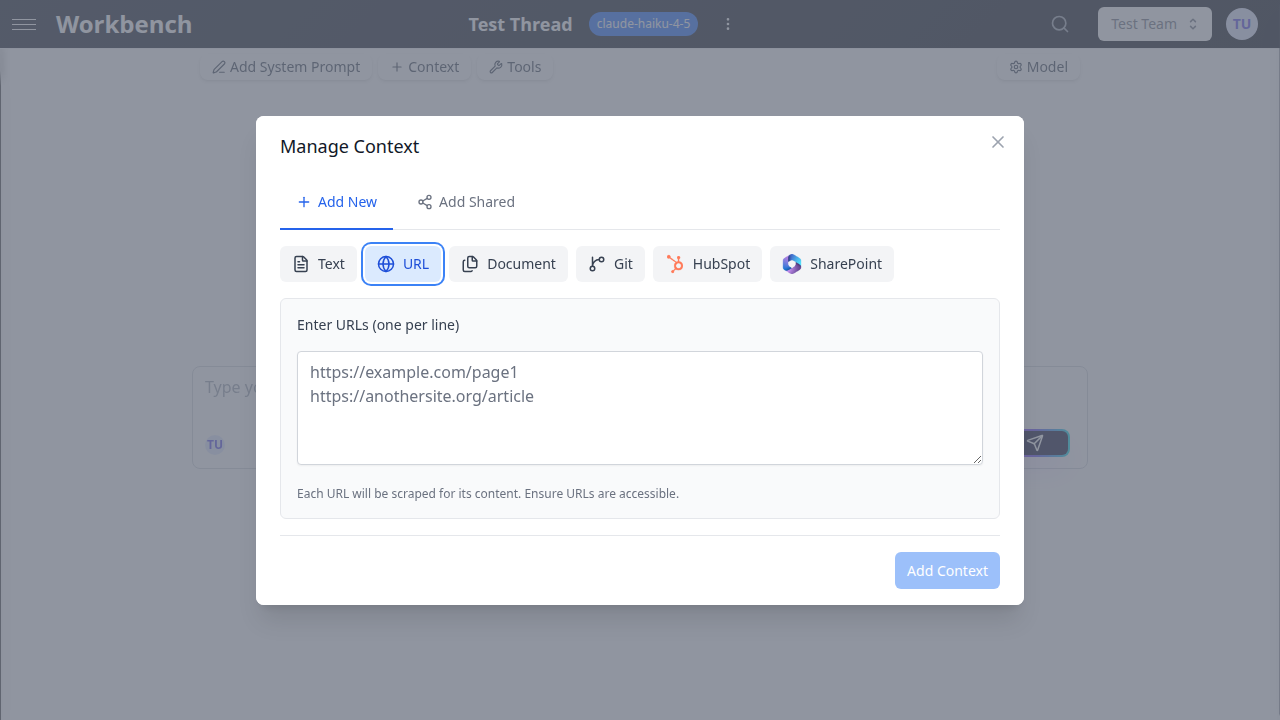
Use cases:
- Product documentation pages
- Competitor websites for analysis
- API references
- News articles for summarization
How to add:
- Open Manage Context and go to Add New
- Click URL
- Enter a title for the context block
- Paste one URL per line
- Click Add Context
The system automatically scrapes each URL, extracts the text content, and converts HTML to clean text. Content is fetched fresh each time the thread is used, so the AI always works with the latest version of the page.
Documents
Upload files to include their extracted content in the conversation. GPT Workbench supports a wide range of formats.
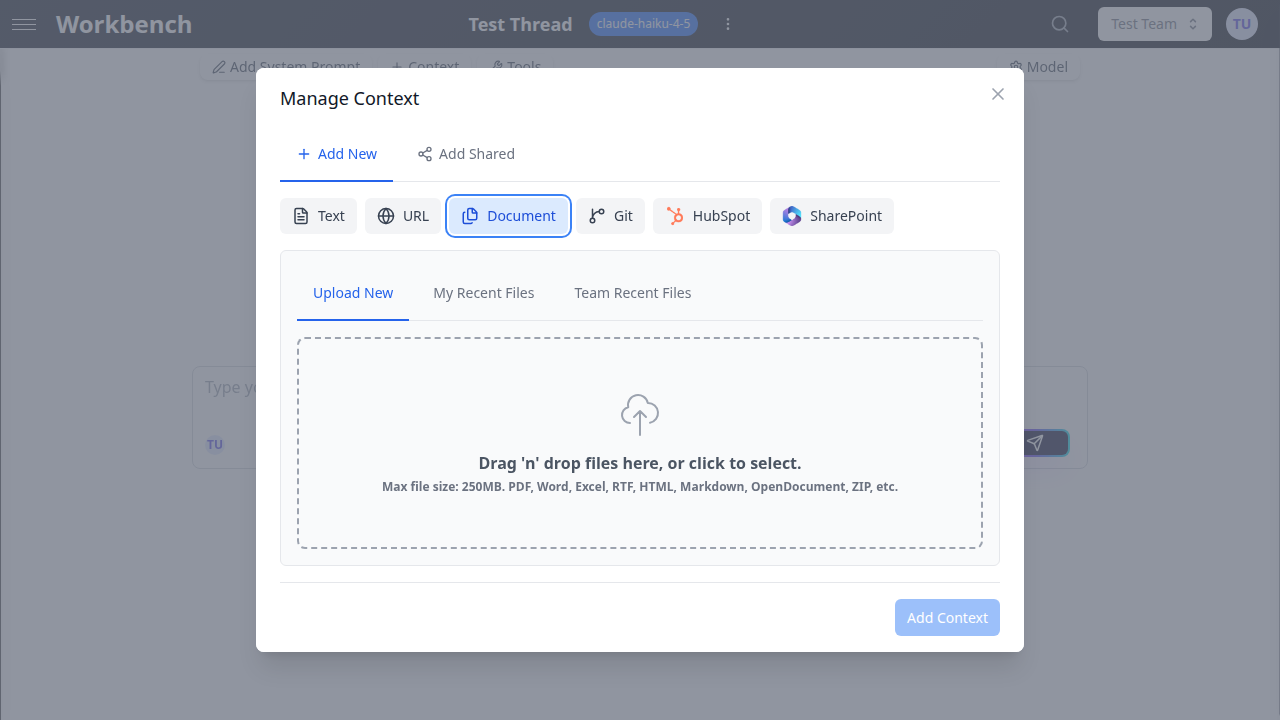
Supported formats:
- Documents: PDF, DOCX, TXT, CSV, JSON, XML, YAML
- Spreadsheets: XLSX (Excel), CSV
- Presentations: PPTX (PowerPoint)
- Images: PNG, JPG, WEBP (requires a vision-capable model)
- Code files: Any plain text source code
How to add:
- Open Manage Context and go to Add New
- Click Document
- Drag and drop files or click to browse
- Wait for upload and text extraction to complete
- Click Add Context
Large document handling: When a document exceeds the token threshold, a warning appears with a Summarize button. Clicking it uses AI to create a condensed version that preserves key information while reducing token usage. You can also choose Keep Original to use the full content.
Repositories
Connect Git repositories to give the AI access to your codebase. Repository context blocks support branch selection and path filtering, so you can include only the relevant parts of your project.
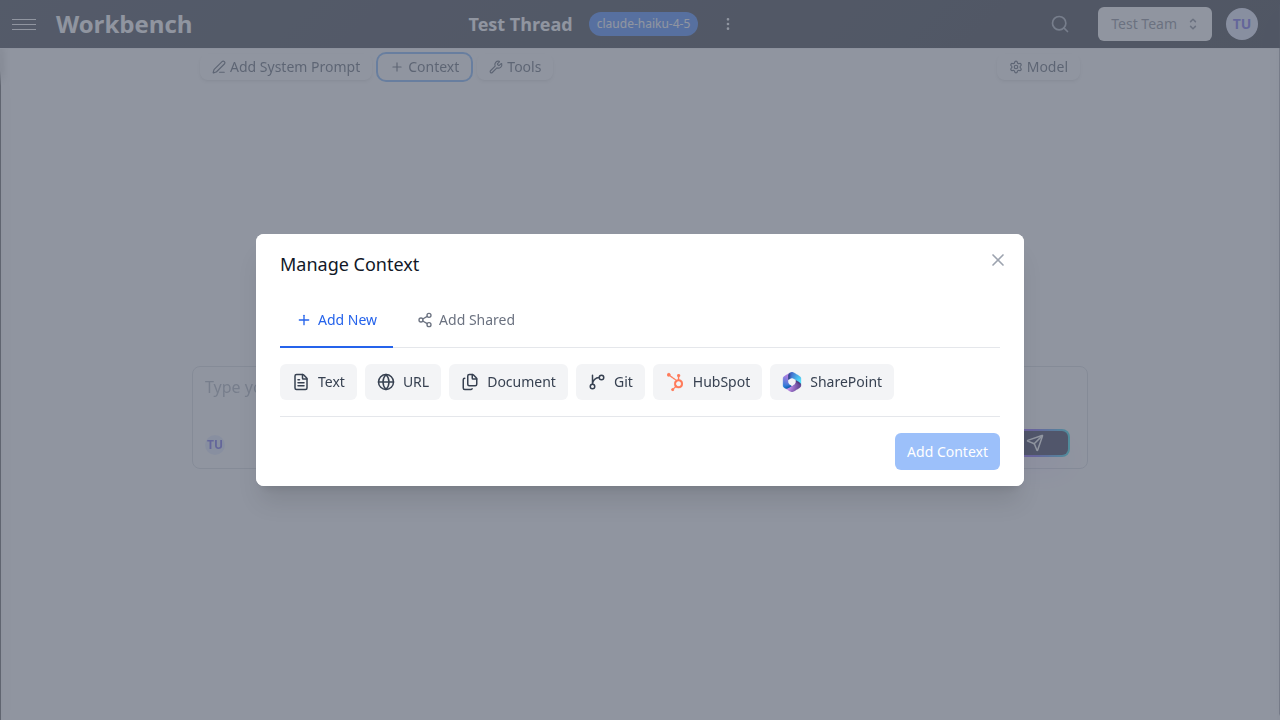
How to add:
- Open Manage Context and go to Add New
- Click Git
- Enter the repository URL (HTTPS or SSH)
- Select the branch to use
- Optionally set path include/exclude filters (e.g.,
src/to include only source code) - Click Add Context
Path filtering best practices:
- Include only the directories relevant to your task (e.g.,
src/modules/auth/) - Exclude build artifacts, dependencies, and generated files (e.g.,
node_modules/,dist/) - Use multiple patterns separated by newlines
Repository content is fetched and cached. The AI receives a structured representation of the file tree and contents for the matching paths.
HubSpot
Connect HubSpot CRM data directly to your threads. This integration requires an active HubSpot OAuth connection.
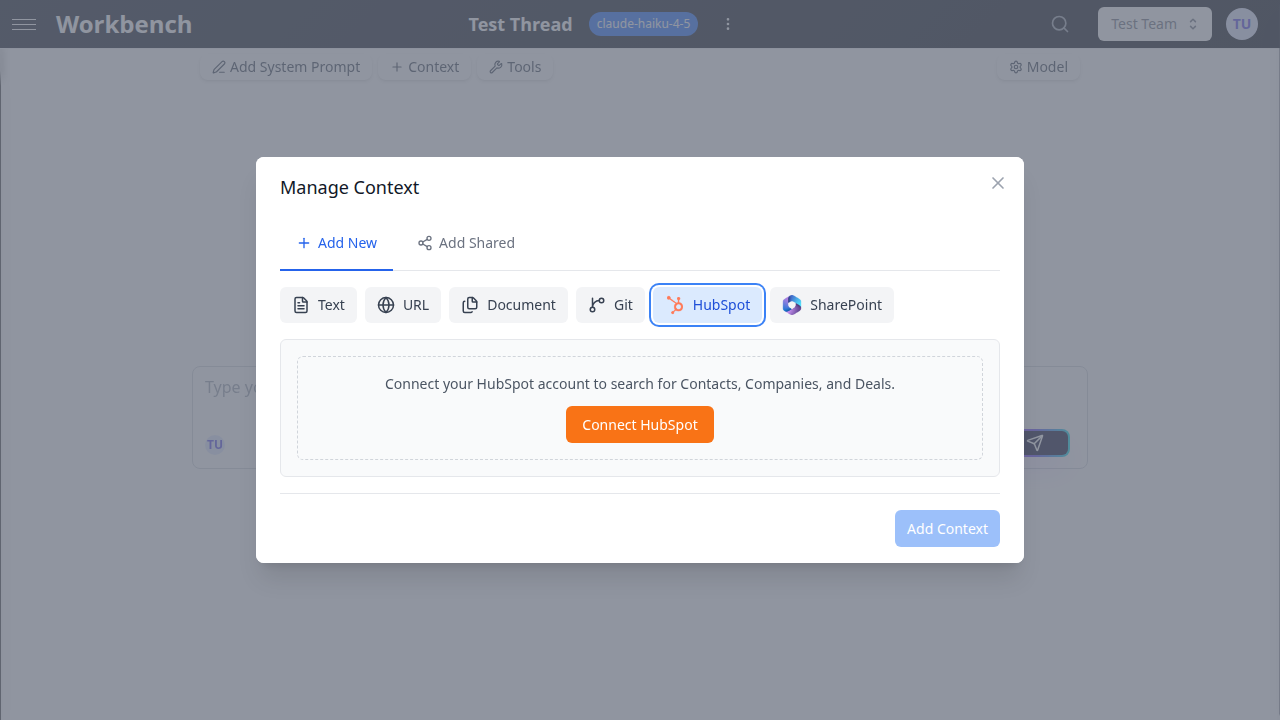
Available CRM objects:
- Contacts
- Companies
- Deals
How to add:
- Ensure your HubSpot account is connected via Settings > Integrations
- Open Manage Context and go to Add New
- Click HubSpot
- Select the HubSpot portal to use
- Search and select CRM objects (contacts, companies, or deals)
- Optionally set a cache duration (how long to keep fetched data before refreshing)
- Click Add Context
Cache duration: HubSpot data is fetched when the context block is first used and cached for the configured period. Set a short duration (1-2 hours) for rapidly changing data like deal stages, or a longer duration (24+ hours) for stable data like company profiles.
SugarCRM
Connect SugarCRM module records to your threads. This integration requires an active SugarCRM OAuth connection.
How to add:
- Ensure your SugarCRM account is connected via Settings > Integrations
- Open Manage Context and go to Add New
- Click SugarCRM
- Search and select module records
- Optionally set a cache duration
- Click Add Context
SugarCRM context blocks work identically to HubSpot blocks. Each selected record's data is fetched from your SugarCRM instance and formatted for AI consumption.
SharePoint (Microsoft 365)
Access files stored in SharePoint and OneDrive through your Microsoft 365 connection.
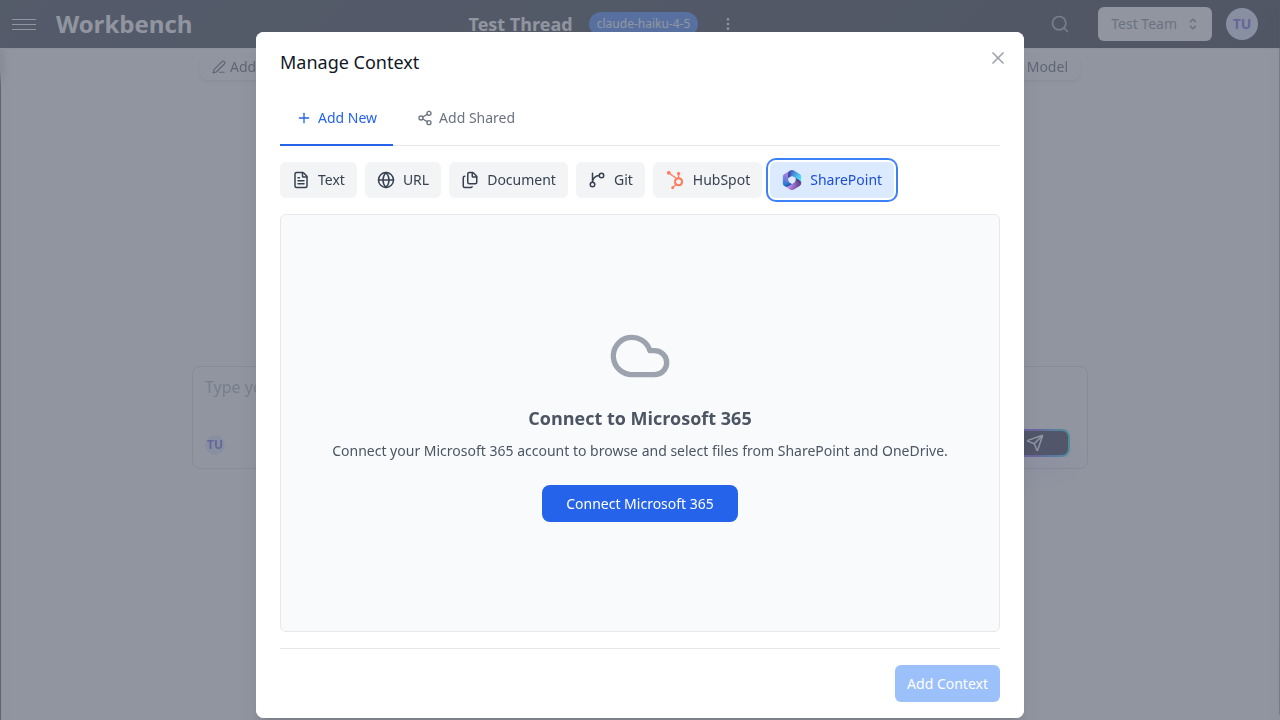
How to add:
- Ensure your Microsoft 365 account is connected via Settings > Integrations
- Open Manage Context and go to Add New
- Click SharePoint
- Browse your SharePoint sites and document libraries
- Select files to include
- Optionally set a cache duration
- Click Add Context
Selected files are downloaded and their content is extracted using the same pipeline as document uploads (PDF extraction, DOCX parsing, etc.). The cache duration controls how often files are re-downloaded from SharePoint.
Google Drive
Access files from your Google Workspace account, including Google Docs, Sheets, Slides, and uploaded files.
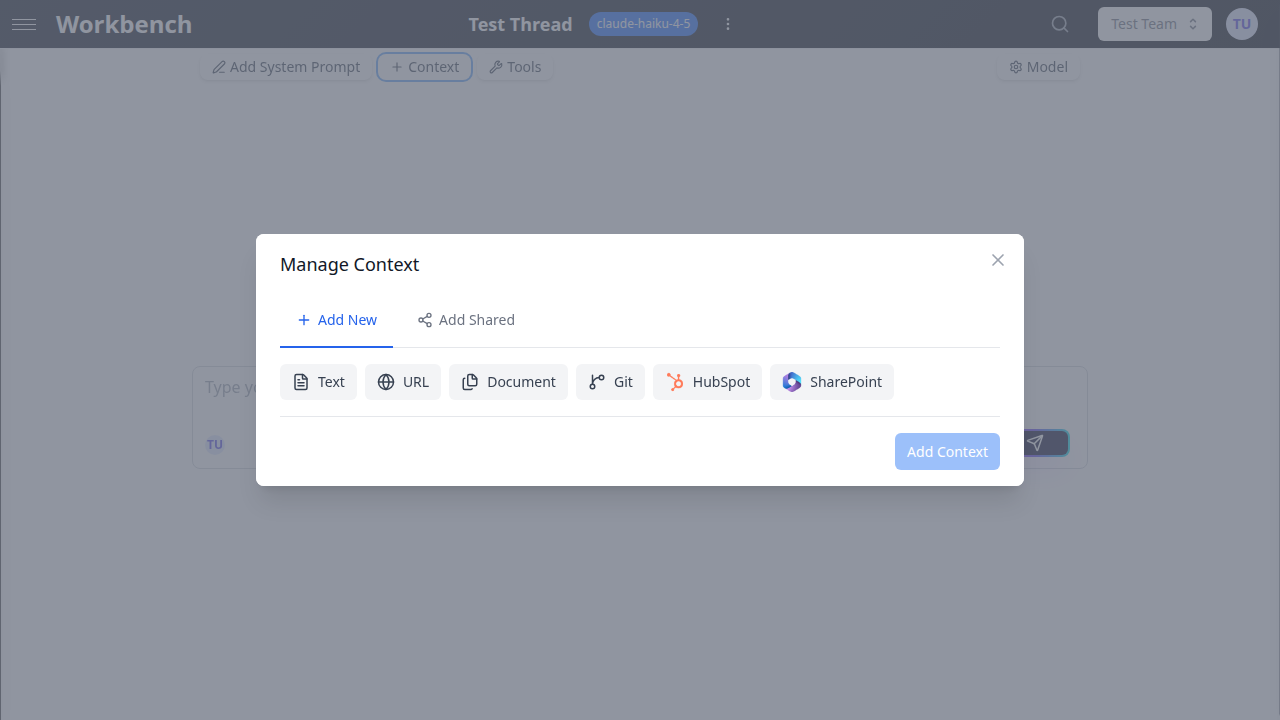
How to add:
- Ensure your Google account is connected via Settings > Integrations
- Open Manage Context and go to Add New
- Click Google Drive
- Browse or search your Drive files
- Select files to include
- Optionally set a cache duration
- Click Add Context
Google-native file formats (Docs, Sheets, Slides) are automatically exported to text. Other file types are downloaded and processed through the standard document pipeline.
Document360
Pull knowledge base articles and categories from your Document360 account.
How to add:
- Ensure your Document360 account is connected via Settings > Integrations
- Open Manage Context and go to Add New
- Click Document360
- Browse categories or search for articles
- Select articles to include
- Click Add Context
This integration is particularly useful for customer support teams who want to ground AI responses in their official documentation.
Shared Context
Shared context blocks are references to context blocks that other users or teams have shared. They appear with a link icon and always reflect the latest version of the original block. See Sharing Context below for details on how to create and consume shared blocks.
Managing Context
Adding Context to a Thread
- Open your thread
- Click the Manage Context button in the thread header (or the context indicator showing the number of attached blocks)
- The Manage Context modal opens with three tabs:
- Thread Context -- Lists all currently attached blocks
- Add New -- Create a new context block
- Link Shared -- Browse and attach shared blocks from your library
- Use the Add New tab to select a type and fill in the details
- Click Add Context to attach it
Each context block requires a title. Use descriptive names like "Q3 Sales Playbook" or "Auth Module Source" rather than generic labels.
Editing and Reordering
Editing a context block:
- In the Thread Context tab, click the edit icon on any block
- Modify the title, content, or configuration
- Save your changes
Editing a shared context block: When you click edit on a shared block, a dialog asks whether to:
- Edit Globally -- Changes apply everywhere the block is shared
- Copy Locally & Edit -- Creates a private copy for this thread only
Reordering context blocks:
- Drag and drop blocks using the grip handle on the left side of each block
- Order matters: blocks are sent to the AI in the order they appear
- Place the most important context first
- Drag-and-drop is disabled during multi-select mode and for auto-context blocks
Bulk Operations
Select multiple context blocks using the checkbox on each block. When one or more blocks are selected, a toolbar appears with bulk actions:
- Delete Selected -- Removes all selected blocks from the thread
- Compact Selected -- Uses AI to summarize the selected blocks into a single, condensed context block. This is useful when conversation context is approaching the model's token limit.
- Clear All -- Deselects all blocks without taking action
Sharing Context
Sharing a Context Block
Any context block you create can be shared with your team or organization.
- In the Thread Context tab, click the share icon on a block
- Choose the visibility level (see below)
- Save
Once shared, the block becomes available in the Shared Context Library for other users.
Shared Context Library
The Link Shared tab in the Manage Context modal provides access to all shared context blocks you can see.
Navigation tabs:
- Team Shared -- Blocks shared with your teams (filterable by team via dropdown)
- Personal Shared -- Blocks you have shared yourself
- Organization Shared -- Blocks shared at the organization level
Features:
- Search -- Filter blocks by title, content preview, or author name
- Multi-select -- Click to select multiple blocks, then add them all at once
- Select All / Clear All -- Quickly select or deselect all visible blocks
- Selection limit -- A maximum of 50 shared blocks can be selected at once
- Bulk link confirmation -- When linking many blocks, a confirmation dialog warns about the token impact
- Keyboard shortcuts --
Ctrl+Ato select all,Escapeto clear selection
Each entry in the library displays the block title, a content preview, the author, the creation date, and the block type.
Visibility Levels
| Level | Who Can Access | Use Case |
|---|---|---|
| Personal | Only you | Private reference blocks for your own threads |
| Team | All members of the selected team | Department-specific knowledge (engineering standards, sales playbooks) |
| Organization | All members of your organization | Company-wide policies, brand guidelines, product documentation |
Team Auto-Contexts
Team administrators can configure context blocks that are automatically included in every thread created within the team. These blocks appear at the top of the Thread Context list with distinct blue styling and a shield icon, signaling that they are managed by a team admin.
Characteristics of auto-context blocks:
- Appear in every team thread automatically
- Cannot be reordered or deleted by regular team members
- Display with a blue border and shield badge to distinguish them from user-added blocks
- Are read-only for non-admin users
- Managed from the team settings page (admin only)
Use cases:
- Company branding guidelines for marketing teams
- Coding standards for engineering teams
- Compliance requirements for regulated industries
- Standard operating procedures for support teams
To configure (team admin):
- Go to Settings > Teams > [Your Team]
- Navigate to the auto-context section
- Add, edit, or remove context blocks
- Changes apply to all new threads in the team
Token Considerations
Context blocks consume tokens from your model's context window. Large context blocks leave less room for conversation history and AI responses.
| Context Type | Typical Token Usage | Notes |
|---|---|---|
| Text | Varies | 1 token per ~4 characters |
| URL | 500 - 10,000 per page | Depends on page content length |
| Document (PDF) | 1,000 - 100,000+ | Large PDFs can be summarized |
| Repository | 5,000 - 500,000+ | Use path filters aggressively |
| CRM (HubSpot, SugarCRM) | 200 - 2,000 per record | Depends on field count |
| SharePoint / Google Drive | Varies by file | Same as document uploads |
Monitoring token usage:
- The context usage indicator in the thread header shows current vs. maximum tokens
- A warning appears when context approaches 80% of the model's limit
- Click the indicator for a detailed breakdown (system prompt, context blocks, messages, tools)
Reducing token consumption:
- Use path filters for repository blocks to include only relevant files
- Summarize large documents and text blocks using the built-in summarization
- Remove context blocks you no longer need
- Use the Compact Selected bulk action to condense multiple blocks
- Choose models with larger context windows when working with extensive data (Gemini 2.5: 2M tokens, Claude 4: 1M tokens)
Best Practices
- Keep context relevant -- Only attach data the AI actually needs for the current task. More is not always better; irrelevant context can dilute response quality.
- Use descriptive titles -- Name your blocks clearly (e.g., "API Auth Docs - v3" not "Context 1"). Titles appear in token breakdowns and sharing libraries.
- Filter repositories aggressively -- A full repository can consume hundreds of thousands of tokens. Filter to the specific directories relevant to your question.
- Share common knowledge -- If multiple team members need the same context (company policies, product specs), share it at the team level to avoid duplication.
- Set appropriate cache durations -- For CRM and cloud storage integrations, balance freshness against performance. Stable data can be cached for 24 hours; fast-moving data should use shorter durations.
- Summarize large content -- When GPT Workbench warns about a large document or text block, consider using the summarize option. The AI-generated summary typically preserves 80-90% of the useful information at a fraction of the token cost.
- Order blocks intentionally -- Place the most critical context first. Some models give stronger attention to content that appears earlier in the prompt.
- Review before sharing globally -- Editing a globally shared block affects every thread that uses it. When in doubt, use Copy Locally & Edit to make thread-specific changes.
- Leverage auto-contexts for standards -- Team admins should use auto-contexts for information that should always be present (coding standards, brand voice, compliance rules).
- Monitor token usage regularly -- Check the context usage indicator before sending complex prompts. If you are near the limit, remove or compact blocks.
Related Documentation
- Threads - How threads work with context blocks
- Models & Tools - Choose models with appropriate context windows
- Sharing - Detailed sharing and permissions documentation
- Teams - Team management and collaboration
- HubSpot Integration - Deep dive into HubSpot setup
- MS365 Integration - SharePoint and Microsoft 365 details
- Google Workspace - Google Drive and Workspace setup