
Tools Overview
GPT Workbench provides access to 88 integrated tools that extend AI capabilities beyond conversation. Tools allow the AI to search the web, query databases, generate images, access business systems, and much more.
This page serves as the full catalog of available tools. Each tool can be enabled or disabled on a per-thread basis, and organizations can set default tool configurations for their teams.
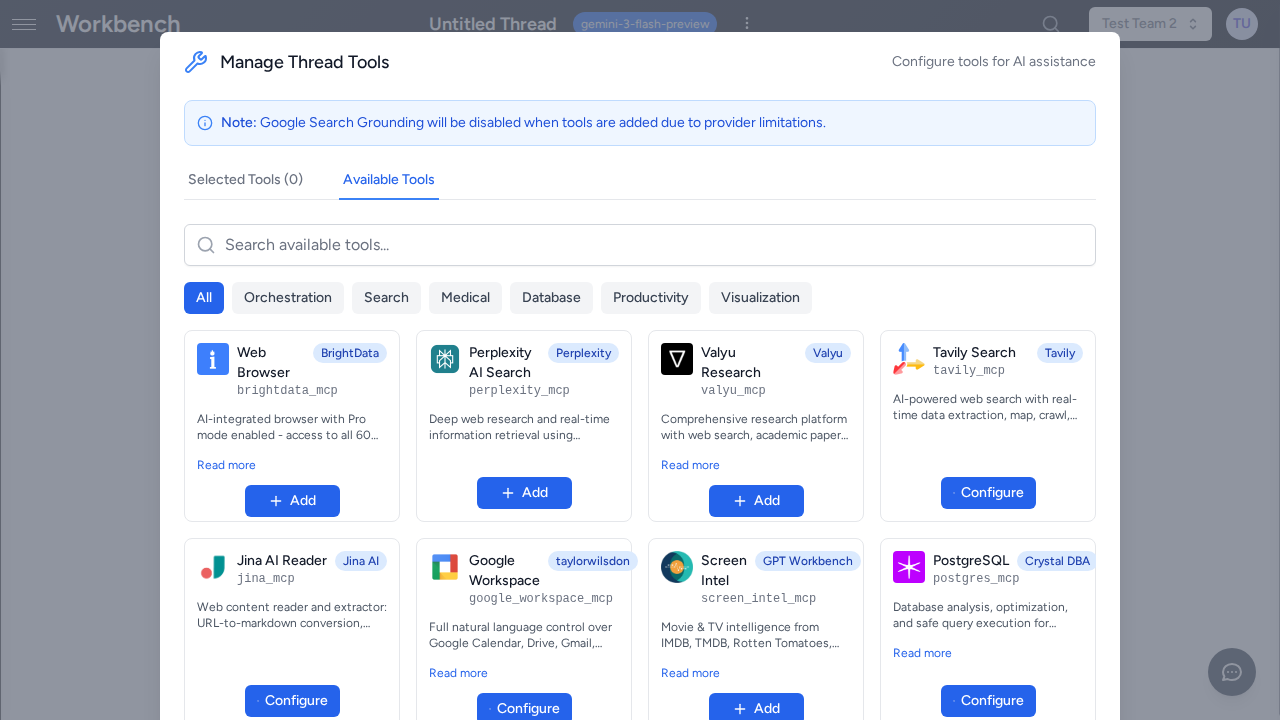
How Tools Work
When you enable tools in a thread, the AI gains the ability to call external services during its response. Rather than relying solely on its training data, the AI can retrieve live information, perform calculations, generate visual content, and interact with third-party platforms.
Each tool call is visible in the conversation, showing what the AI requested and what it received. This transparency lets you verify that the AI is using accurate, up-to-date information. Unlike other LLM interfaces that hide tool calls behind abstractions, GPT Workbench exposes the raw tool interactions so you always know exactly what the AI is doing on your behalf.
Tools fall into three categories:
| Category | Count | Authentication | Setup Required |
|---|---|---|---|
| Native tools | 8 | None | None |
| General MCP tools | 31 | API key (varies) | Some tools require credentials |
| Integration tools | 14 | OAuth | Account linking |
| Healthcare MCP tools | 23 | API key (varies) | Most require no setup |
| Total | 88 |
- Native tools are built directly into GPT Workbench and require no external configuration. They are always available to all users.
- MCP tools use the Model Context Protocol to connect to external servers. Some are fully managed by GPT Workbench (no setup required), while others require API keys or credentials provided by the user or an administrator.
- Integration tools connect to business platforms through OAuth authentication. They require you to link your account before use and provide deep, bidirectional access to your existing business systems.
Enabling Tools
Per-Thread Configuration
Each thread maintains its own tool selection. This means you can have one thread configured with healthcare research tools and another with business CRM tools, each tailored to its specific purpose.
To configure tools for a specific thread:
- Open the thread you want to configure.
- Click the Tools button in the toolbar.
- Browse available tools by category or use the search field to find a specific tool.
- Toggle individual tools on or off.
- For tools that require configuration (API keys, connection strings), click the settings icon next to the tool and fill in the required fields.
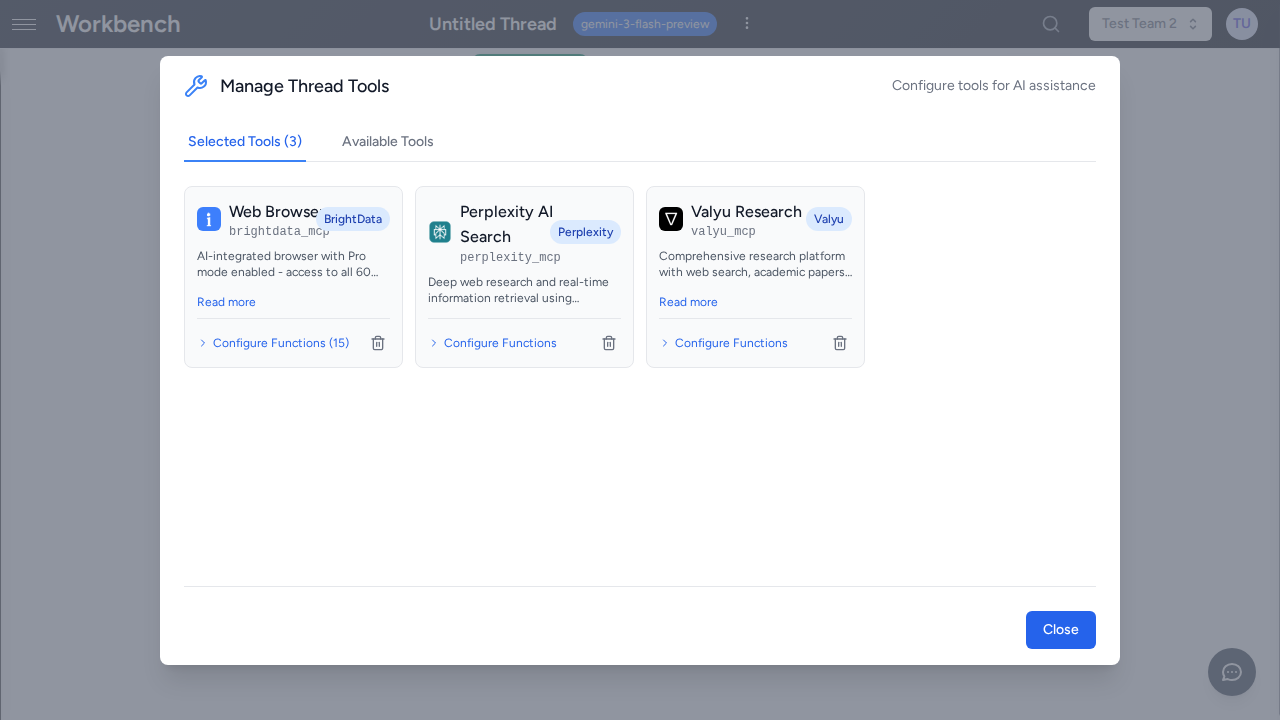
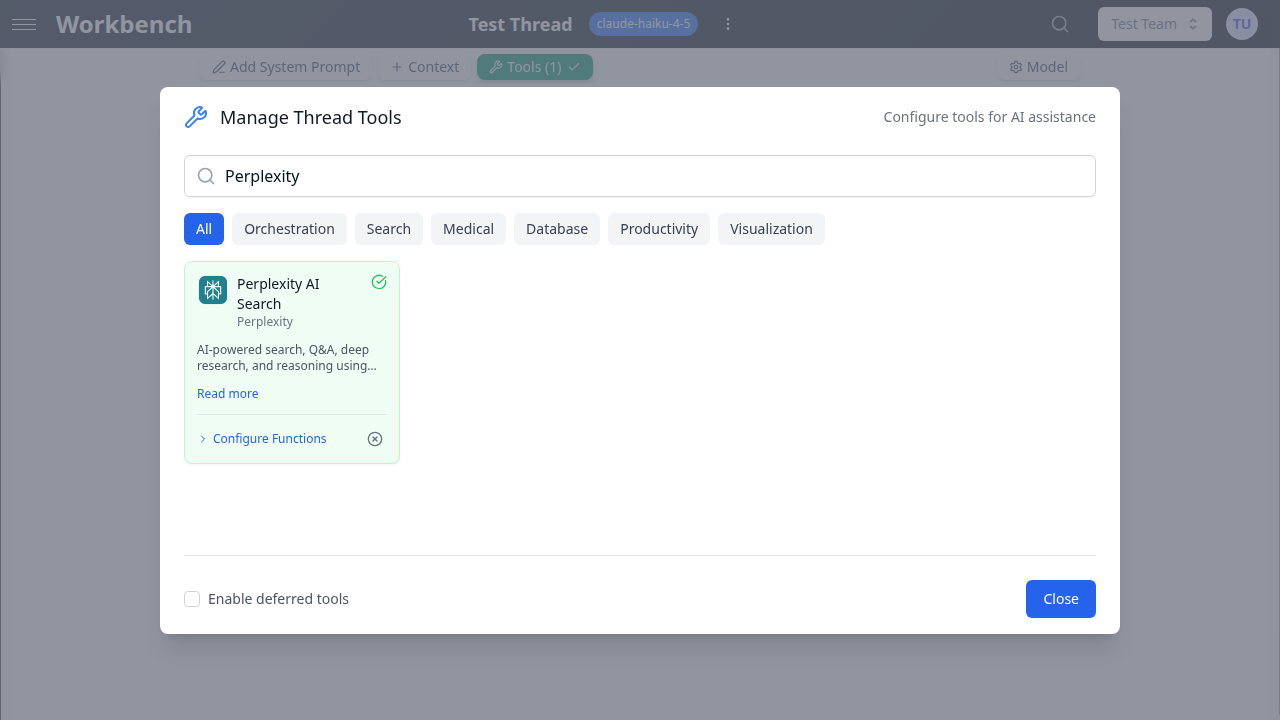
Changes take effect immediately on the next message you send in that thread. Other threads are not affected. You can also save your tool configuration as part of a Thread Template so you can quickly create new threads with the same tool setup.
Organization Defaults
Organization administrators can control tool availability across the entire organization:
- Navigate to Organization Settings.
- Select Tools Configuration.
- Enable or disable tools for all organization members.
- Set daily usage limits for cost-sensitive tools.
- Pre-configure API keys so individual users do not need to provide them.
When an administrator pre-configures a tool at the organization level, users can enable it in their threads without entering credentials themselves. This is the recommended approach for teams, as it centralizes credential management and ensures consistent access across the organization.
Tool Categories
The following sections list every tool available in GPT Workbench, organized by type and functional category.
Native Tools (8)
Native tools are built directly into GPT Workbench and available to all users without additional configuration. They do not rely on external services and are always ready to use.
| Tool | Description |
|---|---|
| memory | Saves important facts about users during conversations. The AI can store and recall preferences, context, and key details across sessions. |
| delegate_to_thread | Delegates part of a conversation to another thread. Useful for breaking complex tasks into subtasks handled by specialized threads with different system prompts or tool configurations. |
| document_reader | Fetches and reads documents that have been uploaded to GPT Workbench. Supports PDF, Word, Excel, and other common formats. |
| public_url_fetch | Fetches and parses content from public web URLs. Extracts readable text from web pages for analysis and summarization. |
| mermaid_generator | Generates Mermaid diagrams including flowcharts, sequence diagrams, Gantt charts, class diagrams, and more. Outputs rendered images directly in the conversation. |
| mermaid_syntax_validator | Validates Mermaid diagram syntax before rendering. Catches errors early and provides feedback on syntax issues. |
| openai_image_generator | Generates images using OpenAI DALL-E. Supports various styles, sizes, and quality settings. |
| gemini_image_generator | Generates images using Google Gemini. An alternative image generation option with different stylistic capabilities. |
General MCP Tools (31)
MCP (Model Context Protocol) tools connect to external services through a standardized protocol. Each MCP tool runs as an independent server process that GPT Workbench manages automatically. They are organized below by functional category.
Tools marked as requiring an API key or credentials must be configured either at the user level (in the thread's tool settings) or at the organization level (by an administrator). Tools with no configuration requirements are ready to use immediately after enabling.
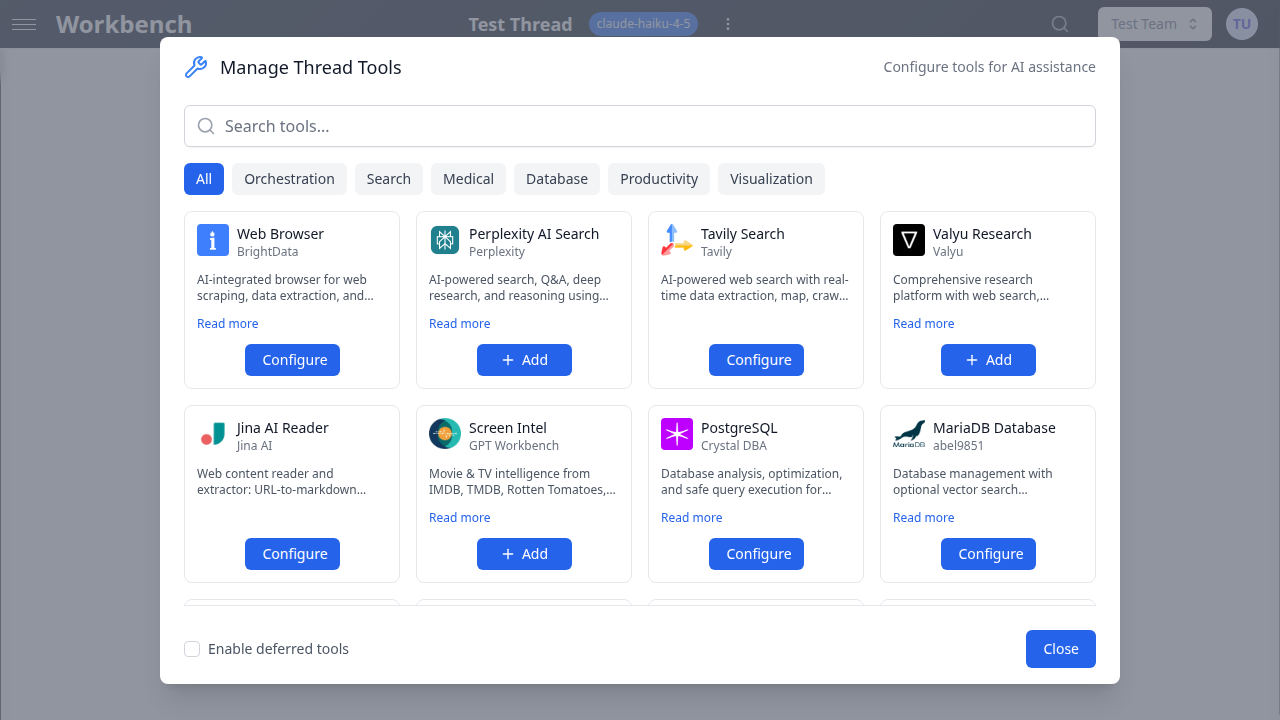
Research and Knowledge
| Tool | Provider | Description |
|---|---|---|
| Perplexity AI Search | Perplexity | AI-powered search, Q&A, deep research, and reasoning. Includes web search, quick answers (Sonar Pro), deep research (Sonar Deep Research), and step-by-step reasoning (Sonar Reasoning Pro). |
| Tavily Search | Tavily | AI-powered web search with real-time data extraction, map, crawl, and extract capabilities optimized for LLM responses. |
| Jina AI Reader | Jina AI | Web content reader and extractor. Converts URLs to markdown, performs web search, image search, and generates semantic embeddings. |
| Context7 Docs | Context7 | Up-to-date code documentation for any package. Provides version-aware docs to avoid outdated APIs and deprecated methods. |
| Valyu Research | Valyu | Comprehensive research platform with web search, academic papers (arXiv, PubMed), financial markets, SEC filings, and content extraction. |
| Sequential Thinking | Anthropic | Structured step-by-step problem-solving through dynamic reasoning processes. Breaks down complex problems, revises thoughts, and branches into alternative reasoning paths. |
Business and CRM
| Tool | Provider | Description |
|---|---|---|
| Brevo (Sendinblue) | Brevo | Complete CRM, email marketing, SMS, WhatsApp, and sales management platform with AI-integrated natural language control. Requires API key. |
| Lusha | Lusha | B2B data enrichment and prospecting. Finds verified contact emails and phone numbers, enriches company profiles, and searches prospects by firmographic and technographic criteria. Requires API key. |
| Digiforma | Digiforma | Training management platform. Schema introspection and raw GraphQL queries for trainees, sessions, programs, companies, instructors, invoices, quotations, and help docs search. Requires API key. |
| WooCommerce | WooCommerce | E-commerce management. List, create, update, and delete products and orders on your WooCommerce store. Requires store endpoint and API credentials. |
| Mews PMS | Mews | Property Management System for hotels. Manages reservations, customers, financial transactions, housekeeping, and account operations. Requires client token and access token. |
| Ahrefs SEO | Ahrefs | SEO data analysis including backlinks, keywords, batch URL analysis, competitor research, and domain metrics. Requires API key. |
Data and Analytics
| Tool | Provider | Description |
|---|---|---|
| MariaDB Database | MariaDB | Database management with optional vector search capabilities. Execute SQL queries, manage schemas, and perform semantic search with embedding support. Requires connection string. |
| PostgreSQL | PostgreSQL | Database analysis, optimization, and safe query execution. Includes health checks, index tuning, and performance monitoring. Supports restricted (read-only) and unrestricted modes. Requires connection string. |
| Power BI | Microsoft | Query Power BI datasets with DAX, explore data models, and check refresh status. Uses REST API with Azure AD service principal authentication. Requires tenant ID, client ID, and client secret. |
| Calculator | Workbench | Performs precise numerical calculations for mathematical expressions. Supports basic arithmetic, advanced math functions, and scientific notation. |
| AntV Charts | AntV | Generates 25+ types of data visualization charts using private local rendering. All chart generation happens locally for maximum data privacy. |
Web and Content
| Tool | Provider | Description |
|---|---|---|
| Web Browser | BrightData | AI-integrated browser for web scraping, data extraction, and browser automation. Optional Pro Mode unlocks all 60+ tools including advanced scraping and residential proxies. |
| YouTube Transcript | YouTube | Fetches transcripts from YouTube videos. Supports multiple languages and provides complete transcript data for video content analysis. |
| Screen Intel | Screen Intel | Movie and TV intelligence from IMDB, TMDB, Rotten Tomatoes, Metacritic, and Letterboxd. Search, discover, get ratings, recommendations, and analyze entertainment industry trends. |
| Nano Banana | Workbench | Generate and edit images using Gemini models with intelligent model selection. Supports 4K generation with Gemini 3 Pro Image and fast iteration with Gemini 2.5 Flash Image. Features aspect ratio control, template-based prompts, and Google Search grounding. |
| Gamma Presentations | Gamma | Create AI-powered presentations, documents, and webpages. Generate from prompts or templates, browse themes and folders. Requires Gamma API key (Pro plan or higher). |
Development and Design
| Tool | Provider | Description |
|---|---|---|
| Figma | Figma | Access Figma design data for AI-powered implementation. Provides simplified metadata for accurate one-shot design implementations. Currently limited to local development environments. |
| Discord | Discord | Manage Discord servers: messages, channels, roles, moderation, webhooks, events, permissions, emojis, and invites. Requires bot token. Currently disabled. |
| Morphik Document DB | Morphik | Access Morphik's multimodal database for document ingestion, retrieval, management, and querying. Allows the AI to use an external knowledge base. Requires server URI. |
| Mermaid Diagrams | Workbench | Generate diagrams and flowcharts using Mermaid syntax with screenshot capabilities. Extends the native Mermaid tools with additional rendering options. |
Legal and Government
| Tool | Provider | Description |
|---|---|---|
| French & European Law | DILA | French and European law database. Access codes, statutes, case law (Cour de cassation, Conseil d'Etat, Conseil constitutionnel, CNIL), BOFiP tax doctrine, Official Journal, and EU law (EUR-Lex). |
| data.gouv.fr | Etalab | France's national open data platform. Search datasets, explore resources, query data, and access public API services from data.gouv.fr. |
AI and Advanced
| Tool | Provider | Description |
|---|---|---|
| VertexAI RAG Search | Google Cloud | Semantic search using VertexAI RAG corpora. Search pre-indexed documents with natural language queries and optionally retrieve full file contents from Google Cloud Storage. Requires corpus ID. |
| Context Manager | Workbench | Manage conversation context during a session. List existing context blocks and add new text or URL-based knowledge to enhance the conversation. |
| Workbench Knowledge | Workbench | Search GPT Workbench documentation, tool configurations, and skills using semantic search. Find how features work, list available tools, and read configuration details. |
Integration Tools
Integration tools connect to business platforms through OAuth authentication. They provide deep, bidirectional access to your existing business systems. Each integration has its own dedicated documentation page.
| Integration | Capabilities | Documentation |
|---|---|---|
| HubSpot | CRM contacts, companies, deals, tickets, email tracking, and automation workflows. | HubSpot Integration |
| Microsoft 365 | SharePoint document libraries, Outlook email, Calendar events, Teams channels, and OneDrive files. | Microsoft 365 Integration |
| Google Workspace | Gmail, Google Drive, Google Calendar, and Google Docs access. | Google Workspace |
| SugarCRM | CRM records, leads, opportunities, and customer management. | Contact your administrator |
| Document360 | Knowledge base articles, categories, and content management. | Contact your administrator |
| Notion | Pages, databases, and workspace content management. | Contact your administrator |
| Atlassian | Jira issues, Confluence pages, and project tracking. | Contact your administrator |
| Miro | Interactive whiteboards, diagrams, and visual collaboration. | Contact your administrator |
| Content publishing and account management. | Contact your administrator | |
| Teamwork | Projects, tasks, milestones, and team workload management. | Contact your administrator |
| BigQuery | Google BigQuery data warehouse queries and dataset exploration. | Contact your administrator |
| Google Analytics | Website analytics, traffic reports, and audience insights. | Contact your administrator |
| E2B | Sandboxed code execution environment for running Python, JavaScript, and other languages safely. | Contact your administrator |
| Canva | Design creation, template browsing, and brand asset management. | Contact your administrator |
To connect an integration, navigate to Account Settings > Integrations and follow the OAuth authorization flow for the desired platform.
Healthcare Tools (23)
GPT Workbench includes a comprehensive suite of 23 healthcare and biomedical tools covering genomics, pharmacology, clinical research, biomedical literature, bioinformatics, and nutrition. These tools are designed for researchers, clinicians, and life sciences professionals who need direct access to authoritative scientific databases.
| Domain | Tools | Highlights |
|---|---|---|
| Genomics and Genetics | 6 | AlphaFold, AlphaGenome, gnomAD, Ensembl VEP, PGS Catalog, GWAS Catalog |
| Pharmacology | 4 | DrugBank, CPIC, PubChem, BDPM |
| Clinical Research | 3 | ClinicalTrials.gov, REDCap, Pedigree Generator |
| Biomedical Literature | 6 | PubMed, PubTator, PubMatcher, bioRxiv, medRxiv, Zotero |
| Bioinformatics | 3 | BioThings, OpenTargets, BioContext |
| Nutrition | 1 | ANSES Ciqual |
Most healthcare tools require no API keys and connect to publicly available databases. For the full catalog with detailed descriptions, use cases, example queries, and multi-tool workflow examples, see the dedicated Healthcare Tools page.
Deferred Tool Loading
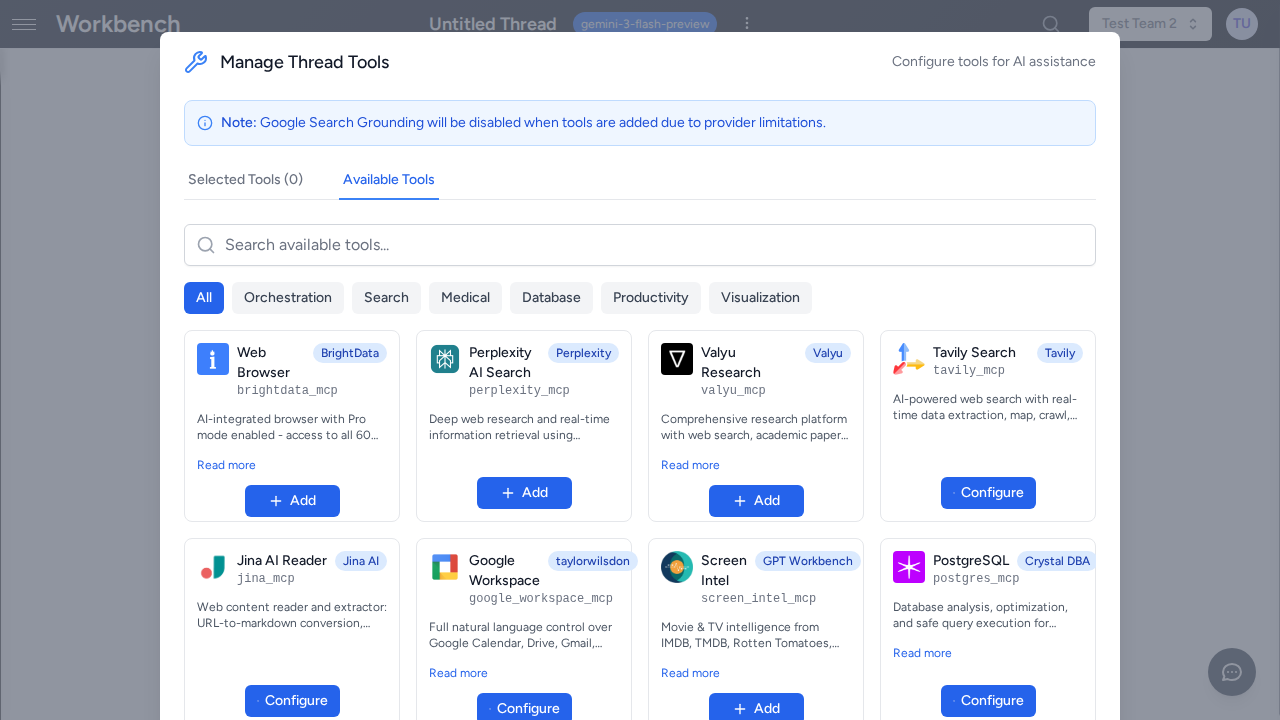
When many tools are enabled in a single thread, including their full schemas in every request would significantly increase prompt size and cost. A single MCP tool can expose dozens of individual functions, and sending all parameter schemas on every request wastes tokens and increases latency. GPT Workbench addresses this with deferred tool loading via the mcp_search tool.
How It Works
The deferred tool loading system works similarly to a search index: the AI knows what tools exist, but only loads the full details when it needs them.
- When deferred loading is active, the AI receives a compact list of all available tool names in the system prompt, but without their full parameter schemas. This list is lightweight and does not significantly increase prompt size.
- When the AI determines it needs a specific tool, it calls
mcp_searchwith a natural language query describing what it wants to do (e.g., "send email", "search contacts", "create calendar event"). mcp_searchmatches the query against the deferred tool registry using function name matching and returns the full schemas for the matching tools.- The matched tools are dynamically injected into the execution pipeline, and the AI can call them immediately in the same response.
This approach reduces prompt size by loading tool schemas only when they are actually needed, while still giving the AI awareness of what tools are available.
Activation
Deferred tool loading is configured per-thread. It activates automatically when the number of available MCP functions exceeds the threshold (currently 20 functions). You can also toggle it manually in the thread's tool configuration.
When active, you will notice the AI making mcp_search calls at the beginning of responses where it needs external tools. This is normal behavior and does not affect the quality of the response.
OpenAI Models
OpenAI models support a native equivalent called openaiToolSearch. When using an OpenAI model with deferred tools enabled, GPT Workbench leverages OpenAI's built-in tool search capability instead of the custom mcp_search implementation. This provides the same deferred loading behavior but uses OpenAI's optimized internal mechanism.
Performance Impact
Deferred loading improves performance in two ways:
- Reduced prompt size: Instead of sending hundreds of tool parameter schemas in every request, only the compact tool name list is included. This saves tokens and reduces cost.
- Faster first response: Smaller prompts mean faster processing by the LLM, resulting in quicker initial responses.
The trade-off is that the first use of a deferred tool in a conversation requires an extra mcp_search call. After a tool has been loaded once, it remains available for the rest of the conversation without additional lookups.
Tool Limits
Some tools have usage limits to manage costs and prevent abuse. Limits are configured at the organization level by administrators.
| Limit Type | Scope | Reset | Example |
|---|---|---|---|
| Daily | Per tool | Midnight UTC | Perplexity: 50 queries/day |
| Per-user | Per team member | Midnight UTC | BrightData: 100 scrapes/user/day |
| Organization | Shared pool | Midnight UTC | Total API budget across all users |
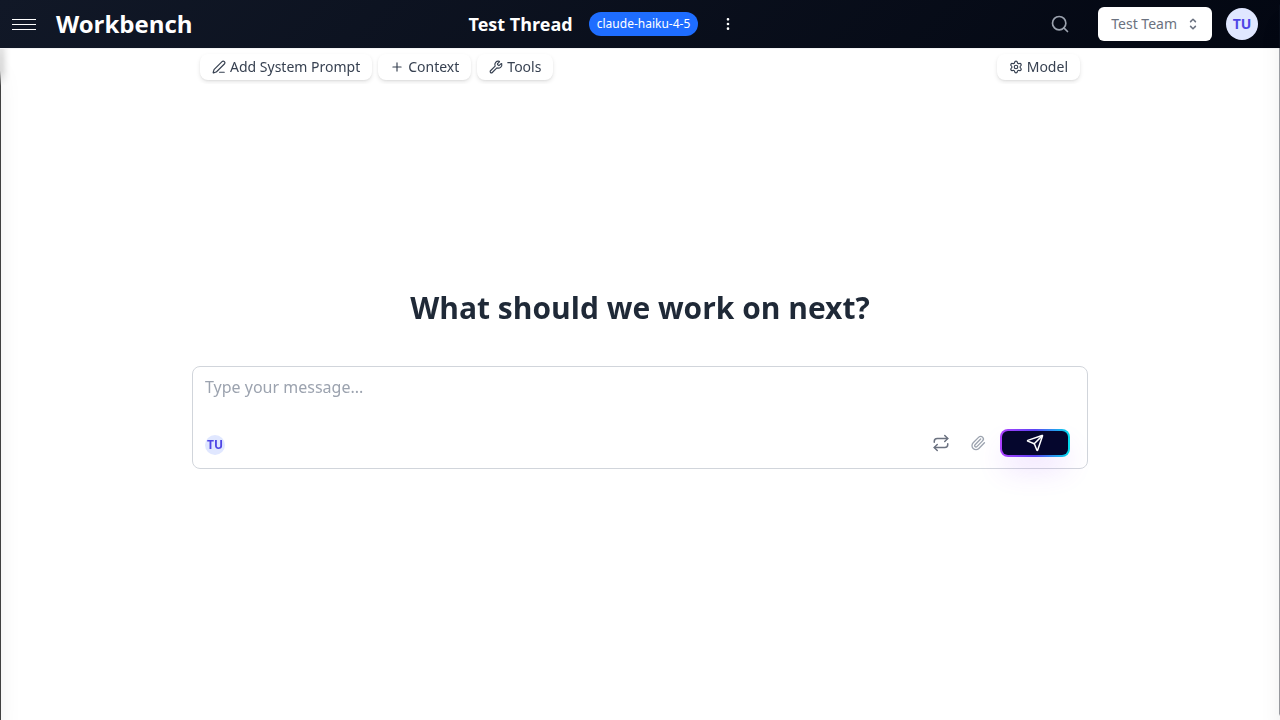
Check your remaining limits in the tool configuration panel. When a limit is reached, the tool becomes unavailable until the limit resets or an administrator increases the quota. The AI will inform you when a tool is unavailable due to limit exhaustion and may suggest alternative approaches.
Administrators can adjust limits at any time through the organization settings. Setting a limit to zero effectively disables the tool for all users without removing it from the catalog.
Tool Execution Flow
When the AI decides to use a tool during a response, the following sequence occurs:
- Tool call decision -- The AI determines that a tool would help answer the user's question and constructs the tool call with the appropriate parameters.
- Execution -- GPT Workbench sends the request to the tool's backend (native handler, MCP server, or OAuth API).
- Real-time display -- The tool call and its status appear in the conversation as it executes. You can see which tool was called, with what parameters, and the execution duration.
- Result processing -- The tool's response is returned to the AI, which incorporates the information into its answer.
- Cost tracking -- Tool execution costs (if any) are recorded in the run summary alongside token costs.
For agent-style interactions, the AI may chain multiple tool calls in sequence, using the output of one tool to inform the next. Each call is displayed individually so you can follow the AI's reasoning process.
Cancellation
You can cancel a tool execution at any time by clicking the Stop button. This sends an abort signal to the tool's backend. The AI will stop processing and display whatever partial results were available at the time of cancellation.
Error Handling
If a tool call fails (network error, invalid credentials, rate limit exceeded), the AI receives the error message and can:
- Inform you about the issue and suggest remediation steps.
- Retry the call with different parameters if the error was transient.
- Fall back to alternative tools or its own knowledge to answer the question.
Tool errors are displayed in the conversation so you can see exactly what went wrong.
Best Practices
Enable only the tools you need. Each enabled tool adds to the system prompt and increases the context the AI must consider. Fewer tools means faster, more focused responses.
Use tool-specific instructions in your prompts. Instead of hoping the AI will choose the right tool, be explicit: "Search PubMed for recent studies on CRISPR gene therapy" or "Query the PostgreSQL database for all orders from last month."
Verify OAuth connections before use. Integration tools require valid OAuth tokens. If a token has expired, you will see an error indicator. Re-authenticate through Account Settings > Integrations before retrying.
Monitor usage for cost-sensitive tools. Tools like Perplexity, BrightData, and Valyu have per-call costs. Check your remaining daily limits in the tool configuration panel.
Combine tools for comprehensive results. The AI can use multiple tools in a single response. For example, search PubMed for relevant papers, then use Zotero to save the references, then generate a summary chart with AntV Charts.
Use deferred loading for tool-heavy threads. If you need many tools available but do not use them all in every message, deferred loading keeps your prompts efficient without sacrificing access.
Pre-configure tools at the organization level. Administrators should set up API keys and credentials centrally so users can enable tools without managing their own credentials.
Leverage Thread Templates for repeatable setups. If you frequently use the same combination of tools, save your thread configuration as a template. This avoids re-configuring tools every time you start a new thread.
Review tool costs in run summaries. After each AI response, the run summary shows token costs and tool execution details. Use this to understand which tools are driving costs and optimize accordingly.
Requesting New Tools
If your team needs a tool that is not currently available in GPT Workbench:
- Contact your organization administrator with the use case.
- Specify the external service or API you need connected.
- Provide a justification for the business value.
Administrators can request new MCP tool integrations or custom tool development through GPT Workbench support. Custom MCP tools can be added to the platform to connect to proprietary internal systems or specialized third-party APIs.
Related Pages
- Healthcare Tools -- Full catalog of 23 biomedical and healthcare tools
- HubSpot Integration -- CRM integration setup and usage
- Microsoft 365 Integration -- SharePoint, Outlook, Calendar, Teams
- Google Workspace -- Gmail, Drive, Calendar, Docs
- Thread Templates -- Save and reuse tool configurations
- Context Blocks -- Add knowledge context alongside tools
- Models and Tools -- Model selection and tool compatibility