
HubSpot Integration
Connect HubSpot to access CRM data directly in your AI conversations and let the AI search, analyze, and update your customer records.
Overview
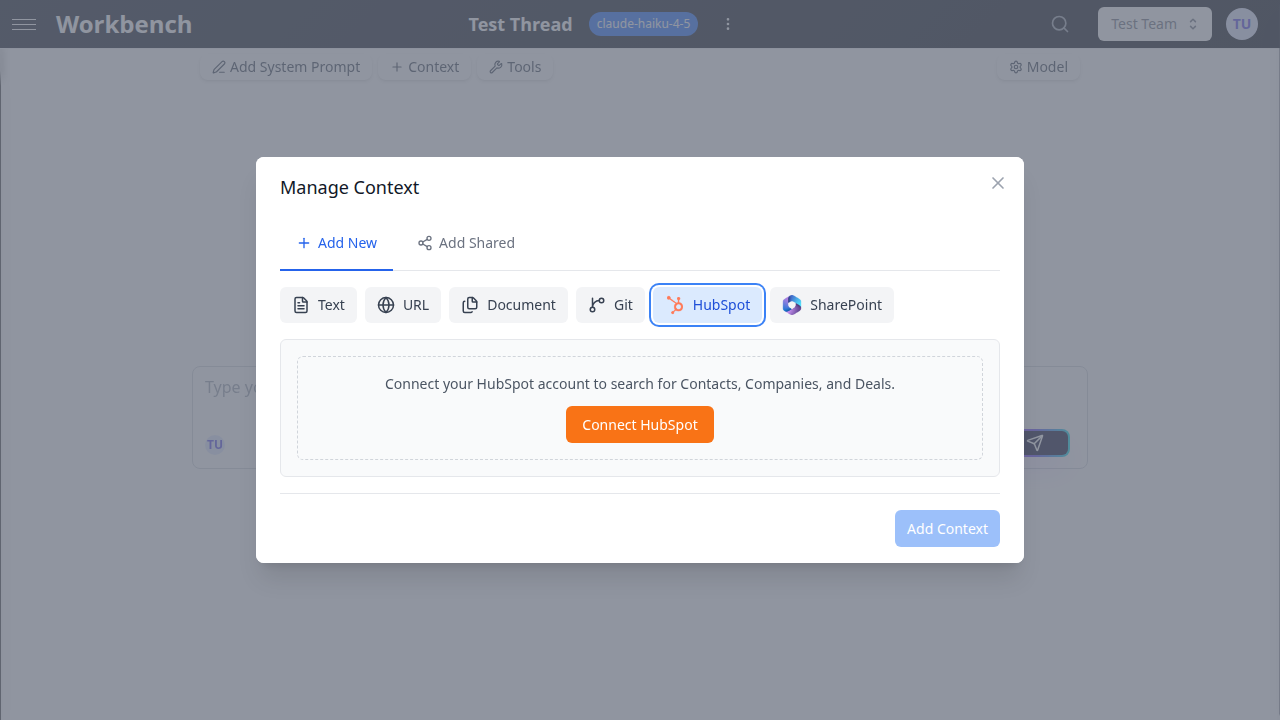
The HubSpot integration brings your CRM data into GPT Workbench through two channels. Context blocks pull specific records (contacts, companies, deals) into the AI's context so it can reference them throughout a conversation. Tools give the AI the ability to search and interact with your HubSpot portal in real time, performing lookups, creating records, and updating deal stages without leaving the conversation.
This integration is built on HubSpot's official OAuth API. GPT Workbench accesses only the data you authorize, and all interactions are logged in the thread's message history for full transparency.
Setup
Prerequisites
Before connecting HubSpot, ensure:
- Your organization administrator has configured the HubSpot OAuth app credentials in Organization Settings > Integrations
- You have a HubSpot account with appropriate permissions on the portal you want to connect
- Your HubSpot portal is on a plan that supports API access (Professional or Enterprise recommended)
Connecting Your Account
- Go to Profile > Integrations
- Locate HubSpot in the integrations list
- Click Connect
- A popup opens with the HubSpot authorization page
- Select the portal you want to connect (if you have access to multiple portals)
- Review the permissions being requested
- Click Grant access
- The popup closes and GPT Workbench confirms the connection
The connection is immediate. You can start using HubSpot context blocks and tools in your threads right away.
Multi-Portal Support
GPT Workbench supports connecting multiple HubSpot portals under a single user account. This is designed for:
- Agencies managing multiple client HubSpot portals
- Consultants working across several organizations
- Multi-brand companies with separate HubSpot instances per brand
Each portal requires its own OAuth authorization. To add a second portal:
- Go to Profile > Integrations
- Your existing HubSpot connection is displayed
- Click Connect Another Account
- Authorize the additional portal
- Both portals are now available when configuring HubSpot context blocks or tools
When adding a HubSpot context block or enabling HubSpot tools in a thread, you select which portal to use. Different threads can use different portals.
Context Blocks
HubSpot context blocks pull CRM record data into your AI conversation. The data is fetched from HubSpot's API and formatted for AI consumption, giving the model direct access to your customer information.
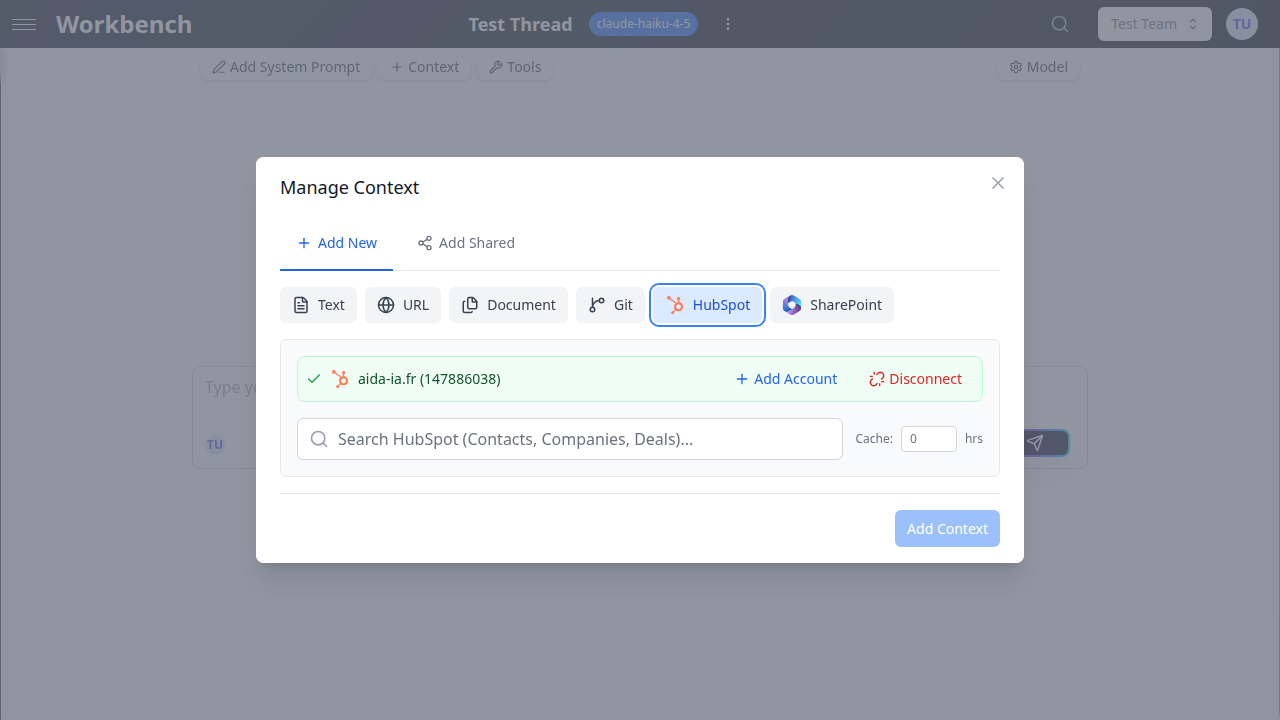
Adding a HubSpot Context Block
- Open your thread
- Click Manage Context
- Go to the Add New tab
- Click HubSpot
- Select the HubSpot portal (if multiple are connected)
- Choose the object type: Contact, Company, or Deal
- Search for the specific record by name, email, or other identifying field
- Select one or more records from the search results
- Optionally configure the cache duration
- Click Add Context
The selected records are fetched from HubSpot and their properties are included in the AI's context. The AI can reference this data throughout the conversation.
Available CRM Objects
Contacts
- Full name, email addresses, phone numbers
- Job title, company association
- Contact owner, lifecycle stage, lead status
- Custom properties configured in your portal
- Recent engagement history
Companies
- Company name, domain, industry
- Revenue, employee count, company type
- Associated contacts and deals
- Company owner, lifecycle stage
- Custom properties configured in your portal
Deals
- Deal name, amount, close date
- Pipeline and deal stage
- Associated contacts and companies
- Deal owner, deal type
- Custom properties configured in your portal
Cache Duration
HubSpot data is fetched when the context block is first used and cached for a configurable period. After the cache expires, data is re-fetched on the next thread interaction.
| Duration | Use Case |
|---|---|
| 5 minutes | Rapidly changing data (deals in active negotiation, support tickets) |
| 1 hour | Default setting, balanced for most use cases |
| 24 hours | Stable data (company profiles, historical records) |
Choose shorter durations when you need the AI to work with the most current data. Choose longer durations to reduce API calls and improve response times for stable records.
Available Tools
When HubSpot tools are enabled in a thread, the AI can actively query and interact with your CRM during a conversation. Tools go beyond static context blocks by allowing dynamic lookups and actions.
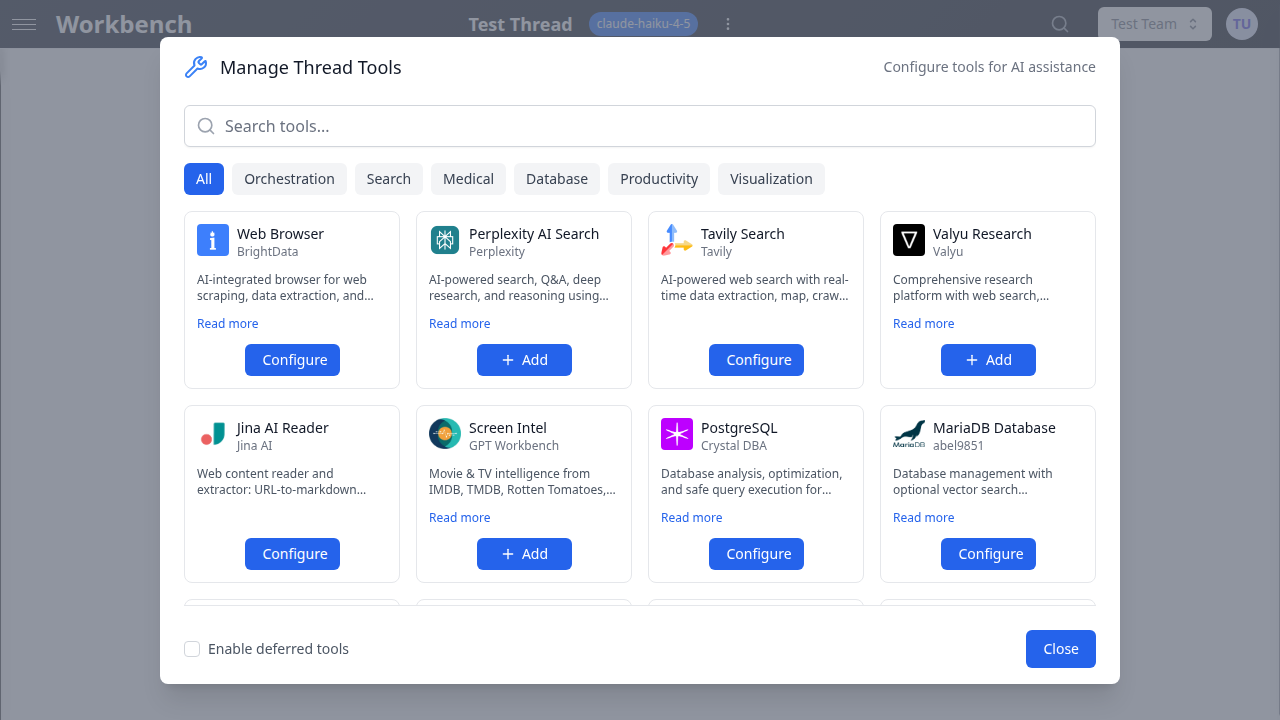
Enabling HubSpot Tools
- Open your thread
- Click the Tools configuration
- Locate the HubSpot tools section
- Enable the tools you want the AI to have access to
- Select the HubSpot portal to use (if multiple are connected)
Tool Capabilities
Contact Search
- Search contacts by name, email, company, or any indexed property
- Retrieve detailed contact records with all properties
- Find contacts matching specific criteria (e.g., "contacts in the Enterprise segment")
Company Lookup
- Search companies by name, domain, or industry
- Access full company profiles including associated records
- Browse company hierarchies (parent/child relationships)
Deal Management
- Search deals by name, stage, pipeline, or amount range
- View deal pipeline progression and history
- Access deal-associated contacts and companies
- Retrieve deal activity timelines
Ticket Operations
- Search support tickets by status, priority, or assignee
- Read ticket details and conversation threads
- Access ticket-associated contacts and companies
How Tool Calls Appear
When the AI uses a HubSpot tool, the tool call is displayed in the thread's message history. You can see exactly what data was requested and what was returned. This provides a complete audit trail of all CRM interactions within the conversation.
CRM UI Extensions
GPT Workbench can be embedded directly inside HubSpot through CRM UI extensions (CRM cards). This allows your sales and support teams to access AI conversations without leaving HubSpot.
What CRM Cards Provide
- Contextual AI access from any HubSpot contact, company, or deal record
- Pre-loaded context with the current CRM record's data already attached
- Thread history showing previous AI conversations related to the record
- Quick actions to start new threads with CRM context
Setting Up CRM Cards
CRM card installation is handled by your organization administrator:
- Install the GPT Workbench CRM card from the HubSpot marketplace (or configure it manually in your HubSpot developer account)
- Configure the card to display on contact, company, and/or deal records
- Users will see the GPT Workbench card in the right sidebar of their CRM records
Use Cases
Deal Analysis
Add a deal and its associated company as context blocks, then ask the AI to:
- Summarize the deal's current status and key terms
- Identify risks based on deal stage duration and engagement patterns
- Draft a follow-up email referencing specific deal details
- Compare the deal against similar closed-won opportunities
Customer Research
Add a company context block with associated contacts, then ask the AI to:
- Create a comprehensive company briefing before a sales call
- Identify key stakeholders and their roles
- Analyze engagement history to find conversation starters
- Draft personalized outreach messages for each contact
Pipeline Review
Enable HubSpot tools and ask the AI to:
- Pull all deals in a specific pipeline stage and summarize them
- Identify stalled deals that haven't progressed in a defined period
- Calculate pipeline value by stage or by owner
- Generate a pipeline review report for a team meeting
Support Escalation
Combine ticket and contact context to:
- Summarize a customer's full support history before escalation
- Identify patterns in recurring issues
- Draft responses that reference previous interactions
- Suggest knowledge base articles related to the ticket topic
Best Practices
- Use specific searches. When adding context blocks, search by email or exact name rather than broad terms. This ensures you get the right record and reduces unnecessary data in the context.
- Combine context types. Add both a company and its key contacts for richer AI analysis. The AI performs better when it can cross-reference related records.
- Set cache durations appropriately. Use shorter caches for deals in active negotiation and longer caches for reference data like company profiles.
- Enable only needed tools. If you only need the AI to search contacts, enable just the contact search tool. Fewer tools mean faster AI responses and less token consumption.
- Review tool calls. Check the tool call results in the thread to verify the AI retrieved the correct data before acting on its analysis.
- Leverage multi-portal support. Agencies should connect all client portals and use thread-level portal selection to maintain separation between client data.
Troubleshooting
Connection Issues
"Connection expired" error on context blocks Your HubSpot OAuth token has expired and could not be refreshed. Go to Profile > Integrations and click Reconnect on your HubSpot connection.
Popup does not close after authorization Ensure your browser allows popups from GPT Workbench. Some browser extensions (ad blockers, privacy tools) can interfere with the OAuth callback.
Cannot see expected records Verify that your HubSpot user has permission to view the records you are searching for. GPT Workbench inherits the same access level as your HubSpot account.
Data Issues
Context block shows stale data Check the cache duration setting on your context block. Reduce it to 5 minutes for the most current data. You can also remove and re-add the context block to force a fresh fetch.
Tool returns no results HubSpot search indexes may not include all custom properties. Try searching by standard fields like name or email. For custom property searches, ensure the property is marked as searchable in your HubSpot portal settings.
Related Documentation
- Integration Overview - How integrations work in GPT Workbench
- Context Blocks - Managing context blocks across all types
- Tools Overview - Understanding native and MCP tools
- Teams - Team management and collaboration