
Documents
Documents are files uploaded to GPT Workbench that can be attached to threads as context. The documents page provides a centralized library for uploading, organizing, searching, and managing all your files across personal and team workspaces.
Overview
When you upload a document, GPT Workbench extracts its text content and makes it available as context for AI conversations. Documents can be attached to threads directly or through context blocks, giving the AI access to your files alongside your messages.
The documents page serves as a file management hub with statistics, filtering, search, and bulk operations. All documents are accessible from the left sidebar navigation.
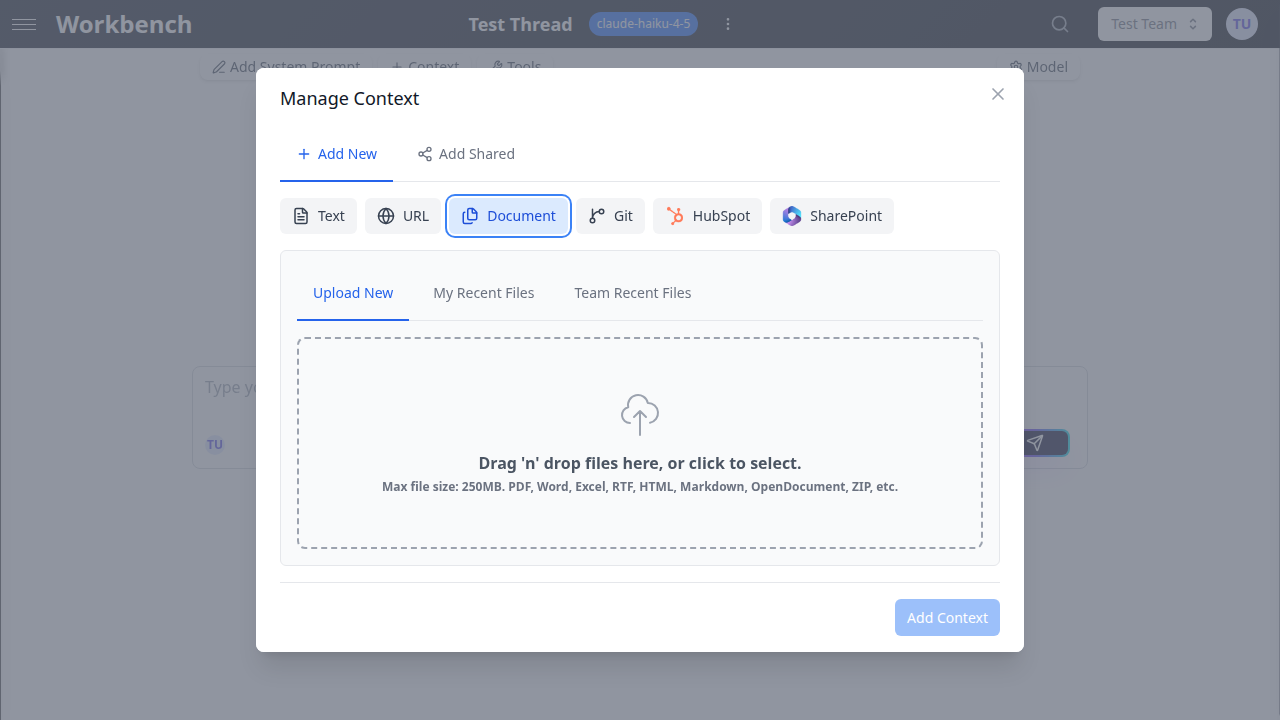
Uploading Documents
Supported Formats
GPT Workbench supports a wide range of file formats across several categories:
| Category | Formats |
|---|---|
| Documents | PDF, DOC, DOCX, TXT, RTF, ODT |
| Spreadsheets | CSV, XLS, XLSX, ODS |
| Presentations | PPT, PPTX, ODP |
| Web/Markup | HTML, HTM, XML, MD, Markdown |
| Data | JSON |
| Images | JPEG, JPG, PNG, WEBP, GIF |
| Archives | ZIP |
Text extraction is automatic for document formats. PDFs are processed with compression for large files. Images are analyzed using vision-capable models when attached to a thread that uses a model with vision support.
ZIP archives are extracted automatically. The system processes supported file types within the archive and skips unsupported formats.
Upload Limits
- Maximum file size: 250 MB per file
- Maximum batch upload: 10 files at once
- Storage: Files are stored securely and associated with your user account
Files exceeding the size limit are rejected with a validation message. The upload interface shows progress indicators for each file being processed.
Document Library
Views and Layout
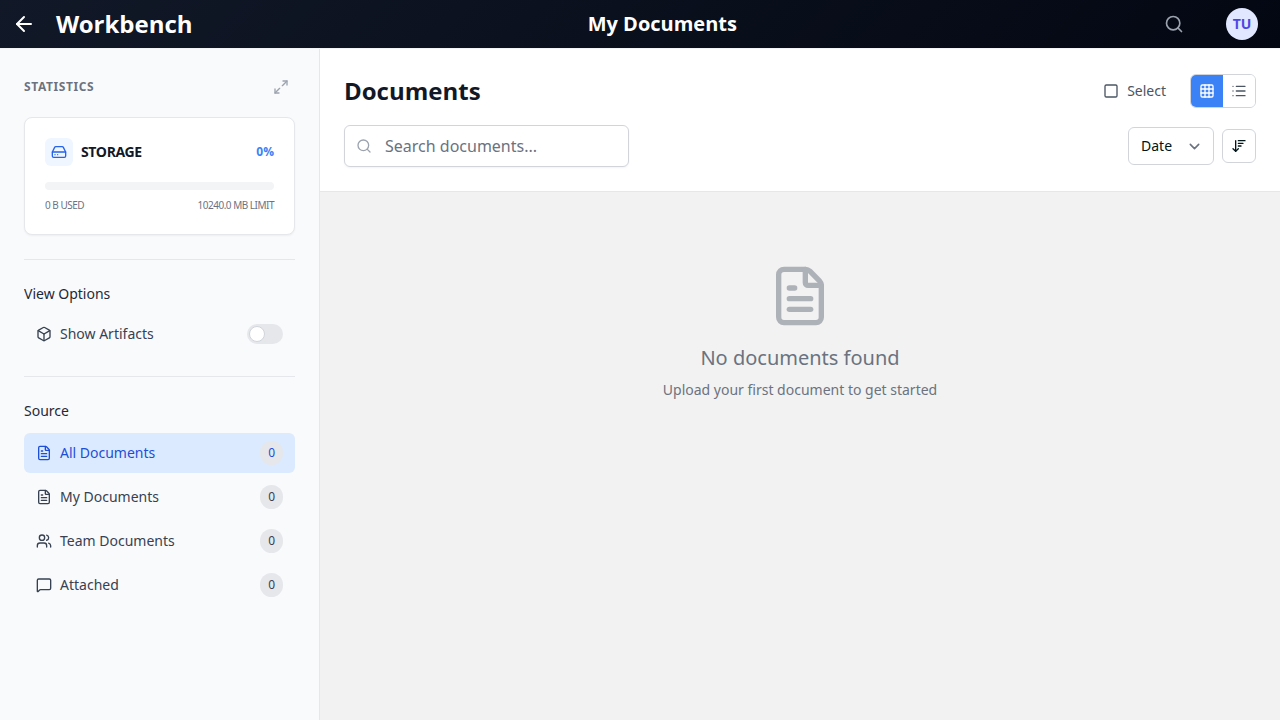
The documents page uses a two-panel layout:
Left sidebar contains:
- Statistics panel: Total file count, storage usage, and breakdown by source. Toggle between compact and expanded views using the expand/collapse button.
- Document filters: Source filters, file type filters, and team filters for narrowing results.
Main content area contains:
- Header controls: Page title, select mode toggle, and grid/list view switcher.
- Search and sort bar: Full-text search input and sort controls.
- Document grid or list: Your documents displayed in the selected view mode.
- Pagination: Page navigation at the bottom with Previous/Next buttons and an interactive page navigator.
Grid view displays documents as cards in a responsive multi-column layout. Each card shows the file name, type icon, file size, and upload date.
List view displays documents as compact rows with the same information in a tabular format, optimized for scanning large numbers of files.
Filtering Documents
The left sidebar provides three types of filters that can be combined:
Source filters:
- All: Show all accessible documents
- My Documents: Only documents you uploaded
- Team Documents: Documents uploaded by team members
- Attached: Documents currently attached to a context block or message
File type filters: Dynamic facets appear based on the file types present in your library. Click a file type (pdf, docx, csv, etc.) to filter by that format. Multiple file types can be selected simultaneously.
Team filter: When you belong to multiple teams, checkboxes let you filter documents by team ownership. Select one or more teams to narrow results.
Artifacts toggle: Show or hide AI-generated artifacts (files created by tool calls) using the artifacts toggle in the filter sidebar.
All active filters can be cleared at once using the Clear Filters button.
Searching and Sorting
The search bar at the top of the main content area performs text search across document names. Results update as you type.
Sort options:
- Date: Sort by upload date (default, newest first)
- Name: Alphabetical sorting by file name
- Size: Sort by file size
Click the sort direction button to toggle between ascending and descending order.
Document Details
File Information
Click any document to open the details modal. The modal displays:
- File preview: For supported formats, a preview of the file content
- File name: Original name as uploaded
- File type: Format and MIME type
- File size: Size in human-readable units
- Upload date: When the file was uploaded
- Owner: The user who uploaded the document
Linked Context and Messages
The details modal shows where the document is being used:
- Context blocks: Lists all context blocks that reference this document
- Messages: Shows messages where the document was attached as part of a prompt
- Threads: Indicates which threads have access to the document through context blocks
This visibility helps you understand the impact of modifying or deleting a document.
Permissions
Documents follow the team permission model:
- Documents uploaded to your personal workspace are visible only to you
- Documents uploaded within a team context are visible to all team members
- Team admins can manage all team documents
- Deleting a document removes it from all linked context blocks and messages
Selection and Bulk Actions
Entering Selection Mode
- Click the Select button in the header controls
- Document cards display checkboxes
- Click individual documents to select or deselect them
- Use Select All to select all documents on the current page
Available Bulk Actions
When one or more documents are selected, a bulk actions bar appears:
- Download: Downloads all selected documents. Multiple files are bundled into a ZIP archive.
- Delete: Deletes all selected documents after confirmation. You must type "yes" to confirm bulk deletion.
Exiting Selection Mode
Click the close button on the bulk actions bar or click the Select button again to exit selection mode and clear all selections.
Using Documents in Threads
Documents become useful when attached to threads as context for AI conversations. There are several ways to use documents in threads:
Direct attachment: When composing a message in a thread, use the attachment button to upload or select existing documents. The document content is included in that specific message.
Context blocks: Create a document context block to persistently attach a document to a thread. The AI sees the document content in every message exchange, not just the one where it was attached.
Multiple documents: You can attach multiple documents to a single thread. Each document's content is extracted and included in the AI's context, up to the model's token limit.
Document updates: If you need to update a document's content, upload a new version. Context blocks referencing the document will use the latest version automatically.
Pagination
The documents page displays 50 documents per page. Navigation controls at the bottom of the list include:
- Previous/Next buttons: Standard page navigation
- Interactive page navigator: Click the page number to enter typing mode. Type a page number directly and press Enter, or wait briefly for automatic navigation. The navigator clamps invalid numbers to the valid range.
Keyboard shortcuts in typing mode:
- Type digits (0-9) to enter a page number
- Press Enter to navigate immediately
- Press Escape to cancel and exit typing mode
- Click outside the navigator to confirm and navigate
Best Practices
Use descriptive file names. Clear file names make documents easier to find in search and help team members understand content without opening each file.
Organize by team. Upload team-specific documents within the relevant team context so all members have access and documents appear under team filters.
Monitor storage usage. Check the statistics panel periodically to understand your storage consumption and remove outdated files.
Prefer context blocks over direct attachment. For documents you reference repeatedly, create a context block rather than attaching the file to each message individually.
Check linked contexts before deleting. Use the document details modal to verify which threads and context blocks reference a document before removing it.
Use file type filters for large libraries. When your library grows, file type facets help you quickly locate specific document categories.
Leverage bulk actions for cleanup. Use selection mode to download backups or delete multiple outdated documents at once.
Consider token limits. Large documents consume significant tokens in the AI's context window. For very large files, consider extracting only the relevant sections into a text context block.
Use ZIP uploads for related files. When uploading multiple related files, bundle them in a ZIP archive. The system extracts and processes each supported file individually.
Review the artifacts toggle. AI-generated artifacts are hidden by default. Toggle artifacts on when you need to review files created by tool calls during AI conversations.
Related Documentation
- Context Blocks - Attach documents as persistent context
- Threads - Use documents in AI conversations
- Teams - Team document sharing and permissions
- Models & Tools - Vision-capable models for image analysis
- Permissions - Document access control