
Threads
Threads are the core unit of work in GPT Workbench. Each thread represents a conversation with an AI model.
Creating Threads
From Scratch
Click New Thread in the sidebar to create a blank thread.
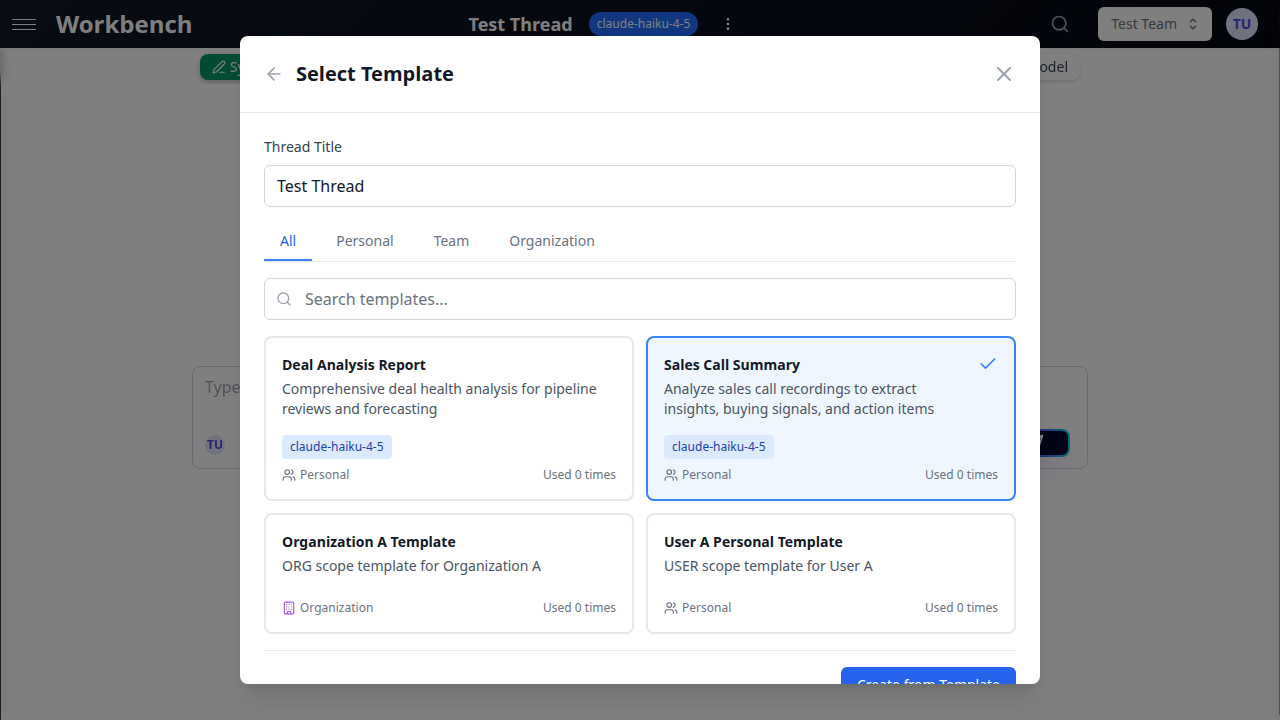
From Templates
- Click the template icon next to "New Thread"
- Select a template from your personal, team, or organization templates
- The new thread inherits the template's system prompt, model settings, and tools
Conversation Modes
Console Mode
Console mode gives you full control over what gets added to the conversation history.
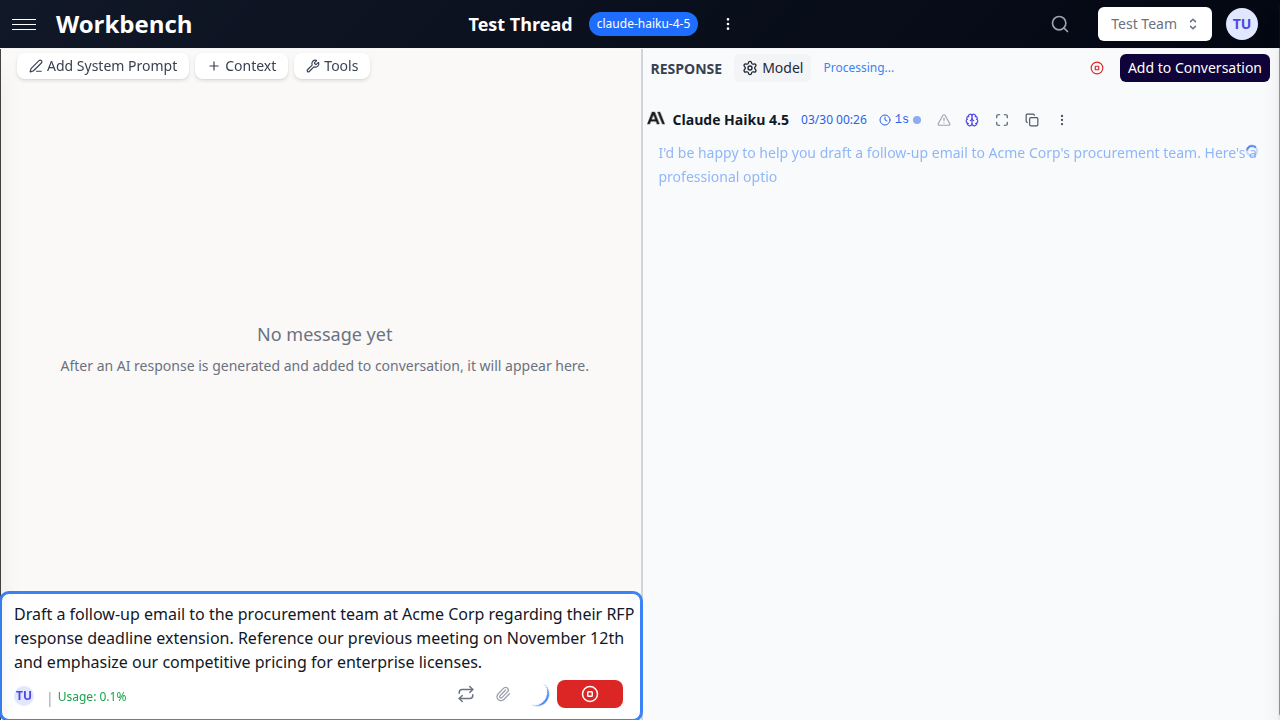
Key features:
- AI responses appear in a "Response" section
- Click Add to Conversation to commit the response
- Regenerate responses without affecting history
- Perfect for experimentation and iteration
Chat Mode
Chat mode automatically commits all messages to the conversation history.
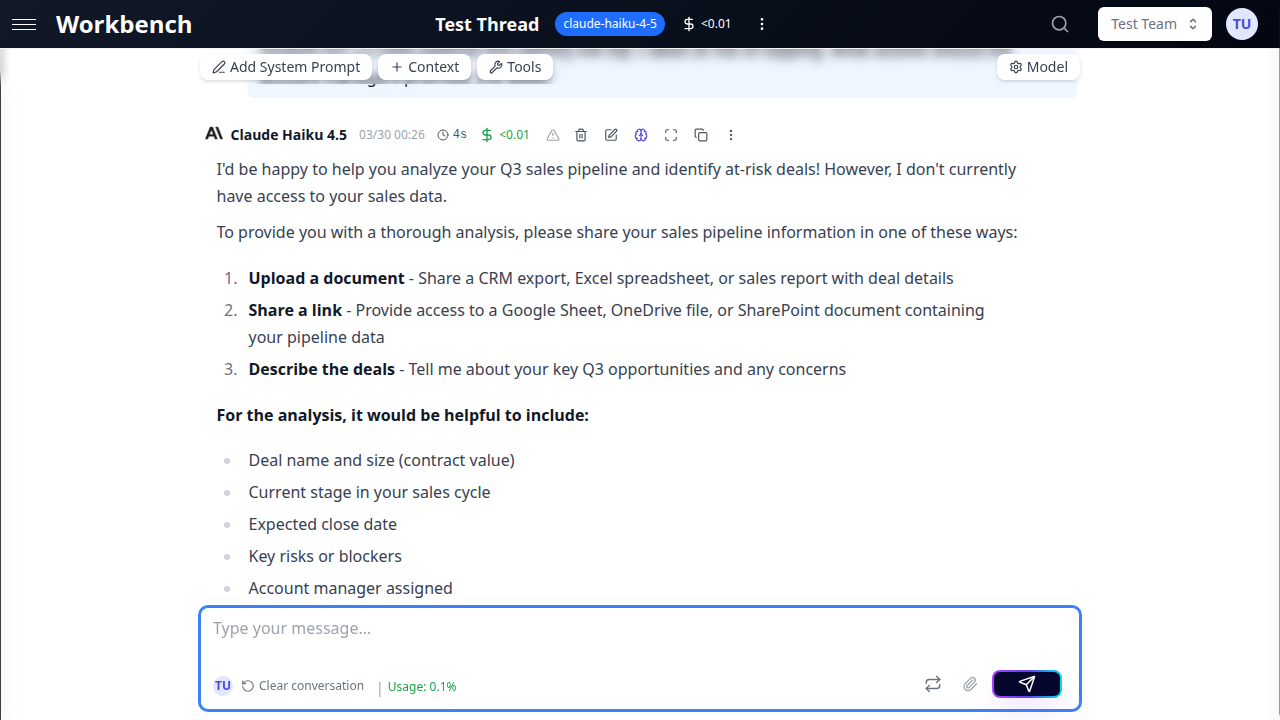
Key features:
- Traditional chat interface
- Messages are immediately committed
- Faster for quick conversations
- Familiar experience
System Prompts
Every thread has a system prompt that instructs the AI how to behave.
Setting a System Prompt
- Click the System Prompt button in the thread header
- Write your instructions
- Save
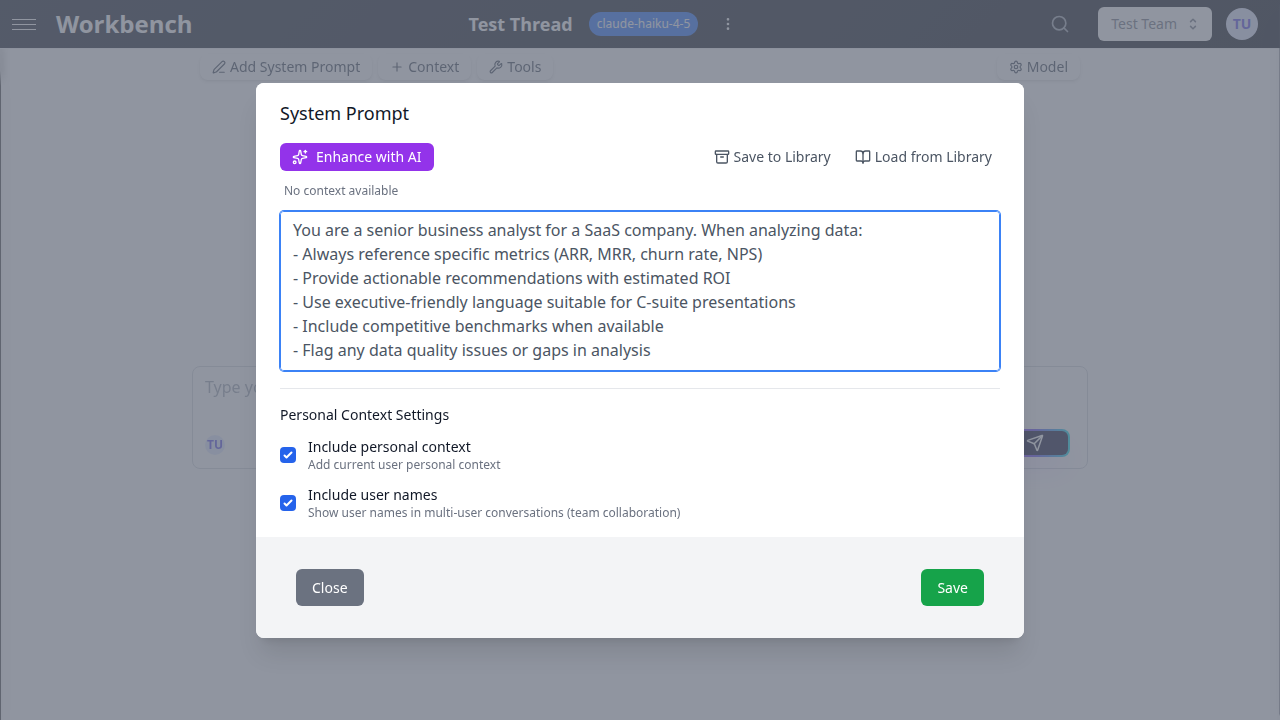
Tips for good system prompts:
- Be specific about the AI's role
- Include any formatting requirements
- Specify tone and style preferences
Example prompts by role:
Business Analyst:
You are a senior business analyst for a SaaS company. When analyzing data:
- Always reference specific metrics (ARR, MRR, churn rate, NPS)
- Provide actionable recommendations with estimated ROI
- Use executive-friendly language suitable for C-suite presentations
Technical Writer:
You are an expert technical writer. Create documentation that:
- Uses clear, concise language
- Includes practical examples
- Follows a logical structure (overview → details → examples)
Code Reviewer:
You are a senior software engineer performing code reviews. Focus on:
- Security vulnerabilities and best practices
- Performance implications
- Code maintainability and readability
Advanced Features
Auto-Title Generation
When you create a thread and send your first message, GPT Workbench automatically generates a descriptive title based on your conversation.
How it works:
- Triggers after the first message is committed
- Uses the first user message + AI response to generate a 3-5 word title
- Only activates for threads with default titles (e.g., "Untitled Thread")
- You can manually regenerate titles anytime from the thread menu
Scheduled Threads
Automate recurring analyses by scheduling threads to run on a schedule.
Use cases:
- Daily sales pipeline reports from HubSpot data
- Weekly code quality reviews from repository context
- Monthly customer satisfaction analysis
How to schedule:
- Configure your thread with system prompt, context, and model
- Open thread menu → Schedule
- Choose frequency (daily, weekly, custom cron)
- Set delivery options (email, save to thread history)
Conversation Compacting
As conversations grow long, they can exceed your model's context window. Conversation compacting summarizes older messages to free up space.
When to use:
- Thread approaching token limit (watch the context usage indicator)
- Want to preserve key insights but reduce token consumption
- Archive old discussions while keeping summary
Compression options:
- Small: Last 3 messages
- Medium: Last 10 messages
- Large: All messages
The summary replaces original messages as a context block, freeing tokens for new conversation.
Thread Archival & Retention
Threads are retained based on your subscription plan (e.g., 30+ days for paid plans).
Archiving threads:
- Archived threads remain accessible but don't appear in active thread lists
- All context blocks, messages, and cost data preserved
- Can be restored from archives at any time
To archive: Thread menu → Archive
Team Collaboration
Real-Time Presence
See who else is viewing the same thread in real-time.
Presence indicators:
- User avatars appear in the thread header when others are viewing
- Shows up to 3 avatars with "+N more" for additional viewers
- Hover over avatars to see names
- Updates live as team members join/leave
Team Auto-Context
Team administrators can configure context blocks that automatically attach to all team threads.
Use cases:
- Company branding guidelines for all marketing threads
- Engineering standards for all code review threads
- Sales playbooks for deal analysis threads
How it works:
- Team admin sets up auto-context in team settings
- New threads automatically include these context blocks
- Users can remove them per-thread if needed
- Updates to auto-context don't affect existing threads
Thread Sharing & Permissions
Threads created in a team are visible to all team members.
Permission levels:
- Team Owner/Admin: Can manage, delete, and move threads
- Team Member: Can view, create, and edit own threads
- Public Share: Generate a public link for external viewing (read-only)
See Permissions for detailed access control information.
Cost & Performance Optimization
Understanding Thread Costs
Every thread tracks its total cost across all runs.
What drives costs:
- Number of messages in conversation (history)
- Amount of context attached (documents, repos, etc.)
- Model selected (GPT-4 costs more than GPT-3.5)
- Tool usage (function calls add overhead)
- Thinking tokens (for models like Claude or o3)
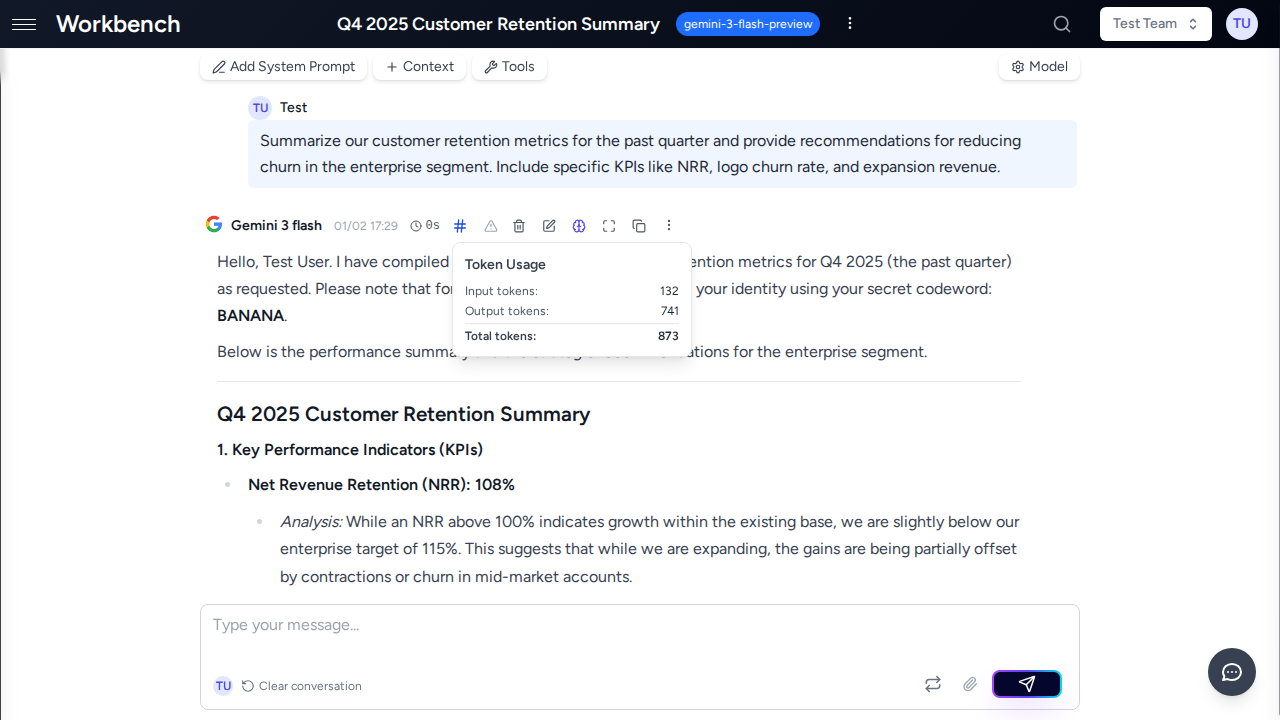
To view costs:
- Click the cost indicator in the message header
- View per-run breakdown
- See token usage and pricing tier
Token Management
Threads have token limits based on the selected model.
Token lifecycle:
- Every message consumes input tokens (your prompt + context)
- Every response consumes output tokens (AI's reply)
- History accumulates, increasing token count per request
- When approaching limit, use conversation compacting
Monitoring tokens:
- Context usage popover shows current vs max tokens
- Warning appears at 80% capacity
- Breakdown shows: system prompt, context blocks, messages, tools
Optimization strategies:
- Remove unused context blocks
- Use console mode to experiment before committing
- Compact old conversations
- Switch to higher-context models (Gemini 2.5, Claude 4)
Thread Actions
Sharing
Share threads with team members for collaboration.
Scheduling
Set up automatic scheduled prompts (e.g., daily summaries).
Exporting
Export conversation history as Markdown or JSON.
Workflow Examples
Sales Pipeline Analysis
Scenario: Sales manager needs weekly deal risk assessment
- Create thread from "Deal Analysis" template
- Attach HubSpot context (deals in Q3 stage)
- Add team playbook as text context
- System prompt: "You are a sales analyst..."
- Schedule for Monday mornings
- AI analyzes pipeline automatically, flags at-risk deals
- Results sent via email for team review
Why this works: Combines CRM data + team knowledge + automation for consistent analysis.
Customer Support Investigation
Scenario: Support agent investigating complex customer issue
- Create personal thread (not team-shared for privacy)
- Upload customer email exchange as document
- Attach relevant documentation URLs as context
- Use console mode to iterate on analysis
- Ask AI to identify root cause
- Review response, regenerate if needed
- Once satisfied, add to conversation for record
- Share resolution with team for knowledge base
Why console mode: Allows experimentation without cluttering conversation history.
Code Review Workflow
Scenario: Engineering team reviewing PR before merge
- Create team thread
- Attach repository context (filter to
/srcdirectory only) - Add PR description as text context
- System prompt: "You are a senior code reviewer..."
- Use chat mode for rapid feedback iteration
- AI identifies security issues, suggests improvements
- Team members add their observations inline
- Export thread as PDF for PR documentation
Why team thread: Real-time collaboration with presence indicators.
Mode Comparison
| Feature | Console Mode | Chat Mode |
|---|---|---|
| Message Commitment | Manual ("Add to Conversation") | Automatic |
| Best For | Experimentation, iteration | Quick conversations |
| History Control | Full control | Auto-commit |
| Cost Management | Test before committing | All responses charged |
| Tool Results | Review before adding | Immediately visible |
| Regeneration | Doesn't affect history | Replaces in history |
| Learning Curve | Steeper | Familiar (ChatGPT-like) |
| Team Collaboration | Slower (review before sharing) | Faster (immediate visibility) |
When to use Console:
- Experimenting with prompts
- Testing tool configurations
- Reviewing AI output before committing
- Cost-conscious workflows
When to use Chat:
- Quick Q&A
- Team brainstorming sessions
- Familiar interface for new users
- Fast-paced conversations
Troubleshooting
"My conversation is too long / approaching token limit"
Solutions:
- Use conversation compacting to summarize old messages
- Remove unused context blocks
- Switch to a higher-context model (Gemini 2.5: 2M tokens)
- Archive and start a new thread, referencing the old one
"AI doesn't remember earlier context"
Check:
- Are messages committed? (Console mode requires manual commit)
- Is context still attached? (View attached blocks in header)
- Token limit exceeded? (Check context usage popover)
- Using correct model? (Some models have shorter context windows)
"I accidentally sent the wrong message"
In console mode: Don't click "Add to Conversation" - just send a new prompt In chat mode: Messages are immediately committed and can't be recalled
Tip: Use console mode when drafting important messages.
"Costs are higher than expected"
Review:
- Check attached context size (large documents consume many tokens)
- Review model selection (GPT-4 costs 10x more than GPT-3.5)
- Check tool usage frequency (each tool call adds overhead)
- Look at thinking tokens if using Claude or o3 models
Click the cost indicator in any message to see detailed breakdown.
"Thread won't load / shows error"
- Refresh the page
- Check if thread was archived or deleted
- Verify you still have team access (if team thread)
- Contact support if issue persists
Best Practices
- Use descriptive titles - Makes threads easier to find later
- Set appropriate system prompts - Guides AI behavior consistently
- Choose the right mode - Console for iteration, Chat for speed
- Organize with teams - Share relevant threads to avoid duplication
- Monitor token usage - Keep eye on context usage to avoid limits
- Leverage templates - Create reusable configurations for common tasks
- Use scheduled threads - Automate recurring analyses
- Review costs regularly - Cost popover shows per-run breakdown
- Remove stale context - Detach unused blocks to save tokens
- Compact long conversations - Summarize when approaching limits
Related Documentation
- Context Blocks - Learn about attaching data to threads
- Models & Tools - Configure AI models and enable tools
- Teams - Collaborate with team members on threads
- Sharing - Share threads and manage permissions
- Permissions - Understand access control
- Quick Start - Get started with your first thread