
Thread Templates
Thread templates capture a thread's configuration for reuse. Instead of manually setting up the system prompt, model, tools, and context blocks each time you start a new conversation, save the configuration as a template and apply it to future threads with a single click.
Overview
A template stores the complete setup of a thread:
- System prompt
- Model selection and parameters
- Enabled tools and their configuration
- Attached context blocks
Templates support three visibility scopes (Personal, Team, Organization) and track usage statistics. They are managed from a dedicated templates page and can be applied when creating new threads.
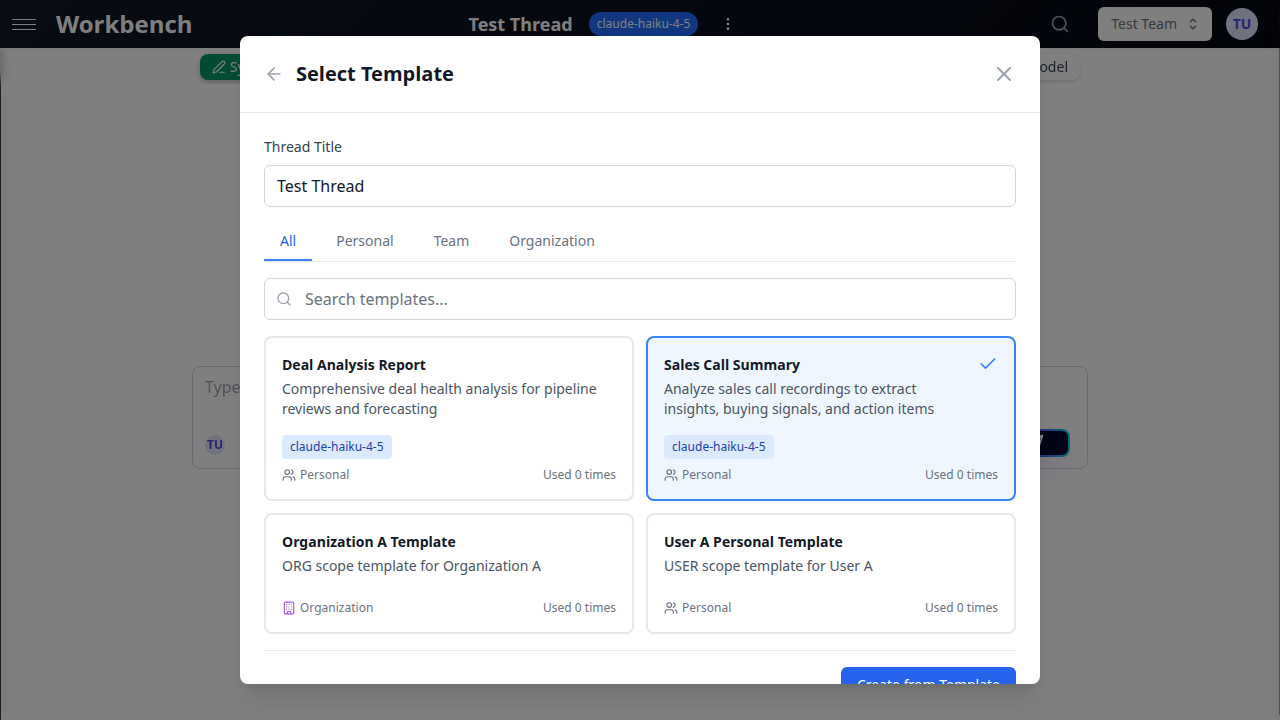
Browsing Templates
Templates Page
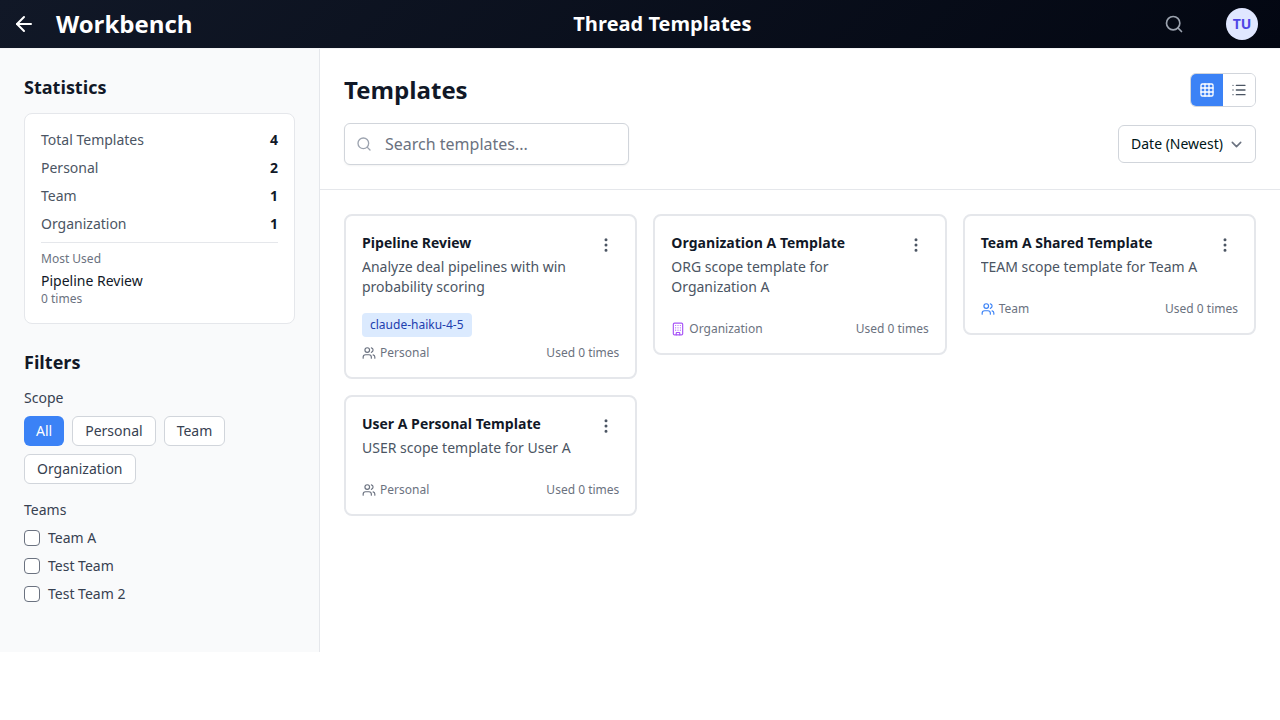
The templates page uses a two-panel layout similar to the documents page:
Left sidebar contains:
- Statistics panel: Shows total template count, breakdown by scope (Personal, Team, Organization), and the most-used template with its usage count.
- Scope filters: Buttons to filter by All, Personal, Team, or Organization scope.
- Team filter: Checkboxes for each team you belong to. Select one or more teams to narrow results to templates associated with those teams.
- Clear Filters: Resets all active filters when visible.
Main content area contains:
- Header controls: Page title and grid/list view toggle.
- Search bar: Full-text search across template names and descriptions.
- Sort controls: Dropdown with options for Date (Newest/Oldest), Name (A-Z/Z-A), and Most/Least Used.
- Template cards: Your templates displayed in the selected view mode.
Filtering and Search
Scope buttons filter templates by visibility level. Click a scope to show only templates of that type. Click "All" to remove the filter.
Team checkboxes narrow results to templates belonging to specific teams. This is useful when you belong to multiple teams and want to find templates shared within a particular group.
Search matches against template names and descriptions. Results update as you type.
Sort options:
- Date (Newest) -- default
- Date (Oldest)
- Name (A-Z)
- Name (Z-A)
- Most Used
- Least Used
Creating a Template
From an Existing Thread
The primary way to create a template is from a configured thread:
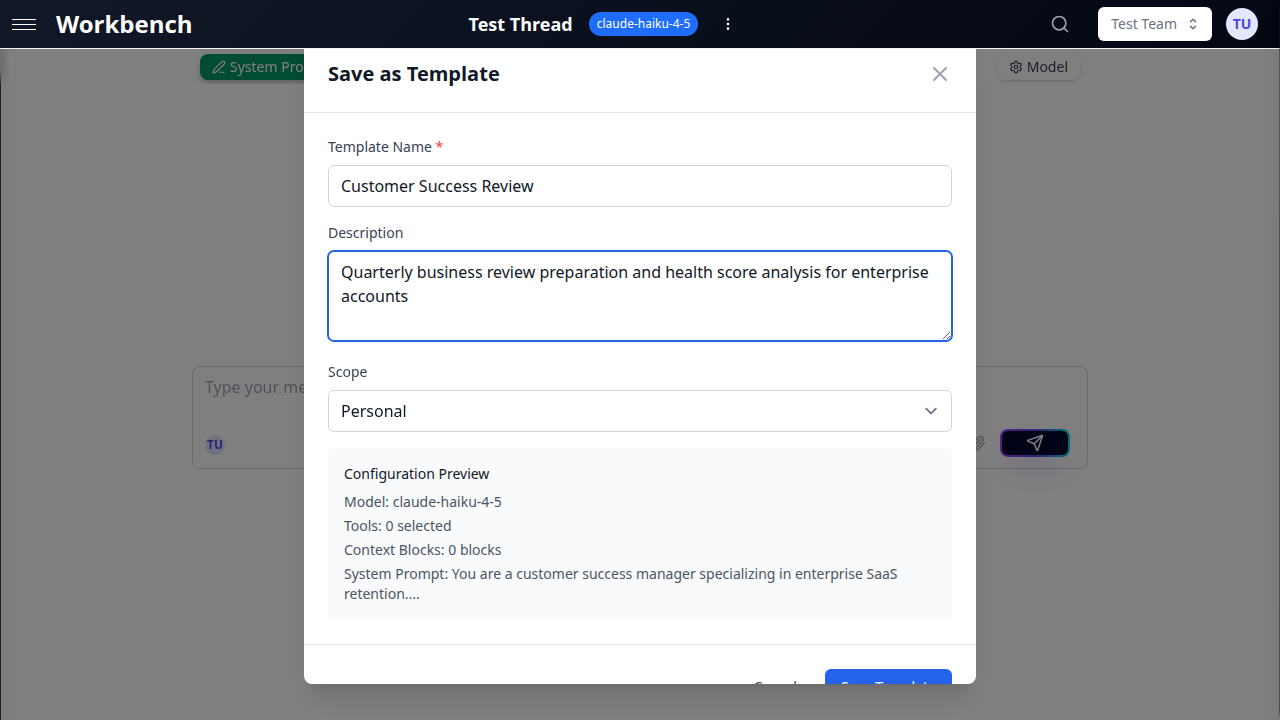
- Open a thread that has the desired configuration (system prompt, model, tools, context blocks)
- Open the thread menu
- Click Save as Template
- Fill in the template details:
- Template Name (required): A descriptive name for the template
- Description (optional): Explain when and how to use this template
- Scope: Choose Personal, Team, or Organization
- Team (required for Team scope): Select which team can access the template
- Review the Configuration Preview showing model, tools count, context blocks count, and system prompt excerpt
- Click Save Template
What Gets Saved
A template captures the following from the source thread:
| Component | Saved |
|---|---|
| System prompt | Full text content |
| Model selection | Provider, model name, parameters |
| Tools configuration | All enabled tools and their settings |
| Context blocks | References to attached context blocks |
| Thread title | Used as default template name |
Not saved: Message history, run data, cost information, or temporary state. Templates capture configuration, not conversation content.
Applying a Template
When creating a new thread, you can start from a template instead of a blank configuration.
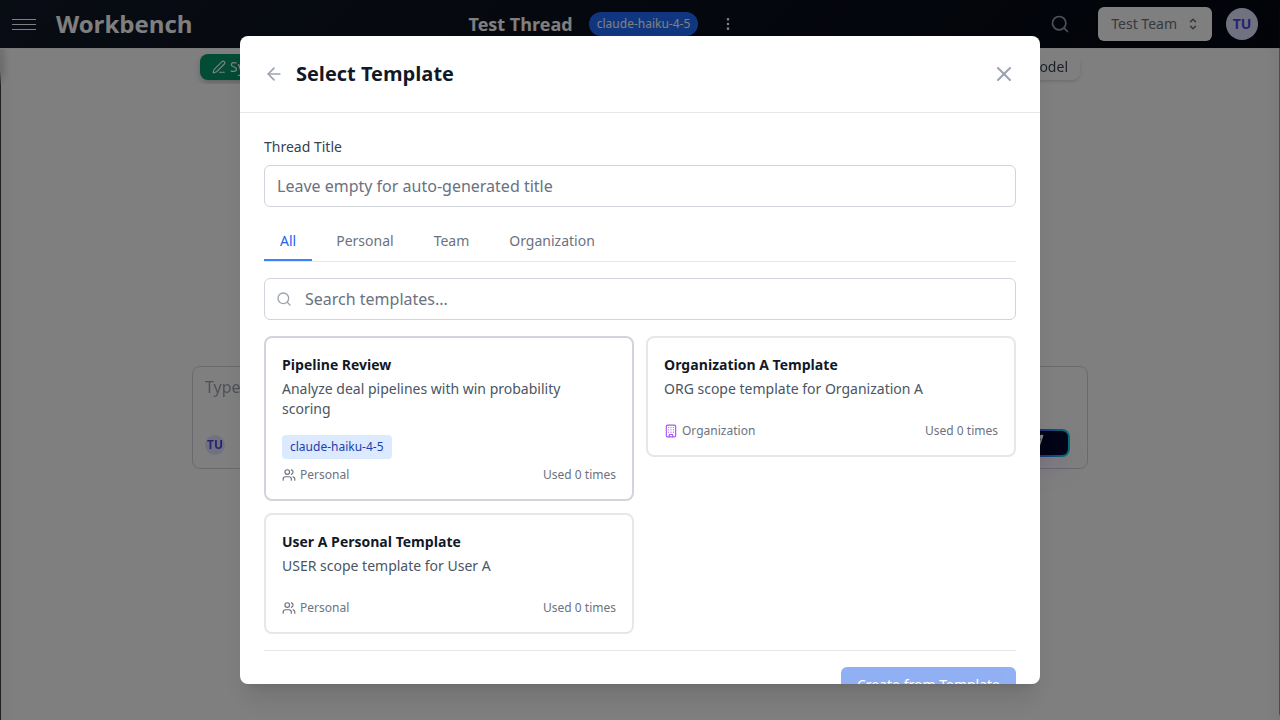
- Click New Thread in the sidebar
- In the new thread modal, click Use Template
- Browse available templates using scope tabs and search
- Click a template card to select it (a blue checkmark appears)
- Optionally set a custom title for the new thread
- Click Create
The new thread is created with all the template's settings applied: system prompt, model configuration, tools, and context blocks. You can then modify any of these settings without affecting the original template.
Template selection features:
- Scope tabs: Filter between All, Personal, Team, and Organization templates
- Search: Find templates by name or description
- Sort by usage: Templates are sorted by usage count (most used first), then by creation date
- Configuration preview: Each template card shows the model, tools count, and context blocks count
Managing Templates
Editing
- Navigate to the templates page from the left sidebar
- Find the template you want to edit
- Click the three-dot menu on the template card
- Select Edit
- Modify the template name, description, scope, or team assignment
- Save your changes
Editing a template does not affect threads that were already created from it. Each thread receives a copy of the template configuration at creation time.
Changing Scope
You can change a template's scope to make it more or less visible:
- Personal to Team: Share a personal template with your team
- Team to Organization: Make a team template available organization-wide
- Organization to Personal: Restrict an organization template to your personal use
Scope changes take effect immediately. Team members who previously had access may lose it if the scope is narrowed.
Deleting
- Click the three-dot menu on the template card
- Select Delete
- Type "yes" in the confirmation dialog
- Click Delete to confirm
Deleting a template is permanent and cannot be undone. Threads previously created from the template are not affected -- they retain their configuration independently.
Template Scopes
Templates use a three-tier scope model that controls who can view and apply them.
Personal Templates
Scope: USER
- Visible only to the user who created them
- Ideal for personal workflows and frequently used configurations
- Cannot be seen or applied by other users
- No team assignment required
Use cases:
- Daily analysis setup with your preferred model and tools
- Personal coding assistant configuration
- Quick meeting summarization template
Team Templates
Scope: TEAM
- Visible to all members of the selected team
- Require a team assignment when creating
- Any team member can apply the template to new threads
- Only the creator and team admins can edit or delete
Use cases:
- Sales deal analysis with CRM context blocks and tools
- Engineering code review with repository context and code analysis tools
- Marketing content creation with brand guidelines context
Organization Templates
Scope: ORG
- Visible to all members of the organization
- Designed for company-wide standardization
- Organization admins manage these templates
- Ensure consistent AI setup across all teams
Use cases:
- Compliance review template with regulatory context and approved tools
- Customer communication template with brand voice system prompt
- Onboarding template for new team members with company knowledge context
Template Cards
Each template is displayed as a card showing key information at a glance:
- Name: Template title in bold
- Description: Optional description text (truncated to two lines)
- Model badge (blue): The AI model configured in the template
- Tools badge (green): Number of enabled tools, with a wrench icon
- Context badge (purple): Number of attached context blocks, with a document icon
- Scope indicator: Icon and label showing Personal, Team, or Organization
- Usage count: How many times the template has been applied
In grid view, cards are arranged in a responsive three-column layout. In list view, cards stack vertically with the same information in a compact format.
Best Practices
Name templates by purpose, not configuration. Use "Q3 Deal Risk Analysis" rather than "GPT-4 with HubSpot." Purpose-driven names help team members find the right template without inspecting configuration details.
Write descriptions. A brief description explaining when to use the template saves team members from opening each one to understand its purpose.
Start with Personal, promote to Team. Create and refine templates in your personal scope. Once proven effective, change the scope to Team to share with colleagues.
Use Organization scope sparingly. Reserve organization-wide templates for truly universal workflows that all teams benefit from. Too many organization templates create clutter.
Review usage statistics. The usage count and "Most Used" indicator in the sidebar help identify which templates deliver value and which can be archived.
Keep templates focused. A template that tries to cover too many scenarios becomes less useful. Create separate templates for distinct workflows rather than one general-purpose template.
Update templates as workflows evolve. When you discover better system prompts, new tools, or additional context blocks, update the template so future threads benefit from the improvement.
Combine with team auto-context. Templates and team auto-context complement each other. Templates set the initial configuration; auto-context ensures ongoing access to team knowledge.
Leverage sort by usage for discovery. When browsing templates, sort by "Most Used" to find the templates your team finds most valuable.
Test templates before sharing. Create a thread from the template and verify the configuration works as expected before promoting the template to a wider scope.
Related Documentation
- Threads - Creating threads and conversation modes
- System Prompts - Writing effective system prompts
- Context Blocks - Managing context attached to templates
- Models & Tools - Model selection and tool configuration
- Teams - Team collaboration and sharing