
Global Search
Global Search provides instant access to all your threads and teams from anywhere in the application. It searches across all teams you belong to, displays recently browsed threads, and supports keyboard-driven navigation for fast context switching.
Overview
As your usage of GPT Workbench grows, finding a specific thread among hundreds across multiple teams can become cumbersome. Global Search solves this by providing a unified search interface that spans all your teams and threads in a single modal.
The search indexes thread titles and team names, returning results ranked by relevance. When you select a result from a different team, GPT Workbench automatically switches to that team before navigating to the thread.
Opening Global Search
There are two ways to open the Global Search modal:
Keyboard shortcut:
- Windows/Linux:
Ctrl+Shift+ForCtrl+P - macOS:
Cmd+Shift+ForCmd+P
The Ctrl+P / Cmd+P shortcut mirrors the convention used by code editors and browsers for quick navigation. GPT Workbench intercepts this shortcut to open Global Search instead of the browser's default print dialog.
Search icon:
- Click the search icon (magnifying glass) in the top navigation bar, to the left of the team selector
The modal opens with the search input focused, ready for immediate typing. No additional clicks are required to start searching.
Recently Browsed Threads
When the search modal opens with no query, it displays your recently browsed threads. This list is drawn from your local browser history and provides quick access to threads you have visited recently, regardless of which team they belong to.
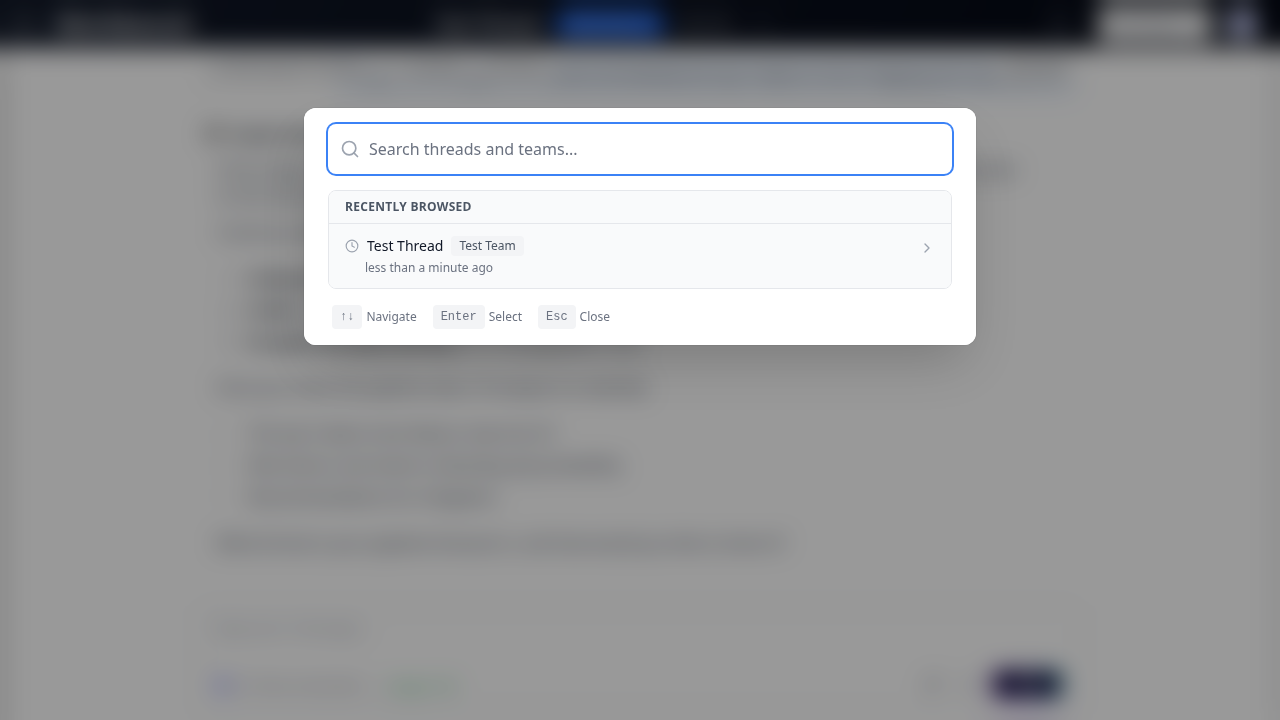
Key details:
- The current active thread is excluded from the list (since you are already viewing it)
- Each entry shows the thread title, team name, and how long ago it was visited
- Threads from other teams display a colored team badge
- Click any entry to navigate directly to that thread
Recently browsed threads are stored in your browser's local storage. They persist across sessions but are specific to the browser and device you are using. Clearing your browser data will reset this list.
Empty state: If you have no recently browsed threads (for example, on a fresh browser or after clearing data), the modal displays a prompt to type at least 2 characters to begin searching, along with a search icon placeholder.
Searching
Type at least 2 characters to trigger a search. Results appear as you type, with a 300-millisecond debounce to avoid excessive requests. The debounce ensures that the search only fires after you stop typing, reducing unnecessary API calls while maintaining a responsive feel.
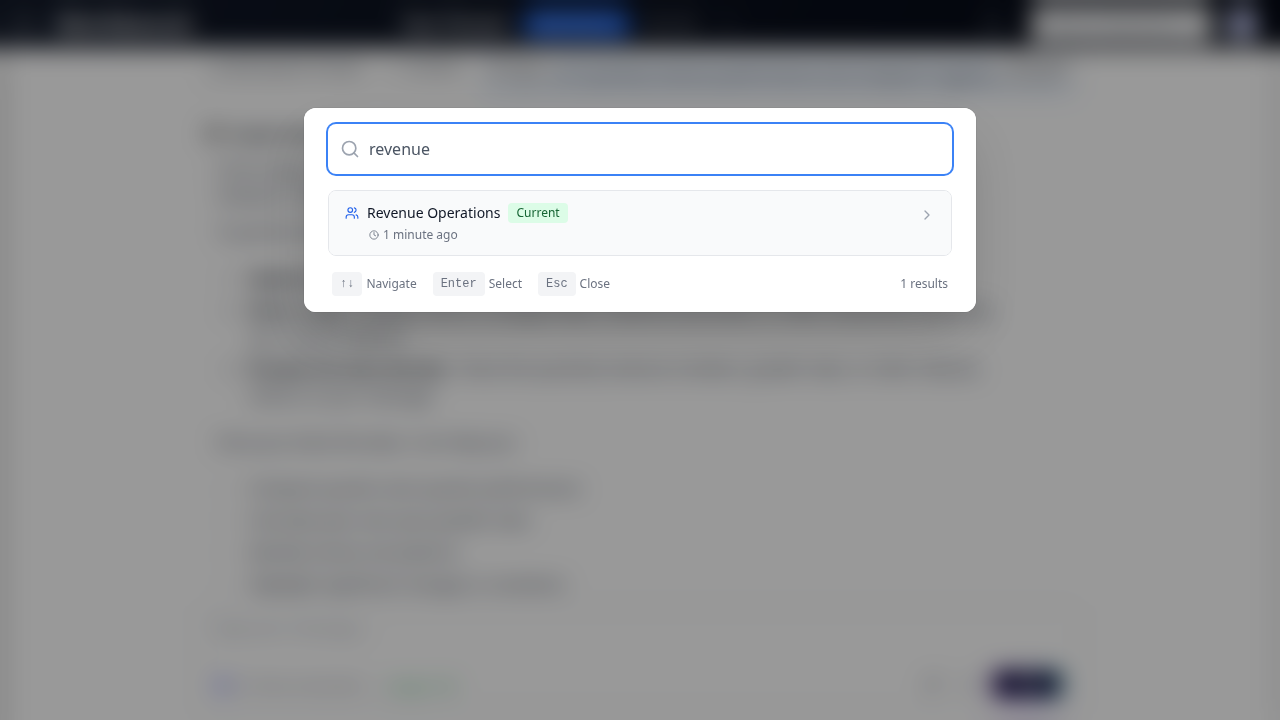
Search Scope
The search queries across:
- Threads -- Matched by title across all teams you belong to
- Teams -- Matched by team name
Results are grouped with teams listed first, followed by threads. Each result shows relevant metadata:
| Result Type | Displayed Information |
|---|---|
| Thread | Title, team name, last updated timestamp |
| Team | Name, personal/shared indicator, last updated timestamp |
Cross-Team Results
When search results include threads or teams from outside your current team:
- Thread from another team: A colored badge indicates the team name. Selecting this result automatically switches your active team and navigates to the thread.
- Team result: Selecting a team switches your active team to that team.
The team switch happens seamlessly. GPT Workbench handles the backend team update and page navigation in a single operation. After the switch, the page reloads with the new team context, and the sidebar reflects the selected team's thread list.
No Results
When a search query returns no matching threads or teams, the modal displays a "No results found" message including your search query. This confirms that the search executed correctly and that no matching content exists. Consider:
- Checking for typos in your query
- Using fewer or different keywords
- Verifying that the thread exists in a team you have access to
Loading State
While the search request is in progress, a loading spinner appears next to the search input. The previously displayed results (if any) remain visible until new results arrive, preventing disruptive layout shifts.
Team Switching Behavior
Global Search handles team switching automatically when you select a result from a team other than your current one. Understanding this behavior helps you navigate efficiently:
Same-team results: When you select a thread that belongs to your current team, navigation is instant. The application updates the active thread without a full page reload, preserving your scroll position and application state.
Cross-team results: When you select a thread from a different team, the application:
- Sends a request to update your active team on the server
- Redirects to the selected thread with the new team context
- Reloads the page to reflect the new team's sidebar, permissions, and settings
This means cross-team navigation involves a brief page reload, which is necessary to load the correct team configuration. The thread you selected becomes immediately active after the reload.
Team results: Selecting a team (rather than a thread) switches to that team and loads its most recent thread. This is useful when you want to work within a specific team but do not have a particular thread in mind.
Date and Time Formatting
Timestamps in the search results (for both recent threads and search results) are displayed as relative times -- for example, "3 minutes ago," "2 hours ago," or "yesterday." The formatting adapts to your language preference:
- English users see English relative time strings
- French users see French relative time strings (e.g., "il y a 3 minutes," "il y a 2 heures")
This localization applies to both the recently browsed list and search results.
Keyboard Navigation
Global Search is designed for keyboard-driven workflows. All navigation can be performed without touching the mouse:
| Key | Action |
|---|---|
Up Arrow | Move selection up |
Down Arrow | Move selection down |
Enter | Open the selected result |
Escape | Close the search modal |
The selected item is visually highlighted. As you navigate with arrow keys, the list scrolls automatically to keep the selected item visible.
Keyboard navigation works identically for both recently browsed threads and search results.
Result Count
When search results are available, the total count is displayed in the bottom-right corner of the modal (e.g., "12 results"). This helps you assess whether your query is specific enough or needs refinement.
Help Bar
The bottom of the modal displays a help bar with keyboard shortcut reminders:
- Arrow keys for navigation
- Enter to select
- Escape to close
This bar is always visible, providing a quick reference for keyboard-driven usage without consulting documentation.
Accessibility
The Global Search modal follows standard dialog patterns:
- Focus is trapped within the modal while it is open
- Pressing Escape closes the modal and returns focus to the previous element
- The search input receives focus automatically when the modal opens
- Mouse hover updates the selected index, so keyboard and mouse navigation are synchronized
- Results scroll into view automatically as you navigate with arrow keys
Common Workflows
Quick Thread Switching
The most common workflow is switching between threads you are actively working on:
- Press
Ctrl+Shift+Fto open Global Search - The recently browsed list appears immediately
- Press
Down Arrowto select the desired thread - Press
Enterto navigate
Total time: approximately 1-2 seconds.
Finding an Old Thread
When you need to find a thread from days or weeks ago:
- Press
Ctrl+Pto open Global Search - Type a few characters from the thread title (e.g., "budget" or "onboarding")
- Scan the results -- team badges help you identify the correct thread if multiple teams have similar titles
- Press
Enterto navigate, or click the result
Switching Teams
If you need to work in a different team but do not have a specific thread in mind:
- Open Global Search
- Type the team name
- Select the team from the results (teams appear above threads)
- GPT Workbench switches to that team and loads its most recent thread
Best Practices
- Use keyboard shortcuts --
Ctrl+Shift+ForCtrl+Pis the fastest way to switch between threads. Build the habit of using keyboard navigation for efficient workflows. - Search by distinctive words -- Thread titles are the primary search target. Use distinctive words from the thread title rather than generic terms.
- Use for cross-team navigation -- Global Search is the most efficient way to jump between threads in different teams without manually switching teams first.
- Leverage recent threads -- Open the search modal without typing to quickly return to a thread you were working on earlier. This is especially useful when juggling multiple tasks.
- Name threads descriptively -- Well-named threads are easier to find. Consider including project names, client names, or task descriptions in thread titles.
- Refine if needed -- If your search returns too many results, add more specific terms. The search performs partial matching, so longer queries produce more targeted results.