
Permissions
GPT Workbench uses a role-based access control system organized at two levels: organizations and teams. Permissions govern who can create, view, edit, and delete resources across the platform.
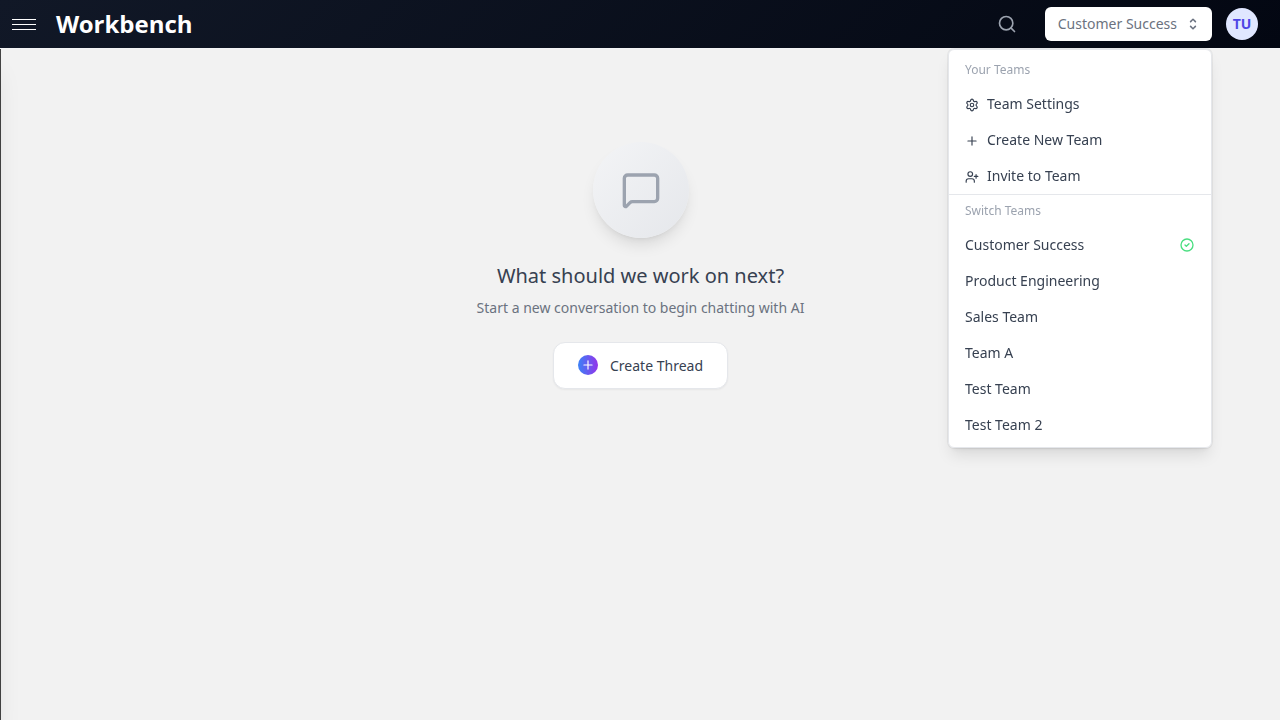
Role Hierarchy
Organization Roles
Organizations are the top-level grouping. Every user belongs to one organization.
| Role | Description |
|---|---|
| Owner | Full organizational control, including billing and account deletion |
| Admin | User and settings management, integration configuration |
| Member | Standard access to enabled features and tools |
Team Roles
Teams exist within organizations. Each team has its own role assignments.
| Role | Description |
|---|---|
| Owner | Team creator with full control, including team deletion |
| Admin | Member and settings management within the team |
| Member | Access to team resources with limited configuration ability |
A user's organization role and team role operate independently. An organization Admin who is a team Member still has limited permissions within that specific team. Conversely, a team Admin does not gain organization-level privileges.
Organization Permissions
Owner Permissions
The organization Owner has unrestricted access to every feature.
| Permission | Details |
|---|---|
| Billing management | View invoices, change subscription plan, update payment methods |
| Organization deletion | Permanently delete the organization and all data |
| Ownership transfer | Transfer the Owner role to another user |
| User management | Invite, remove, promote, or demote any user |
| Settings management | Configure all organization-level settings |
| Integration management | Connect and disconnect OAuth integrations (HubSpot, Microsoft 365, Google Workspace) |
| Tool configuration | Enable or disable tools globally, set daily usage limits, manage API keys |
| System prompt library | Create, edit, and delete organization-scoped system prompts |
| Usage analytics | Full access to cost reports, token usage, and activity logs |
| All Admin permissions | Everything listed under Admin below |
Admin Permissions
| Permission | Details |
|---|---|
| User management | Invite new users, remove existing users, change roles (except Owner) |
| Organization settings | Modify organization name, preferences, and display settings |
| Integration configuration | Connect and manage OAuth providers (HubSpot, MS365, Google) |
| Tool limits | Set daily tool usage limits and enable or disable tools |
| System prompts | Create and manage organization-scoped system prompts |
| Usage analytics | View cost reports, token consumption, and activity summaries |
| Context sharing | Share context blocks at the organization scope |
| Template management | Create, edit, and delete organization-scoped templates |
Member Permissions
| Permission | Details |
|---|---|
| Thread creation | Create threads in any team they belong to |
| Tool usage | Use tools enabled by organization and team admins |
| Team membership | Join teams via invitation or invite link |
| Context blocks | Create personal context blocks, link shared blocks to threads |
| Sharing | Share context blocks with teams they belong to |
| Templates | Use organization and team templates, create personal templates |
| Profile management | Update own name, email, password, and preferences |
Team Permissions
Team Owner Permissions
| Permission | Details |
|---|---|
| Team deletion | Permanently delete the team, including all threads, messages, and context |
| Ownership transfer | Transfer the Owner role to another team member |
| All Admin permissions | Everything listed under Team Admin below |
Team Admin Permissions
| Permission | Details |
|---|---|
| Member management | Invite new members (email or invite link), remove members, change roles |
| Team settings | Update team name and all configuration options |
| System prompt | Set and edit the team default system prompt |
| Preferred model | Set the default AI model for new team threads |
| Auto-context | Add, remove, and reorder auto-context blocks for the team |
| Tool configuration | Enable or disable tools at the team level |
| Thread management | Access, edit, move, and delete any team thread |
| Invite links | Create, view, and delete team invite links |
| Archived content | View and restore archived threads and messages |
Team Member Permissions
| Permission | Details |
|---|---|
| Thread access | View all threads in the team |
| Thread creation | Create new threads within the team |
| Own thread management | Edit and manage threads they created |
| Context usage | Attach team context blocks and shared blocks to threads |
| Auto-context viewing | See auto-context blocks (displayed as read-only with blue styling and shield icon) |
| Tool usage | Use tools enabled at the team level |
| Sharing | Share context blocks with the team |
Resource Access Matrix
Threads
| Resource | Owner/Creator | Team Admin | Team Member | Other Team Members | Non-Team Members |
|---|---|---|---|---|---|
| Personal team thread | Full control | -- | -- | -- | No access |
| Shared team thread (own) | Full control | Full control | Full control | View and use | No access |
| Shared team thread (other's) | -- | Full control | View and use | View and use | No access |
| Public thread link | -- | -- | -- | -- | Read-only |
Context Blocks
| Resource | Block Owner | Team Admin | Team Member | Organization Member |
|---|---|---|---|---|
| Personal block | Full control | No access | No access | No access |
| Team-shared block | Full control | View and link | View and link | No access |
| Org-shared block | Full control | View and link | View and link | View and link |
| Auto-context block | Full control | Configure | View only (read-only, blue styling) | No access |
Documents
Documents inherit access from the context blocks they are attached to.
| Context Scope | Who Can Access |
|---|---|
| Personal context | Only the context block owner |
| Team context | All members of the team |
| Organization context | All members of the organization |
Templates
| Template Scope | Who Can Use | Who Can Edit | Who Can Delete |
|---|---|---|---|
| Personal | Creator only | Creator only | Creator only |
| Team | All team members | Creator and team admins | Creator and team admins |
| Organization | All org members | Creator and org admins | Creator and org admins |
System Prompts
| Prompt Scope | Who Can Use | Who Can Edit |
|---|---|---|
| Personal | Creator only | Creator only |
| Team | All team members | Team admins and Owner |
| Organization | All org members | Org admins and Owner |
Tool Permissions
Organization-Level Controls
Organization Admins configure the global tool availability:
- Enable/disable tools: Control which native tools and MCP servers are available across the organization
- Daily limits: Set maximum daily usage for specific tools (e.g., 100 web searches per day per user)
- API key management: Configure provider API keys that power tool integrations
Tools that are disabled at the organization level cannot be enabled at the team or thread level.
Team-Level Controls
Team Admins can further configure tools for their team:
- Enable or disable tools from the set allowed by the organization
- Configure team-level tool defaults that apply to all new team threads
- Team tool selections are additive: they combine with thread-level selections
Thread-Level Override
Individual users can enable additional tools on a per-thread basis:
- Only tools that are enabled at both the organization and team level are available
- Users cannot exceed daily limits set by organization admins
- Thread-level tool selections persist across sessions
Permission Flow
Organization (Admin enables tools globally)
    |
    v
Team (Admin selects subset for team threads)
    |
    v
Thread (User enables from available tools)
A tool must be enabled at every level in the chain to be usable in a thread.
API Access
Personal Access Tokens
Users can generate personal access tokens for programmatic access to the GPT Workbench API.
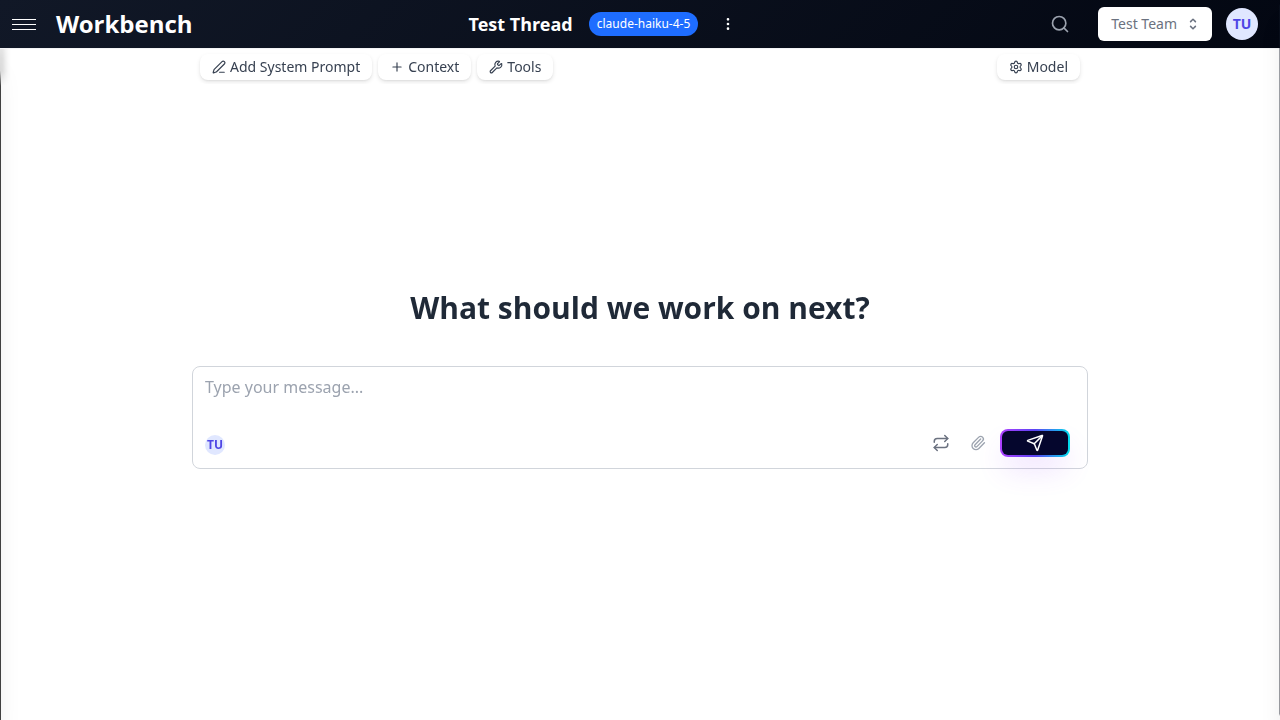
Creating a token:
- Navigate to your profile settings
- Open the API Tokens section
- Click Create Token
- Enter a descriptive name for the token
- Select the permission scopes the token should have
- Click Create
- Copy the token immediately -- it is shown only once
Token characteristics:
- Tokens authenticate as the creating user and inherit that user's permissions
- Tokens respect all organization and team role restrictions
- Tokens are subject to the same rate limits as interactive usage
- Tokens can be revoked at any time from the profile settings page
Available scopes:
- Read access to threads and context blocks
- Write access to threads and context blocks
- Tool execution
- Team management (for admins)
Organization API
Organization Admins can configure API-level integrations:
- Webhooks: Receive notifications when events occur (thread created, message sent, etc.)
- Custom integrations: Connect external systems to GPT Workbench
- Programmatic tool management: Manage tool configurations via API
Integration Permissions
OAuth Connections
OAuth integrations (HubSpot, Microsoft 365, Google Workspace) are managed at the user level with organization oversight.
| Action | Who Can Perform |
|---|---|
| Connect an OAuth provider | Any user (connects to their own account) |
| Disconnect own connection | The user who connected |
| View connected accounts | Organization admins (all connections), users (own connections) |
| Configure integration settings | Organization admins |
| Use integration tools | Any user with an active connection and tool access |
Important: OAuth tokens are user-specific. When a user connects HubSpot, for example, the connection uses their HubSpot credentials. Other team members need their own connections to use HubSpot tools.
Integration Data Visibility
| Data Type | Who Can See |
|---|---|
| HubSpot CRM data (deals, contacts) | Users with active HubSpot OAuth connection |
| Microsoft 365 files and emails | Users with active MS365 OAuth connection |
| Google Workspace documents | Users with active Google OAuth connection |
| Integration connection status | Organization admins (all users), individual users (own connections) |
Data Visibility
Usage Analytics
| Metric | Organization Owner | Organization Admin | Team Admin | Team Member |
|---|---|---|---|---|
| Organization-wide costs | Full access | Full access | No access | No access |
| Organization token usage | Full access | Full access | No access | No access |
| Team costs | Full access | Full access | Team only | No access |
| Team statistics card | Full access | Full access | Team only | Team only |
| Personal usage | Own data | Own data | Own data | Own data |
| Per-run cost breakdown | All runs | All runs | Team runs | Own runs |
Cost Reports
Cost visibility depends on organization settings:
- USD mode: Costs displayed in dollars (available to admins and users if enabled)
- Credits mode: Costs displayed in credit units (abstracted from raw dollar amounts)
- Hidden mode: Costs not displayed to standard members
The cost display mode is configured at the organization level by admins.
Audit and Compliance
Activity Logging
Organization Admins have access to activity logs that track:
| Event Type | Details Logged |
|---|---|
| Authentication | Login timestamps, IP addresses, session duration |
| Resource access | Thread views, context block access, document downloads |
| Tool usage | Tool invocations, parameters used, execution results |
| Sharing actions | Shares created, modified, or revoked |
| Team management | Members invited, removed, or role-changed |
| Configuration changes | Settings modified, tools enabled/disabled |
Data Retention
Data retention is configurable based on your subscription plan:
| Data Type | Retention Policy |
|---|---|
| Active threads | Retained indefinitely while subscription is active |
| Archived threads | Retained based on plan tier (30+ days for paid plans) |
| Messages | Retained with their parent thread |
| Context blocks | Retained until explicitly deleted |
| Documents | Retained until the parent context block is deleted |
| Activity logs | Configurable retention period (default: 90 days) |
| API tokens | Active until revoked or user is removed |
Compliance Controls
| Control | Description |
|---|---|
| Data export | Organization Owners can export all organization data |
| Data deletion | Individual users can request deletion of their personal data |
| Access review | Admins can audit current permissions and sharing relationships |
| Session management | Users can view and revoke active sessions |
Permission Inheritance
Permissions follow an inheritance model:
- Organization level sets the ceiling for what is possible
- Team level narrows permissions within the organization boundary
- Thread level allows individual customization within team boundaries
A user never has more permissions at a lower level than what is granted at the level above.
Example: If the organization disables the HubSpot tool, no team admin can enable it, and no user can add it to a thread. If the organization enables it but a team admin disables it for their team, members of that team cannot use it in team threads (but could use it in personal threads if their personal team has it enabled).
Best Practices
- Apply the principle of least privilege -- Assign the minimum role needed for each user's responsibilities
- Audit permissions regularly -- Review team memberships and roles quarterly to ensure they reflect current organizational structure
- Use teams to segment access -- Create teams that map to projects or departments rather than granting broad organization-level access
- Rotate API tokens -- Replace personal access tokens periodically, especially for automated integrations
- Document access policies -- Maintain clear guidelines about who should have which roles and why
- Monitor shared content -- Use the Shared Context Manager to review what is shared at each scope
- Leverage auto-context for compliance -- Use team auto-context to ensure compliance requirements are always included in relevant conversations
- Review public links -- Periodically audit public thread links to ensure sensitive conversations are not exposed
Related Documentation
- Teams - Team creation, management, and settings
- Sharing - Sharing mechanisms for threads, context, and templates
- Admin Features - Organization administration capabilities
- Models & Tools - Tool configuration and availability