
Sharing
GPT Workbench provides a comprehensive sharing system that lets you distribute threads, context blocks, templates, and system prompts across teams and organizations. Every shared resource maintains a single source of truth -- sharing creates references, not copies.
Sharing Threads
Team Thread Visibility
Threads created within a shared team are automatically visible to all team members. No explicit sharing action is required.
- All team members see the thread in their sidebar when the team is selected
- Real-time presence shows who else is viewing the same thread
- Thread history, context blocks, and tool configurations are fully accessible to all members
Moving Threads Between Teams
To change a thread's team ownership:
- Open the thread you want to move
- Click the thread menu (three dots in the thread header)
- Select Move to Team
- Choose the destination team from the dropdown
- Confirm the move
The thread's complete state travels with it: conversation history, attached context blocks, model configuration, and tool settings. Members of the source team lose access (unless they are also members of the destination team).
Public Thread Links
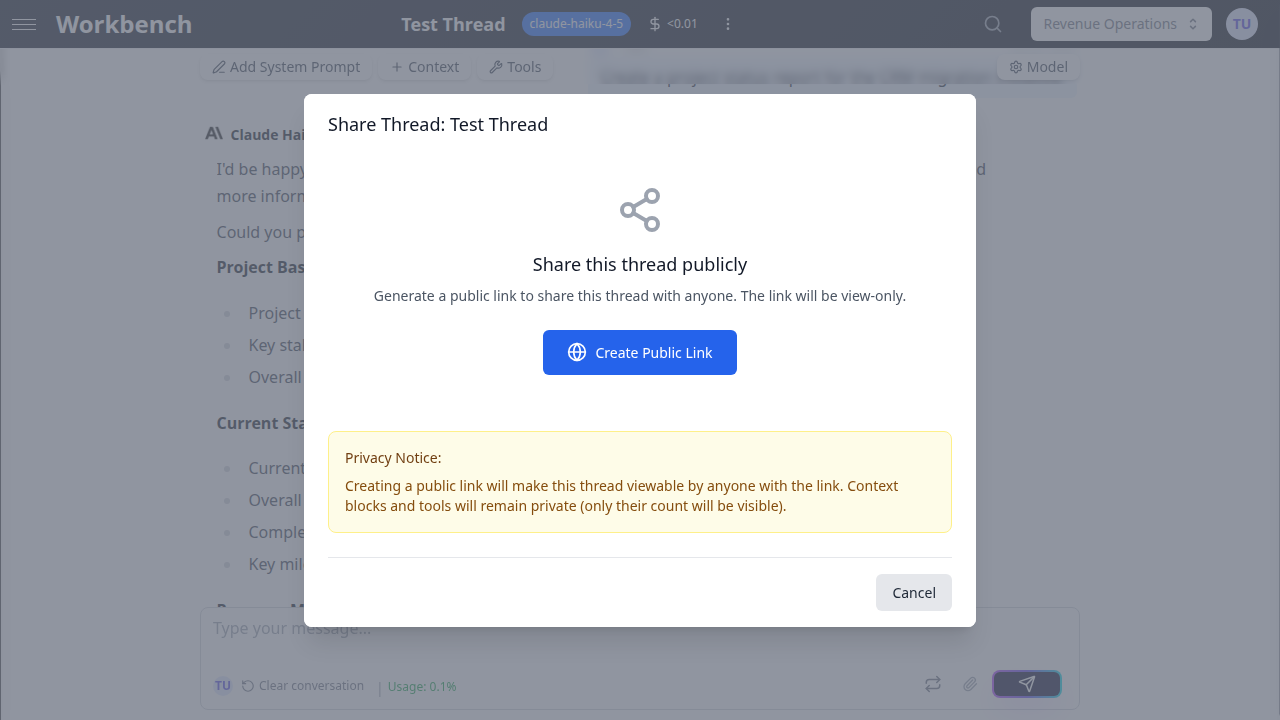
Share a thread with anyone outside your organization using a public link.
Creating a public link:
- Open the thread you want to share publicly
- Click the Share button in the thread header
- In the Share Thread modal, click Create Share Link
- Copy the generated URL
Public link characteristics:
- Read-only access -- external viewers can see the conversation but cannot interact
- The link does not require authentication
- You can revoke the link at any time by clicking Delete Share Link in the same modal
- Only the thread owner or team admins can create and manage public links
Use cases:
- Sharing AI analysis results with clients
- Publishing research findings for external review
- Providing read-only access to stakeholders who do not have a GPT Workbench account
Thread Visibility Summary
| Thread Location | Who Can Access |
|---|---|
| Personal team | Only the thread owner |
| Shared team | All members of that team |
| Public link | Anyone with the link (read-only) |
Sharing Context Blocks
The Share Modal
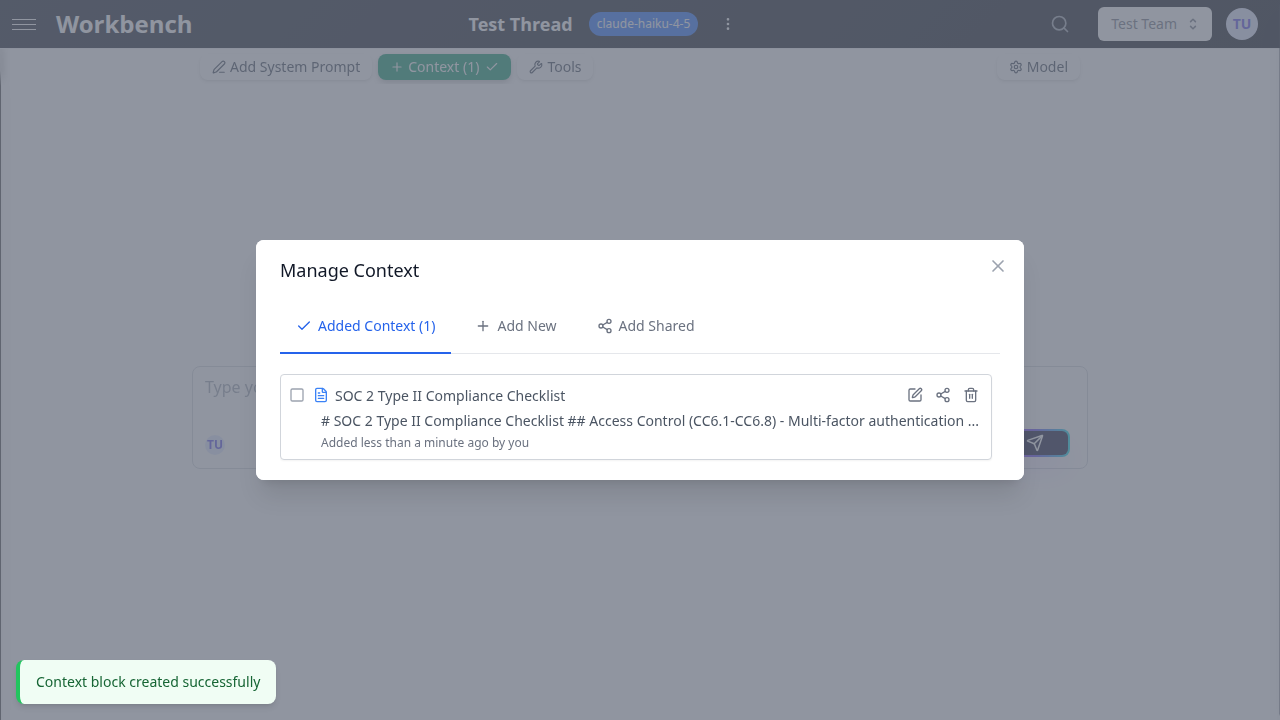
To share a context block:
- Locate the context block (in a thread's context panel, in the context library, or in the Shared Context Manager)
- Click the Share button on the block
- The ShareContextModal opens, showing:
- The block's title
- A Share Scope selector with three options: Team, Myself (Personal), and Organization
- Additional configuration depending on the selected scope
- Configure the share and click Share
Scope details:
| Scope | Target Selector | Effect |
|---|---|---|
| Team | Dropdown listing all your teams | All members of the selected team can access the block |
| Myself (Personal) | Automatic (your user account) | You can access the block from any team you belong to |
| Organization | Automatic (your organization) | All members of your organization can access the block |
When sharing with a team, select the target team from the dropdown. The current team is pre-selected by default.
When sharing with your organization, an informational panel confirms that all organization members will be able to access the block from any team.
When sharing with yourself, the block becomes cross-team accessible from your personal account -- useful for context you want available regardless of which team is selected.
Shared Context Library
The Shared Context Manager is a dedicated page for browsing, filtering, and managing all context blocks shared with you, your teams, or your organization.
Accessing the library: Navigate to the Shared Context Manager from the main navigation.
Left navigation panel:
The left panel provides views and filters to narrow down the displayed blocks.
Views:
- All Shared Contexts -- Every context block you have access to through any sharing mechanism
- My Shared Blocks -- Blocks you have shared with others
- Shared with My Teams -- Blocks shared with any team you belong to
- Shared with [Organization Name] -- Blocks shared at the organization level
- Shared Directly with Me -- Blocks shared specifically with your user account
Filters:
Context type checkboxes let you filter by block type:
- Text
- URL
- Document
- Git (repository)
- HubSpot
Team multi-select checkboxes let you filter by specific teams. Only teams you belong to are listed.
Search and sort:
The top toolbar provides:
- A search field that matches against block titles, content, and author names
- A sort dropdown with four options: Date Shared (Newest), Date Shared (Oldest), Title (A-Z), Title (Z-A)
Block display:
Each context block in the library shows:
- The block content preview (using the same ContextBlockItem component as thread context)
- Edit, Share, and Delete action buttons (based on your permissions)
- A Shares section listing all active shares for that block, including:
- Target: the team name, user, or organization the block is shared with
- Author: who created the share
- Date: when the share was created
- Delete button: remove an individual share (available to the share creator or team admins)
Creating new context from the library:
Click the Create New Context button at the top of the content area. This opens the context creation modal. After creating a block, the share modal opens automatically so you can immediately share it.
Deleting shares and blocks:
- Deleting a share removes the sharing relationship but preserves the original context block
- Deleting a block permanently removes it and all its shares
- Both actions require typing "yes" in a confirmation dialog
Linking Shared Context to Threads
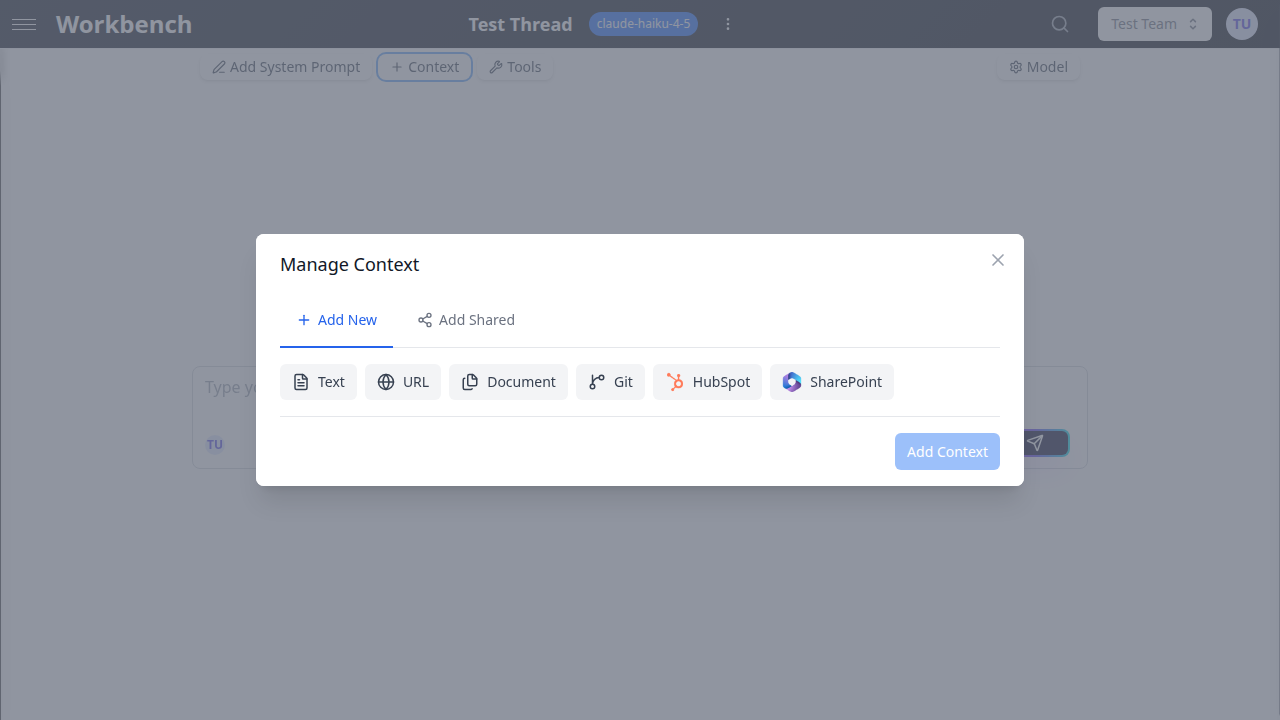
Shared context blocks can be attached to individual threads through the Link Shared tab in the context management interface.
How to link shared context:
- Open a thread and access the context panel
- Click the Link Shared tab (alongside "Thread Context" and "Add New")
- The SharedContextLibrary component displays available shared blocks, organized by scope tabs:
- Team -- blocks shared with the current team (default, pre-filtered to the active team)
- User -- blocks shared with your personal account
- Organization -- blocks shared with your organization
- Select blocks by clicking on them (multi-select supported, maximum 50 blocks)
- Use Ctrl+A (or Cmd+A on Mac) to select all visible blocks
- Click Link Selected to attach the chosen blocks to the thread
Linked shared blocks appear in the thread's context alongside any directly created blocks. They reference the original shared block, so updates to the source block are reflected in all threads where it is linked.
Filtering within the Link Shared tab:
- A team dropdown lets you filter blocks by specific team
- A search field narrows results by title
- Icons indicate the context block type (text, URL, document, repository, HubSpot)
Sharing Templates
Templates define reusable thread configurations (system prompt, model, tools, context). Templates can be scoped to control who can access them.
Template Scopes
| Scope | Who Can Use | Who Can Edit |
|---|---|---|
| Personal | Only you | Only you |
| Team | All team members | Template creator and team admins |
| Organization | All organization members | Template creator and org admins |
Creating Shared Templates
- Configure a thread with the desired system prompt, model, tools, and context
- Open the thread menu and select Save as Template
- Enter a template name and description
- Choose scope: Personal, Team, or Organization
- Save the template
Using Shared Templates
- Click New Thread in the sidebar
- Click the template icon next to "New Thread"
- Browse available templates, organized by scope
- Select a template to create a new thread with its configuration
- The new thread inherits the template's system prompt, model, tools, and context settings
Sharing System Prompts
System prompts can be shared independently of templates. This allows teams and organizations to maintain a library of reusable AI instructions.
System Prompt Scopes
| Scope | Availability |
|---|---|
| Personal | Only you |
| Team | All members of the team |
| Organization | All members of the organization |
Managing Shared System Prompts
- Open the system prompt editor in a thread
- Access the system prompt library
- Browse prompts organized by scope (Personal, Team, Organization)
- Select an existing prompt or save the current one to a scope
Shared system prompts provide consistency across team workflows. For example, a "Code Reviewer" prompt shared at the organization level ensures every engineering team uses the same review criteria.
Real-Time Collaboration
Presence Avatars
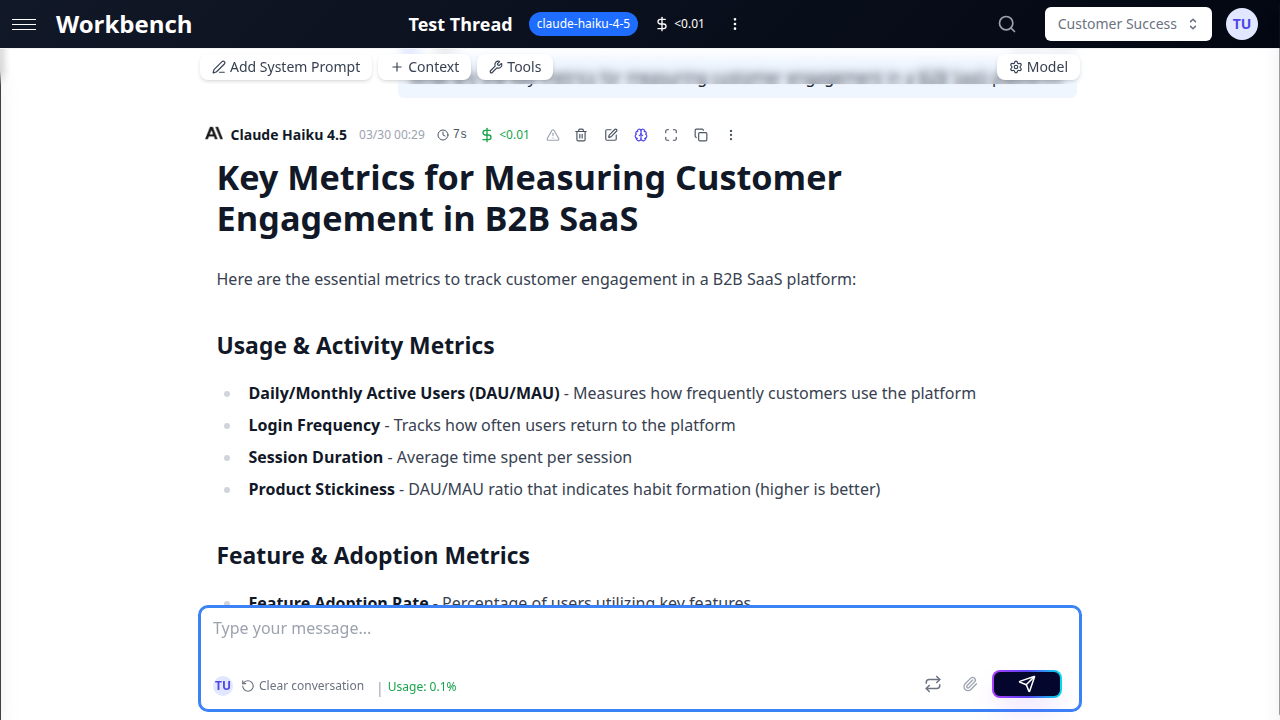
When multiple users view the same thread:
- Avatars of other active users appear in the thread header
- Up to 3 avatars are shown, with a "+N" badge for additional viewers
- Hovering over an avatar reveals the user's name
- Users who are away (inactive tab) appear with reduced opacity
- Presence updates in real-time via WebSocket connections
Thread List Synchronization
Changes made by any team member propagate to all other team members in real-time:
- New threads appear in the sidebar immediately for all team members
- Thread title changes reflect across all active sessions
- Archived or deleted threads disappear from all members' sidebars
- No manual refresh is required
Organization-Wide Sharing
Organization Context
For content that should be accessible across all teams in an organization:
- Share context blocks with the Organization scope
- All organization members can access these blocks from any team
- Common uses: company policies, brand guidelines, legal disclaimers, product specifications
- Organization-scoped shares are visible in the Shared Context Library under the organization view
Cross-Team Access
When a context block is shared with your user account (Personal scope), it becomes available regardless of which team is currently selected. This is useful for personal reference material that you need across all your teams.
Workflow Examples
Distributing Company Knowledge
Scenario: The marketing team needs all AI interactions to reference the brand style guide.
- Create a text context block with the style guide content
- Share it with the organization scope
- Set it as auto-context in each relevant team's settings
- Every new thread in those teams automatically includes the style guide
Sharing Analysis Results
Scenario: A data analyst wants to share a HubSpot analysis with stakeholders.
- Conduct the analysis in a team thread with HubSpot context attached
- Open the Share Thread modal from the thread header
- Create a public link for external stakeholders
- Send the link -- recipients see the full conversation in read-only mode
- Revoke the link when the review period ends
Building a Team Knowledge Base
Scenario: An engineering team wants a library of reusable context for code reviews.
- Create context blocks for: coding standards, security checklist, API design principles
- Share each block with the engineering team
- Team members link relevant blocks to their threads from the Link Shared tab
- As standards evolve, update the source blocks -- all linked threads reflect the changes
Best Practices
- Share at the narrowest appropriate scope -- Use team scope for team-specific content and organization scope only for truly universal material
- Use descriptive titles -- Shared blocks appear in libraries browsed by many users. Clear titles save time for everyone
- Maintain shared content -- Linked blocks reflect updates everywhere. Keep shared content accurate and current
- Prefer linking over copying -- Use the Link Shared tab instead of recreating context in each thread. This ensures consistency and reduces maintenance
- Review public links periodically -- Public thread links provide unauthenticated access. Revoke links when they are no longer needed
- Leverage the Shared Context Manager -- Use views and filters to find blocks efficiently rather than scrolling through individual threads
- Coordinate with auto-context -- For content that every team thread needs, configure it as auto-context in team settings rather than relying on manual linking
Related Documentation
- Context Blocks - Creating and managing context blocks
- Teams - Team creation, settings, and collaboration
- Threads - Thread management and collaboration features
- Permissions - Role-based access control for shared resources
- Thread Templates - Creating and using reusable thread configurations
- System Prompts - Managing system prompts and prompt libraries