
Image and Diagram Generation
GPT Workbench includes built-in tools for generating images and diagrams directly within conversations. Images are created using OpenAI's GPT Image models, while diagrams are produced using the Mermaid diagramming language with automatic syntax validation. Both tools produce visual content that is rendered inline in the conversation.
Image Generation with OpenAI
The OpenAI Image Generator tool creates images from text descriptions using OpenAI's image generation models. Generated images are saved as documents and displayed directly in the conversation.
Enabling the Tool
- Open your thread settings.
- Navigate to the Tools configuration.
- Enable OpenAI Image (listed under the Visualization category).
- Save the configuration.
Once enabled, the AI can generate images in response to your prompts. You do not need to use any special syntax -- simply describe the image you want, and the AI calls the tool automatically.
Supported Operations
The tool supports two operations:
Generate -- Creates new images from text descriptions.
Edit -- Modifies an existing image based on text instructions. Requires a base64-encoded source image and supports an optional mask to constrain edits to specific regions.
Configuration Options
| Parameter | Options | Default | Description |
|---|---|---|---|
| Model | gpt-image-1 | gpt-image-1 | The image generation model |
| Size | 1024x1024, 1536x1024, 1024x1536, auto | auto | Output image dimensions |
| Quality | auto, high, medium, low | auto | Quality level (affects cost and detail) |
| Output Format | png, jpeg, webp | png | File format for the generated image |
| Background | transparent, opaque, auto | auto | Background type (transparent requires png or webp) |
| Count | 1-10 | 1 | Number of images to generate per request |
| Compression | 0-100 | None | Compression level (jpeg and webp only) |
Usage Examples
Basic image generation:
"Generate an image of a modern office workspace with natural lighting, minimal furniture, and a city view through floor-to-ceiling windows."
Specific format and quality:
"Create a high-quality PNG image of a product packaging design for a premium coffee brand, size 1536x1024."
Multiple images:
"Generate 3 variations of a logo concept for a technology consulting firm. Use a clean, professional style."
Transparent background:
"Create a PNG image of a shopping cart icon with a transparent background, suitable for a web application."
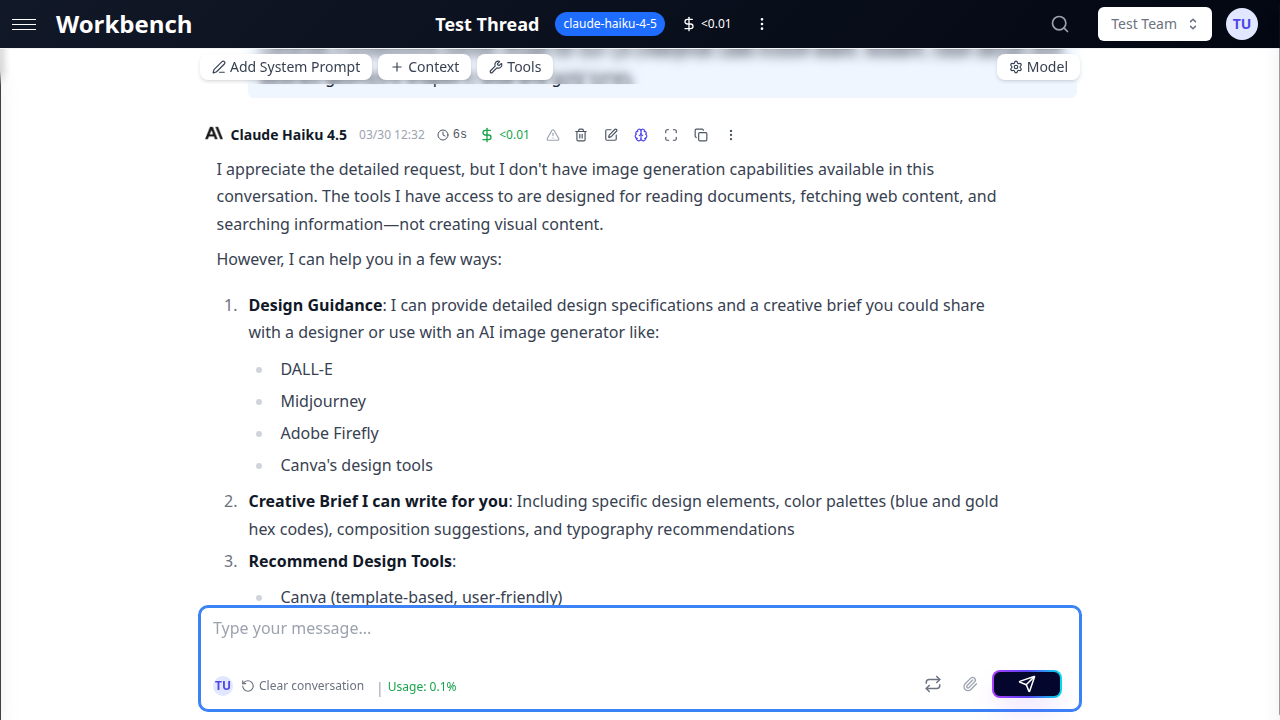
How Generated Images Appear
Generated images are saved as documents in your team's document storage and embedded in the conversation using Markdown image syntax. The images are rendered inline, so you see them directly in the AI's response without needing to download or open them separately.
Each generated image is associated with a document ID, allowing you to reference it in other contexts or download it from the Documents section.
Pricing
Image generation costs vary by quality level:
| Quality | Cost Per Image |
|---|---|
| Low | $0.02 |
| Medium | $0.07 |
| High | $0.19 |
| Auto | $0.07 (defaults to medium) |
Costs are multiplied by the number of images requested. For example, generating 3 high-quality images costs $0.57. Image generation costs are tracked in the run's cost data alongside token costs.
Content Moderation
Generated images are subject to OpenAI's content policies. Prompts that violate usage policies will be rejected with an appropriate error message. The moderation parameter can be set to auto (default) or low to adjust the sensitivity level.
Diagram Generation with Mermaid
The Mermaid Generator tool creates professional diagrams from structured descriptions. Diagrams are rendered visually in the conversation using the Mermaid diagramming language. A companion Mermaid Syntax Validator tool is also available for validating hand-written Mermaid code.
Enabling the Tool
- Open your thread settings.
- Navigate to the Tools configuration.
- Enable Diagram Generator (listed under the Built-in provider).
- Optionally enable Mermaid Syntax Validator for validating Mermaid code.
- Save the configuration.
When the Diagram Generator tool is enabled, the AI is instructed to always use the tool for diagram creation rather than writing Mermaid code manually. This ensures proper syntax validation and consistent output.
Supported Diagram Types
| Type | Keyword | Description |
|---|---|---|
| Flowchart | flowchart | Process flows, decision trees, workflows |
| Sequence | sequence | Interaction sequences between participants |
| Gantt | gantt | Project timelines and task scheduling |
| Pie Chart | pie | Data distribution and proportions |
| Mindmap | mindmap | Hierarchical idea maps |
| Network | network | Network topology and system architecture |
| Graph | graph | General-purpose directed graphs |
Usage Examples
Flowchart:
"Create a flowchart showing the user registration process: form submission, email validation, account creation, and welcome email."
Sequence diagram:
"Draw a sequence diagram showing the OAuth 2.0 authorization code flow between the browser, authorization server, and resource server."
Gantt chart:
"Create a Gantt chart for a 3-month product launch plan with phases for design, development, testing, and release."
Pie chart:
"Generate a pie chart showing our revenue distribution: SaaS 45%, Consulting 30%, Training 15%, Support 10%."
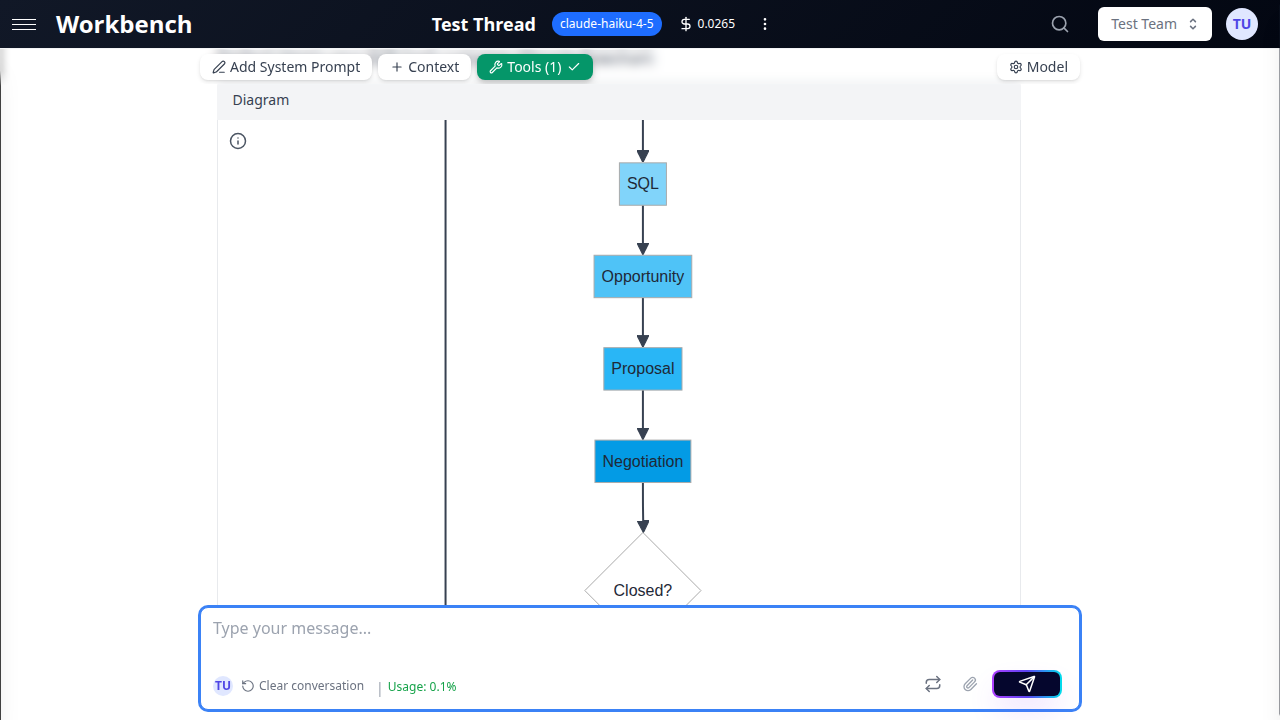
How Diagrams Are Rendered
When the AI calls the Diagram Generator tool, it provides structured data (nodes, connections, participants, tasks) along with a title and description. The tool:
- Validates the input data against the schema.
- Sanitizes node IDs and labels to prevent syntax errors.
- Generates valid Mermaid syntax based on the diagram type.
- Validates the generated syntax using regex-based rules.
- Returns the Mermaid code block for inclusion in the response.
The frontend renders Mermaid code blocks as interactive diagrams using the MermaidDiagram component. Diagrams are displayed inline in the conversation, replacing the raw code with a visual representation.
Themes
Diagrams support multiple visual themes:
| Theme | Description |
|---|---|
| default | Standard Mermaid styling |
| forest | Green-toned, nature-inspired palette |
| dark | Dark background, light elements |
| neutral | Muted colors, professional appearance |
| base | Minimal styling, high customizability |
Specify a theme in your prompt if you have a preference. Otherwise, the default theme is applied.
Syntax Validator
The Mermaid Syntax Validator is a companion tool that validates hand-written Mermaid code before rendering. It is useful when you want to write Mermaid code yourself and have the AI verify it, rather than generating diagrams from natural language descriptions.
Workflow:
- Write your Mermaid code.
- Ask the AI to validate it.
- The AI calls the syntax validator tool with your code.
- The tool checks for structural errors (mismatched brackets, invalid node IDs, incorrect diagram type declarations).
- If valid, the tool returns the code ready for rendering.
- If invalid, the tool provides specific error messages and reference documentation.
Validation checks include:
- Diagram type declaration (graph, flowchart, sequenceDiagram, gantt, pie, etc.)
- Balanced brackets, quotes, and parentheses
- Valid node ID format (must start with a letter, alphanumeric and underscores only)
- Diagram-type-specific syntax rules (participant declarations for sequence diagrams, data format for pie charts, section/task format for Gantt charts)
- For pie charts: real parser validation using the Mermaid parser library
Input Schema
The Diagram Generator tool accepts structured input rather than raw Mermaid code. The AI translates your natural language request into the appropriate schema:
For flowcharts and graphs:
nodes-- List of nodes with ID and labelconnections-- List of connections with source, target, and optional label
For sequence diagrams:
participants-- List of participants with ID and display nameinteractions-- List of messages between participants with type (solid, dotted, solid_arrow, dotted_arrow)
For Gantt charts:
tasks-- List of tasks with ID, label, start date, duration or end date, and optional section
For pie charts:
nodes-- List of categories with ID and label (values are auto-distributed)
This structured approach ensures that the generated diagrams have valid syntax, properly sanitized labels, and consistent formatting.
Combined Use Cases
Presentations and Reports
Generate both images and diagrams within the same conversation to create visual assets for presentations. Use image generation for creative visuals and diagram generation for process flows and data representations.
Architecture Documentation
Combine sequence diagrams for API flows, flowcharts for system architecture, and generated images for conceptual illustrations to produce comprehensive technical documentation.
Data Visualization
Use pie charts for distribution data, Gantt charts for project timelines, and flowcharts for process documentation. All visuals are generated inline and can be copied or downloaded for use in external tools.
Process Design
Map out business processes with flowcharts, illustrate stakeholder interactions with sequence diagrams, and visualize project phases with Gantt charts -- all within a single conversation.
Best Practices
- Be specific in image prompts -- Detailed descriptions produce better results. Include composition, style, lighting, colors, and specific elements. Vague prompts yield generic images.
- Choose the right diagram type -- Flowcharts for processes, sequence diagrams for interactions, Gantt for timelines, pie charts for distributions. Using the appropriate type makes the visualization more effective.
- Keep diagrams focused -- Diagrams with too many nodes or connections become difficult to read. Break complex systems into multiple focused diagrams rather than one overloaded diagram.
- Use high quality selectively -- High-quality image generation costs nearly 10x more than low quality. Use high quality for final assets and low quality for drafts and exploration.
- Enable the validator for manual code -- If you write Mermaid code yourself, enable the Mermaid Syntax Validator tool. It catches syntax errors before rendering and provides helpful documentation for corrections.
- Check transparency support -- Transparent backgrounds are only supported with PNG and WebP formats. Requesting a transparent JPEG will produce an error.
- Monitor image generation costs -- Unlike text generation, image costs are per-image rather than per-token. Generating multiple high-quality images can accumulate costs quickly.
- Use descriptive diagram titles -- The Diagram Generator includes the title as a comment in the Mermaid code. Descriptive titles make diagrams self-documenting.
Related Documentation
- Tools Overview - Understanding tool configuration and categories
- Models & Tools - Selecting models compatible with tool usage
- Cost Analytics - Tracking image generation and tool costs
- Documents - Managing generated images as documents