
Scheduled Prompts
Scheduled prompts allow you to automate AI conversations that run on a predefined schedule. Instead of manually sending prompts at regular intervals, you configure a schedule once, and GPT Workbench handles execution automatically. This is ideal for recurring reports, periodic monitoring, and any workflow that benefits from consistent, time-based AI interactions.
Overview
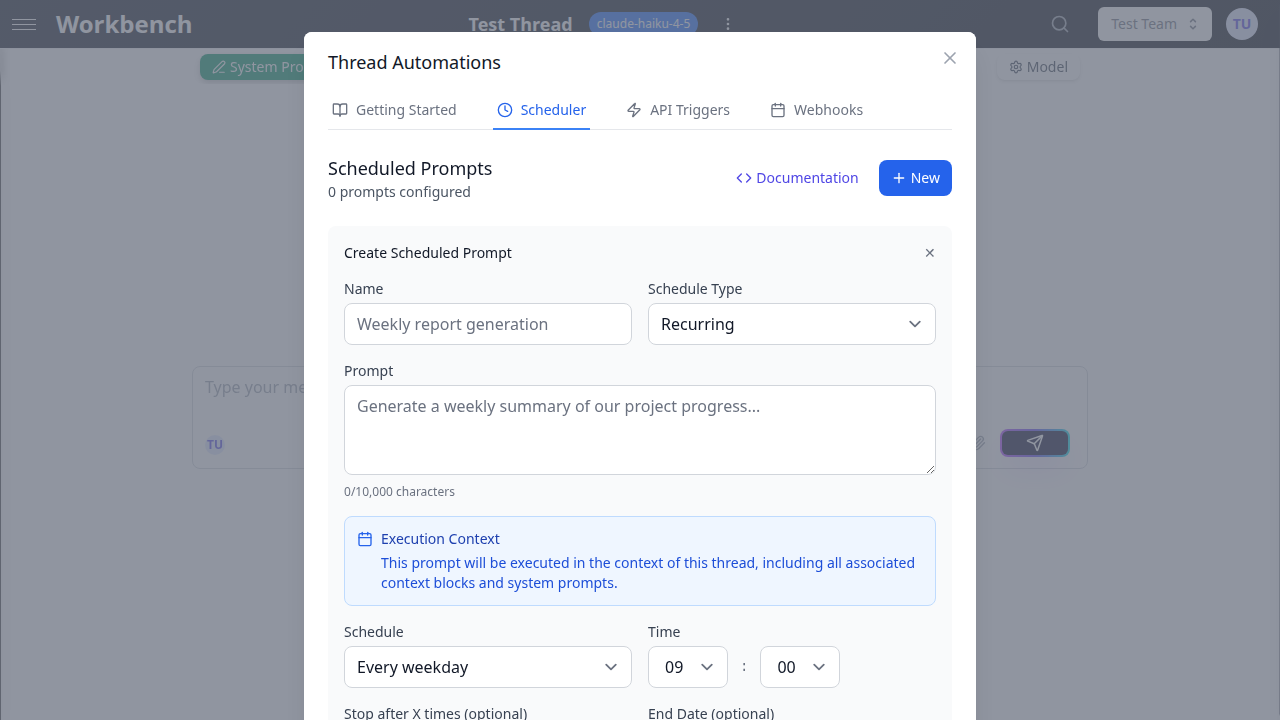
A scheduled prompt is a saved prompt text bound to a thread and a time-based schedule. When the schedule fires, GPT Workbench sends the prompt to the thread exactly as if a user had typed it, and the AI responds using the thread's full context: system prompt, context blocks, tools, and conversation history.
Scheduled prompts support two schedule types:
- One-time: execute a prompt once at a specific date and time
- Recurring: execute a prompt repeatedly based on a cron schedule
Prerequisites
Before creating a scheduled prompt, ensure the following:
- Thread configuration is complete. The thread should have its system prompt, model selection, and context blocks fully set up. The scheduled prompt inherits the thread's entire configuration at execution time.
- The prompt has been tested manually. Send the prompt in the thread at least once to verify that the AI response meets your expectations.
- Tools are configured if needed. If your prompt relies on tools (native or MCP), ensure they are enabled and properly configured on the thread.
- Your team plan supports automation. Scheduled prompts are available on paid plans. Check your team's subscription for automation limits.
Accessing the Scheduler
- Open the thread you want to automate
- Click the Actions menu in the thread header
- Select Automations
- Navigate to the Scheduler tab
The Scheduler tab displays all scheduled prompts configured for the current thread, along with their status, next run time, and execution history.
Creating a Scheduled Prompt
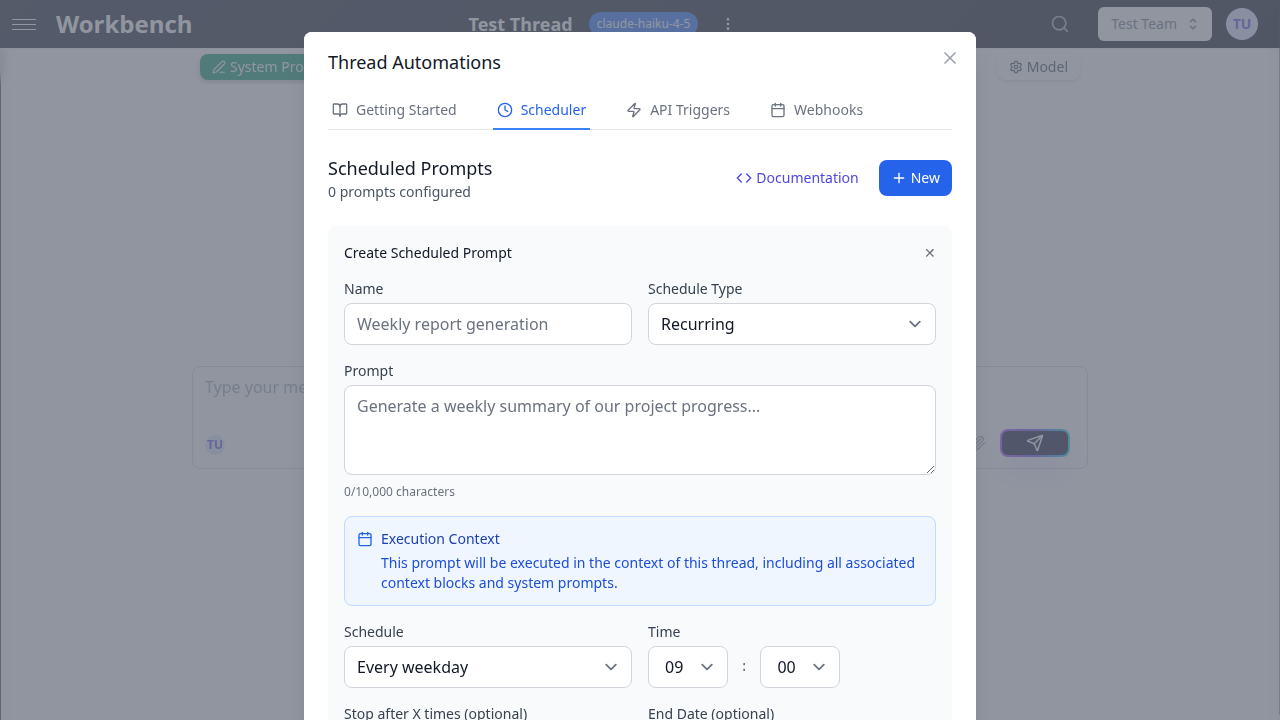
Click New or Create Scheduled Prompt to open the creation form.
Required Fields
Name A descriptive label for the schedule (up to 255 characters). Use clear, identifiable names such as "Weekly Sales Summary" or "Daily System Health Check" so team members can quickly understand each schedule's purpose.
Prompt The text that will be sent to the AI when the schedule triggers. This field supports up to 10,000 characters and behaves exactly like a standard user message. Write the prompt as you would type it in the conversation input.
Schedule Type Choose between one-time or recurring execution:
- One-time: Select a specific date and time. The prompt executes once, then the schedule is marked as completed.
- Recurring: Select a frequency pattern. The prompt continues executing according to the pattern until paused, deleted, or until run limits are reached.
Recurring Schedule Options
For recurring schedules, choose from the following presets or configure a custom weekly pattern:
| Preset | Description |
|---|---|
| Every 30 minutes | High-frequency automation for real-time monitoring |
| Every hour | Regular updates throughout the day |
| Every day | Daily execution at a specified time |
| Custom weekly schedule | Select specific days of the week |
| Every weekday | Monday through Friday at a specified time |
| Every month | Monthly on the 1st at a specified time |
Time and Timezone
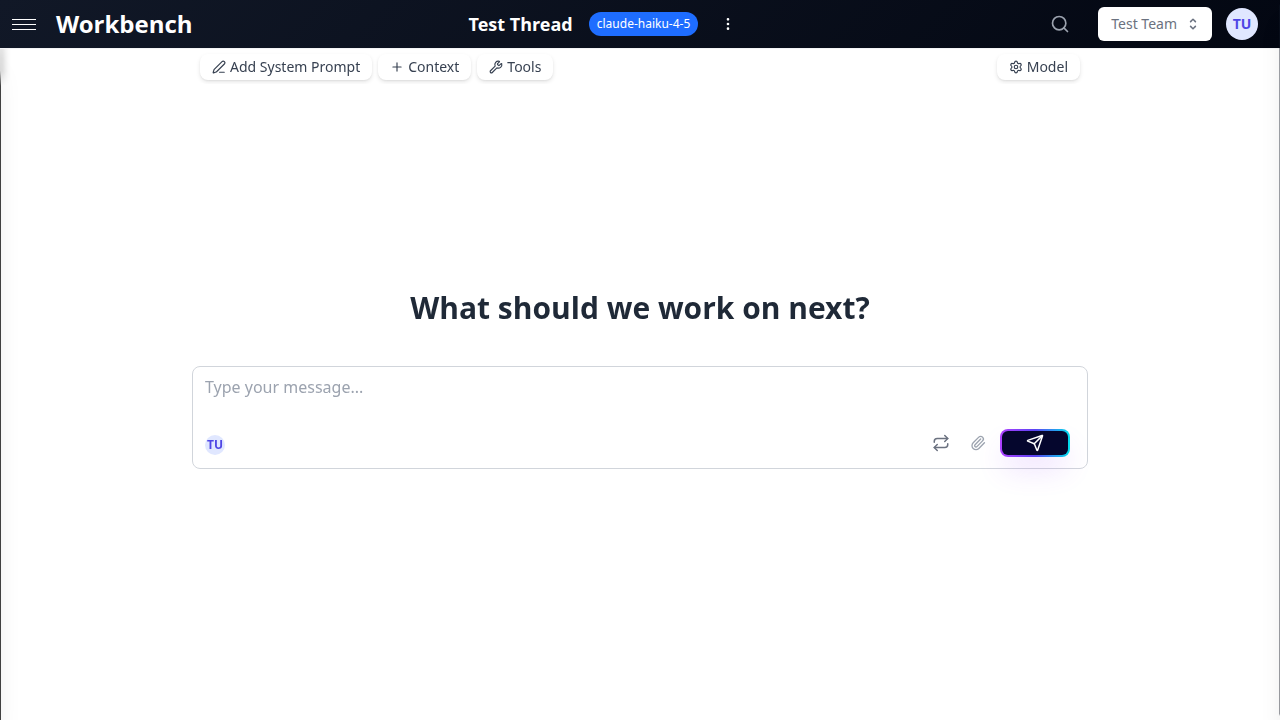
For schedule presets that require a time (daily, weekly, monthly), you select the execution time using a time picker. All schedules are tied to a timezone, which defaults to Europe/Paris. Available timezone options include:
- America/New_York
- America/Chicago
- America/Denver
- America/Los_Angeles
- Europe/London
- Europe/Paris
- Asia/Tokyo
- UTC
The system handles daylight saving time adjustments automatically. The next run time displayed in the interface is always converted to your browser's local timezone for clarity.
Custom Weekly Schedule
The custom weekly schedule allows you to select specific days of the week using a visual weekday picker. Combined with the time picker, this gives you fine-grained control over exactly when prompts execute. For example, you can schedule a prompt to run every Monday, Wednesday, and Friday at 14:30.
Optional Limits
Max Runs Set a maximum number of executions. After this limit is reached, the schedule status changes to "Completed" and no further executions occur. Leave empty for unlimited runs.
End Date Set a date after which the schedule stops executing. This is useful for time-boxed projects or temporary monitoring needs.
Execution Context
When a scheduled prompt runs, it executes within the full context of its thread. This includes:
- The thread's system prompt
- All attached context blocks (text, documents, repositories, URLs, HubSpot data)
- Configured tools (native and MCP)
- The existing conversation history (committed messages)
This means you can build sophisticated automated workflows by combining a well-crafted system prompt, relevant context blocks, and a scheduled prompt that asks targeted questions.
Execution Flow
When a schedule triggers:
- The system creates a new execution job with the configured prompt
- The prompt is sent to the thread as a user message
- The AI processes the prompt using the thread's full context, system prompt, and tools
- The AI response is generated and committed to the conversation history
- The execution is logged with status, duration, and any error information
- For recurring schedules, the next run time is calculated and updated
Ephemeral Execution
Some schedules can be configured for ephemeral execution. In this mode, the prompt and response are not stored in the thread's conversation history. This is useful when you want the AI to perform an action (such as sending a webhook notification) without accumulating messages in the thread.
Cost Tracking
Each execution is tracked as a standard run in GPT Workbench. This means all token usage, cost data, and duration metrics are recorded and visible in the execution logs. Use this data to monitor the cost of your automated workflows and adjust frequencies or prompt complexity as needed to stay within budget.
Managing Scheduled Prompts
Viewing Schedules
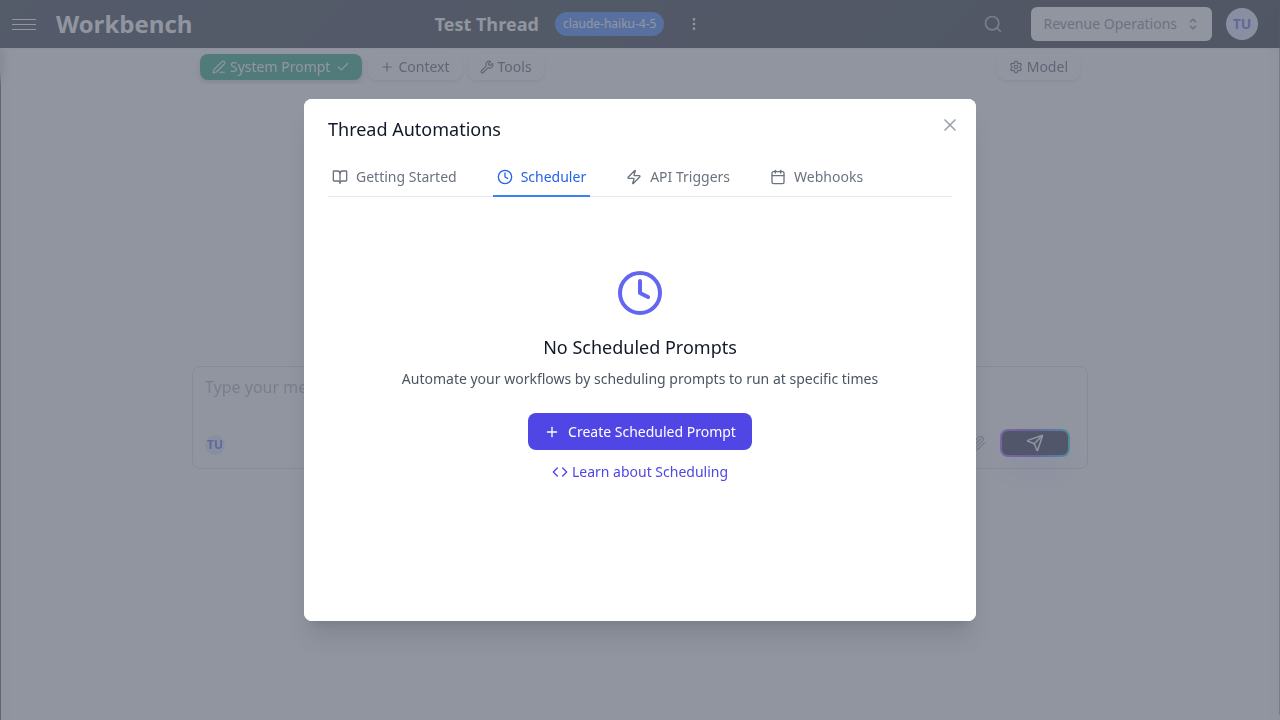
The Scheduler tab shows all configured schedules in a list view. Each entry displays:
- Schedule name
- Current status (Active, Paused, Completed, Failed)
- Next run time (with relative time indicator)
- Run count
Click the expand arrow on any schedule to view its full details, including the prompt text, schedule configuration, and action buttons.
Editing a Schedule
Click the Edit button on an expanded schedule to modify any of its properties:
- Name
- Prompt text
- Schedule type and timing
- Timezone
- Max runs and end date
Editing a schedule does not reset its run count or execution history.
Pause and Resume
Use the toggle switch to pause or resume a schedule. Pausing a schedule stops future executions without deleting the configuration or its history. This is useful when you need to temporarily suspend automation during maintenance windows or organizational changes.
Only schedules with an Active or Paused status can be toggled. Completed and Failed schedules cannot be resumed.
Deleting a Schedule
Click the Delete button to permanently remove a schedule. A confirmation dialog appears before deletion. Deleting a schedule also removes all associated execution logs. This action cannot be undone.
Execution History and Logs
Click View History on an expanded schedule to open the execution logs modal.
Each log entry includes:
| Field | Description |
|---|---|
| Status | queued, processing, completed, failed, or rate_limited |
| Prompt | The prompt text that was sent (truncated in the list view) |
| Queued At | Timestamp when the execution was scheduled |
| Started At | Timestamp when processing began |
| Completed At | Timestamp when the execution finished |
| Job ID | Unique identifier for the execution job |
| Run ID | Associated run identifier (when available) |
| Error Message | Details about any failure (for failed executions) |
| Duration | Execution time and associated cost data |
Use execution logs to monitor the health of your automated workflows and quickly identify failed runs that may need attention.
Status Reference
| Status | Meaning |
|---|---|
| Active | Schedule is running and will execute at the next scheduled time |
| Paused | Schedule is temporarily suspended; no executions will occur |
| Completed | Schedule has finished (one-time execution completed, or max runs reached) |
| Failed | Schedule encountered an error and was stopped |
Use Cases
Daily Standup Reports
Schedule a prompt every weekday at 9:00 AM that asks the AI to summarize recent activity from your project management context blocks.
Prompt example:
Based on the project data in our context, generate a brief standup summary covering:
1. Key accomplishments since yesterday
2. Blockers or risks that need attention
3. Priorities for today
Format as bullet points suitable for a team standup meeting.
Weekly Performance Analysis
Schedule a prompt every Monday at 8:00 AM that generates a performance report using HubSpot CRM data.
Prompt example:
Analyze the sales pipeline data and generate a weekly performance report covering:
- New deals created this week
- Deals closed (won and lost)
- Pipeline value changes
- Top-performing sales representatives
Include a brief executive summary at the top.
Periodic System Monitoring
Schedule a prompt every 30 minutes to analyze system metrics from a URL context block that points to a monitoring endpoint.
Prompt example:
Review the latest system metrics and flag any anomalies or threshold violations.
Report only issues that require attention. If everything is normal, respond with
"All systems operational" and include the current uptime percentage.
Monthly Client Summaries
Schedule a prompt on the 1st of every month to produce client-facing summaries from project context.
Prompt example:
Generate a professional monthly summary for our client covering:
- Work completed this month
- Key milestones reached
- Upcoming deliverables for next month
- Budget utilization status
Format as a polished report suitable for client distribution.
Automated Content Generation
Schedule a daily prompt that creates content drafts using reference materials stored in document context blocks.
Prompt example:
Using our brand guidelines and content calendar, draft a social media post for
today's scheduled topic. Include a headline, body text (under 280 characters
for Twitter), and three relevant hashtags.
Best Practices
Test prompts manually first. Before scheduling, send the prompt in the thread yourself and verify the AI produces the expected output. This confirms that the system prompt, context blocks, and tools are all configured correctly.
Use descriptive names. Name schedules clearly so that team members can understand their purpose at a glance. Prefer "Weekly Sales Pipeline Report" over "Schedule 1."
Set appropriate frequencies. Avoid scheduling prompts more frequently than needed. Every execution consumes tokens and incurs cost. Match the frequency to the actual business need.
Monitor execution logs regularly. Check the execution history periodically to catch failures early. A silently failing schedule can mean missed reports or stale data.
Use run limits for temporary needs. If you only need a schedule to run for a limited period, set a max run count or end date to prevent unnecessary executions.
Keep prompts self-contained. Write prompts that produce useful output on their own, without requiring follow-up questions. Scheduled executions do not support multi-turn interaction within a single run.
Consider timezone implications. If your team spans multiple timezones, choose a timezone that aligns with the primary audience for the scheduled output.