
MCP Tools
Model Context Protocol (MCP) is a standardized protocol for connecting AI models to external tools and data sources. GPT Workbench uses MCP to integrate 40+ specialized tools that extend AI capabilities beyond conversation, from biomedical research databases to business productivity services and development utilities.
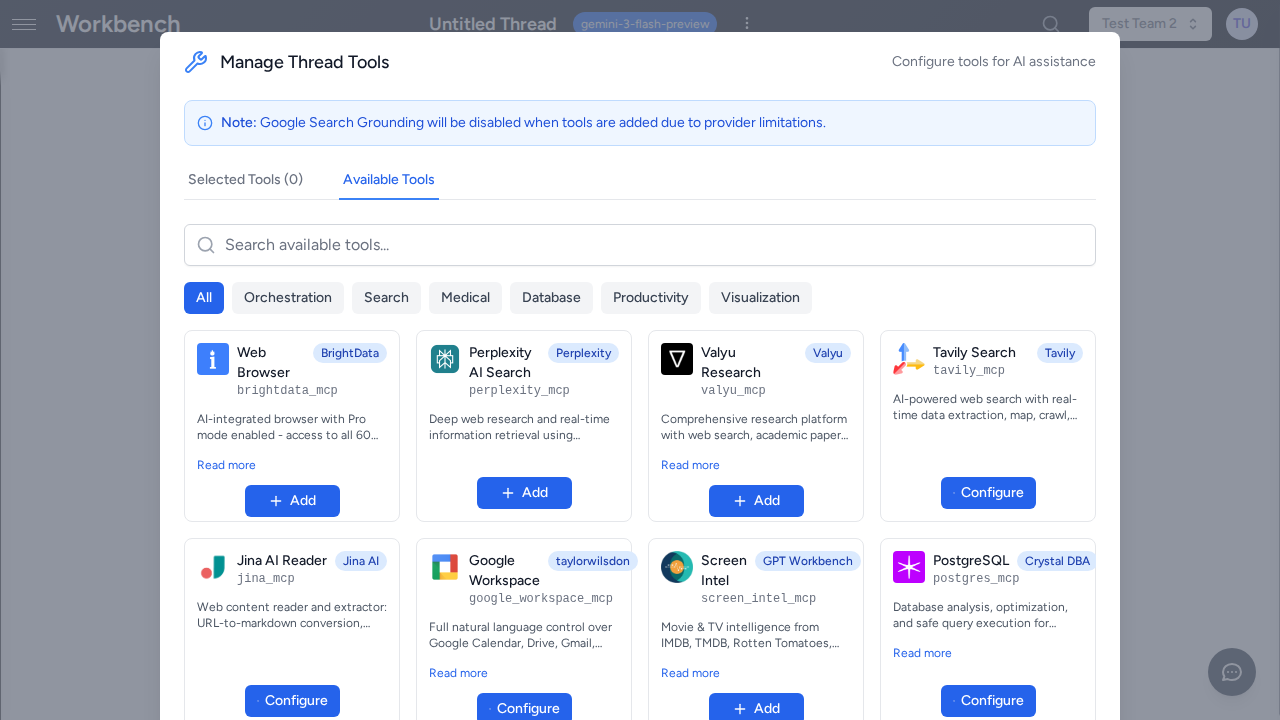
What is MCP
The Model Context Protocol is an open standard that defines how AI applications communicate with external tool servers. Each MCP server exposes a set of functions (tools) that an AI model can call during a conversation. The protocol handles tool discovery, parameter validation, execution, and result formatting.
In practical terms, MCP means that GPT Workbench can connect to any tool server that implements the protocol, whether built by the GPT Workbench team, by third-party vendors, or by your own organization.
Key Concepts
- MCP Server -- A process that implements the MCP protocol and exposes one or more tools. Servers are launched on demand when a thread uses their tools.
- Tool Schema -- Each tool declares its name, description, and parameters as a JSON schema. The AI model reads these schemas to understand what tools are available and how to call them.
- Tool Call -- When the AI determines that a tool would help answer a question, it generates a tool call with the appropriate parameters. GPT Workbench executes the call against the MCP server and returns the result to the AI.
- stdio Transport -- MCP servers in GPT Workbench communicate via standard input/output (stdio), meaning each server runs as a local process. This provides isolation and simplifies deployment.
How MCP Tools Work in GPT Workbench
When you enable MCP tools in a thread, the following process occurs:
- Server Launch -- When a thread with MCP tools enabled processes a message, GPT Workbench starts the required MCP server processes. Servers are launched on demand and terminated when no longer needed.
- Schema Fetch -- The system retrieves the tool schemas from each active MCP server. These schemas tell the AI what functions are available, what parameters they accept, and what they return.
- AI Decision -- The AI model receives the tool schemas as part of the prompt. During response generation, the model decides whether and when to call tools based on the user's question and the available tool descriptions.
- Execution -- When the AI generates a tool call, GPT Workbench routes it to the appropriate MCP server, executes the function, and captures the result.
- Result Integration -- The tool result is returned to the AI, which incorporates it into its response. The user sees both the tool call and its result inline in the conversation.
- Cost Tracking -- Tool calls, their execution time, and associated token costs are tracked in the run summary.
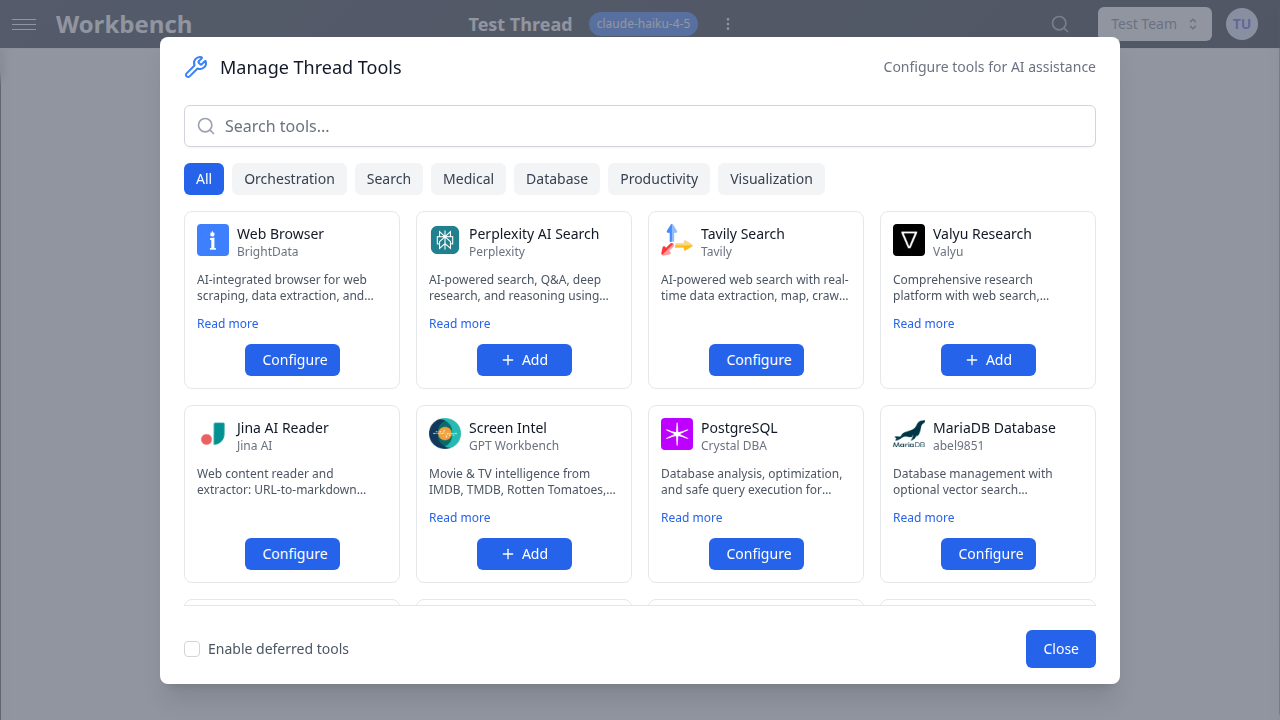
MCP Tool Discovery
The Available Tools Grid
The Available Tools grid is the primary interface for discovering and enabling MCP tools. Access it by clicking the Tools button in any thread's toolbar.
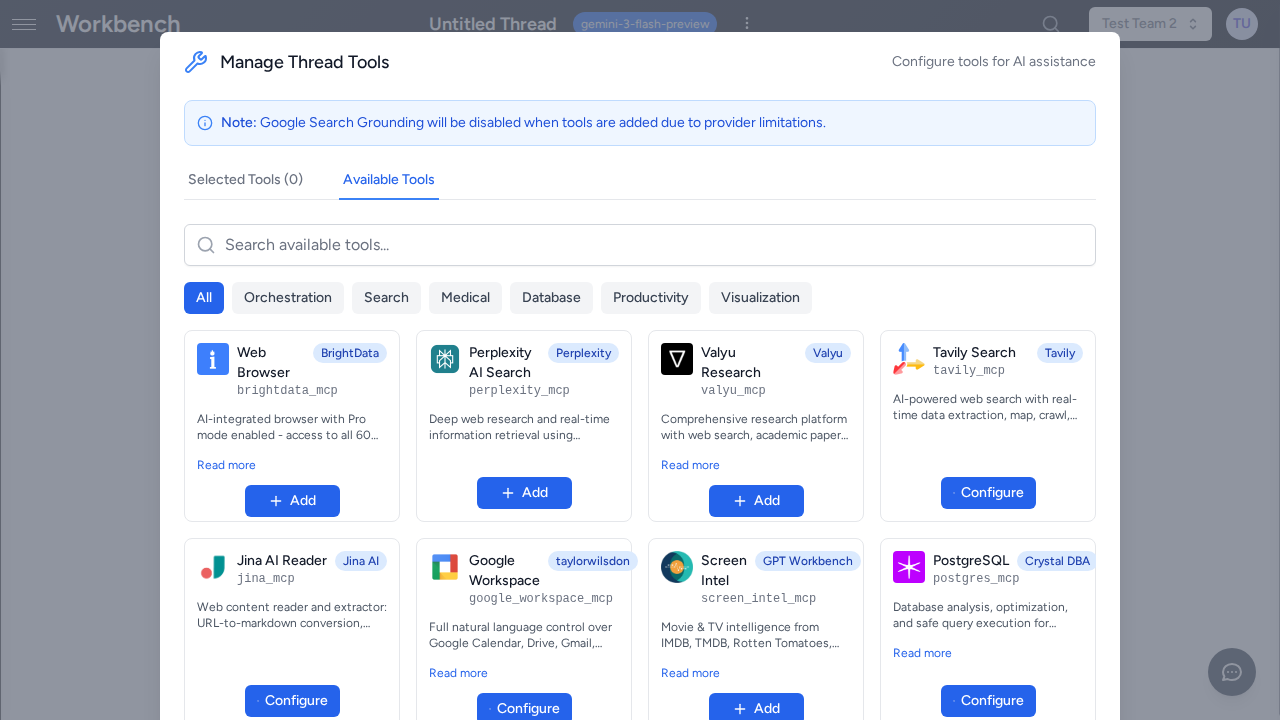
The grid displays all tools available to your organization, organized by category. Each tool card shows:
- Tool name and icon
- Brief description of the tool's capability
- Category badge (Native, OAuth, MCP, Healthcare)
- Toggle to enable or disable the tool
Use the search bar at the top to filter tools by name or description.
Tool Categories in the Grid
Tools are organized into the following categories:
| Category | Description | Examples |
|---|---|---|
| Native | Built into GPT Workbench | Image generation, Mermaid diagrams, thread delegation |
| OAuth | Connected via OAuth to external services | HubSpot, Microsoft 365, Google Workspace, SugarCRM |
| MCP | External MCP tool servers | Teamwork, Figma, GitHub, Perplexity |
| Healthcare | Biomedical and clinical MCP tools | PubMed, DrugBank, gnomAD, Clinical Trials |
Deferred Tool Loading with mcp_search
Some MCP servers expose a large number of tools (50+ functions). Loading all tool schemas into every prompt would consume excessive tokens and degrade performance. GPT Workbench addresses this with deferred tool loading.
When an MCP server is configured for deferred loading:
- The server's individual tool schemas are not loaded into the prompt by default.
- Instead, a single
mcp_searchtool is made available. The system prompt lists all deferred function names so the AI knows what is available. - When the AI needs a specific tool, it calls
mcp_searchwith the function name to retrieve the full schema. - The retrieved tool schema is injected into the current session, and the AI can then call the tool normally.
This approach keeps prompts lean while maintaining access to large tool ecosystems. Users do not need to do anything special -- the AI handles mcp_search calls automatically when it determines that a deferred tool is needed.
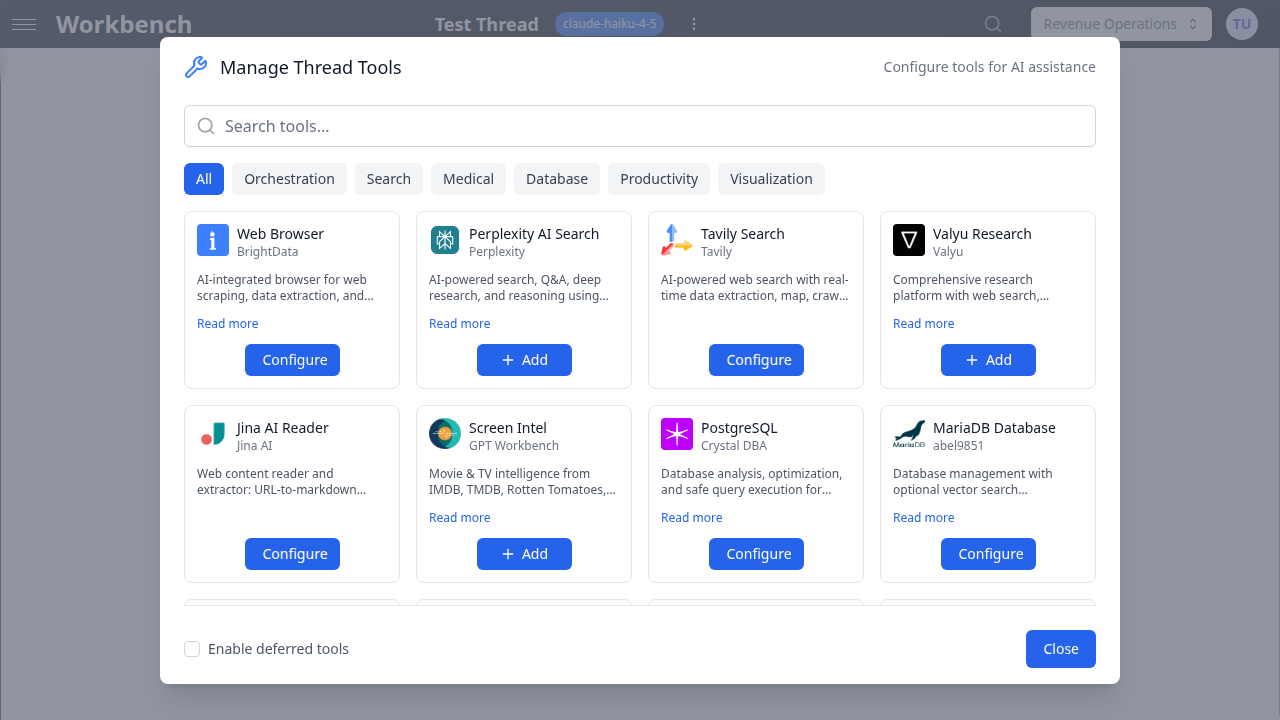
Adding MCP Tools to a Thread
Per-Thread Configuration
- Open your thread
- Click the Tools button in the toolbar
- Browse the Available Tools grid or search by name
- Toggle individual tools on or off
- Close the panel -- changes apply immediately
Each thread maintains its own tool configuration. Enabling a tool in one thread does not affect other threads.
Recommended Approach
- Enable only the tools relevant to your current task. Fewer tools means less schema overhead and more focused AI behavior.
- For research tasks, enable 2-3 complementary tools (e.g., PubMed + DrugBank for drug research).
- For business workflows, enable the integration tools you need (e.g., HubSpot + Teamwork for client management).
Tool Execution
When the AI calls a tool during a conversation:
- Tool call indicator -- A tool call block appears in the conversation showing the tool name and parameters.
- Execution status -- A spinner indicates the tool is executing. Execution time varies by tool (typically 1-10 seconds).
- Result display -- The tool result appears below the tool call block. Results are formatted based on the tool's output type (text, JSON, tables).
- AI response -- The AI incorporates the tool result into its response, citing or analyzing the data as appropriate.
- Cost tracking -- The run summary shows tool call counts, execution times, and token costs for both the tool call and result processing.
Multiple Tool Calls
The AI can call multiple tools in sequence within a single response. For example, when asked to compare drug interactions, the AI might:
- Call DrugBank to look up Drug A
- Call DrugBank to look up Drug B
- Call PubMed to find interaction studies
- Synthesize all results into a comprehensive answer
Each tool call appears as a separate block in the conversation.
Research Tools
PubMed
Search biomedical literature:
- Search articles by topic, author, or MeSH term
- Get abstracts and citations
- Access full paper metadata
PubChem
Chemical compound database:
- Search compounds by name or structure
- Get molecular structures and formulas
- Access chemical properties and bioactivity data
Clinical Trials
ClinicalTrials.gov integration:
- Search active and completed trials
- Filter by condition, location, phase, and intervention
- Get trial details and eligibility criteria
BioRxiv / MedRxiv
Preprint servers:
- Search preprints by topic or author
- Access latest research before peer review
- Get full text when available
DrugBank
Drug information database:
- Search drugs by name or identifier
- Get interactions and contraindications
- Access pharmacological and pharmaceutical data
Additional Research Tools
- Zotero -- Reference management and citation retrieval
- Context7 -- Documentation search across technical libraries
- OpenTargets -- Drug target identification and evidence
- GnomAD -- Genomic variant frequencies and annotations
- CPIC -- Pharmacogenomic dosing guidelines
- PubTator -- Biomedical named entity recognition
- AlphaGenome -- Variant effect predictions
Business Tools
Teamwork
Project management:
- Access projects and tasks
- Update task status and assignments
- View team workload and timelines
Brevo CRM
Customer relationship management:
- Search contacts and companies
- View deal pipelines and stages
- Track communications and engagement
Perplexity
AI-powered web search:
- Web search with AI synthesis
- Cited sources for verification
- Real-time information access
Development Tools
Figma
Design collaboration:
- Access design files and components
- Read component properties and styles
- Export design assets
GitHub Integration
Code repository access:
- Search repositories and code
- Read file contents and diffs
- View issues, pull requests, and discussions
PostgreSQL / MariaDB
Database analysis tools:
- Query analysis and optimization
- Index recommendations
- Health checks and diagnostics
Custom MCP Tools (Admin)
Organization administrators can add custom MCP server configurations to make proprietary or specialized tools available to their users.
Adding a Custom MCP Server
- Go to Organization Settings > Tools Configuration
- Click Add Custom MCP Server
- Provide the server configuration:
- Name -- Display name for the tool
- Command -- The command to launch the MCP server process
- Arguments -- Command-line arguments for the server
- Environment Variables -- Any required environment variables (API keys, endpoints)
- Save the configuration
- The tool appears in the Available Tools grid for all organization members
Configuration Requirements
Custom MCP servers must:
- Implement the MCP protocol over stdio transport
- Respond to tool schema discovery requests
- Handle tool execution requests and return structured results
- Be accessible from the GPT Workbench server environment
Environment Variables and Secrets
Sensitive configuration values (API keys, tokens) are stored as encrypted environment variables. They are injected into the MCP server process at launch time and are never exposed to users or included in prompts.
Troubleshooting
Connection Issues
| Symptom | Likely Cause | Solution |
|---|---|---|
| "Connection closed" error | MCP server failed to start | Check server logs; verify the server package is installed correctly |
| Tool not appearing in grid | Tool not enabled for organization | Contact your admin to enable the tool |
| Slow tool execution | External API latency | Some data sources (PubMed, ClinicalTrials.gov) may be slow during peak hours; retry after a few minutes |
| "Tool not found" error | Deferred tool schema not loaded | The AI will retry with mcp_search; if persistent, disable and re-enable the tool |
OAuth Token Expiry
Some MCP tools rely on OAuth tokens for external service access (e.g., Teamwork, Figma). If a tool fails with an authentication error:
- Go to Settings > Integrations
- Check for a red error indicator on the relevant connection
- Click Reconnect to refresh the OAuth token
- Retry the tool call in your thread
Tool Schema Issues
If the AI calls a tool with incorrect parameters or fails to use a tool you expected:
- Verify the tool is enabled in the thread's tool configuration
- Check that the tool description matches your intended use case
- Try explicitly instructing the AI to use the tool by name in your prompt
Tool Limits
MCP tools may have usage limits set at the organization level to manage costs and API quotas:
| Limit Type | Description |
|---|---|
| Daily | Resets at midnight UTC |
| Per-user | Individual quota per organization member |
| Organization | Shared pool across all users |
Check your remaining limits in the tool configuration panel. When a limit is reached, the tool returns an error message indicating the quota has been exceeded. Limits reset automatically at the configured interval.
Best Practices
- Be specific in prompts -- Tell the AI which tools to use when you have a preference. "Search PubMed for CRISPR gene therapy 2024" is more effective than "find some research."
- Combine complementary tools -- Use multiple tools together for comprehensive results. Pair literature search with drug databases, or CRM tools with project management.
- Enable selectively -- Only enable the tools you need for the current task. Excess tools add schema overhead and can lead to unfocused tool usage.
- Check availability -- Some tools require organization-level setup or OAuth connections. Verify setup before relying on a tool for a critical workflow.
- Monitor usage -- Watch daily limits for tools with rate-limited APIs. Usage is tracked per organization.
- Review tool results -- Tool results are displayed inline. Review them for accuracy, especially for clinical or financial data, before acting on the AI's synthesis.
- Use thread templates -- For recurring workflows that require specific tool combinations, save a thread template with the tools pre-configured. This ensures consistency and saves setup time.
Related Documentation
- Tools Overview -- General tools documentation
- Healthcare Integration -- Healthcare tool ecosystem overview
- HubSpot Integration -- HubSpot CRM tools
- Microsoft 365 Integration -- MS365 tools
- Google Workspace -- Google Workspace tools
- Models & Tools -- Choosing models for tool-heavy workflows